Google Drive backup saves your entire database — invoices, customers, items, and settings — to your Google account. Free users get one backup at no cost. A Plus subscription is required for additional backups.
What You'll Need
Before you start: Have a Google account ready and make sure you're signed in on your device. If you want to back up regularly, you'll need a Plus subscription after your first free backup.
Steps
-
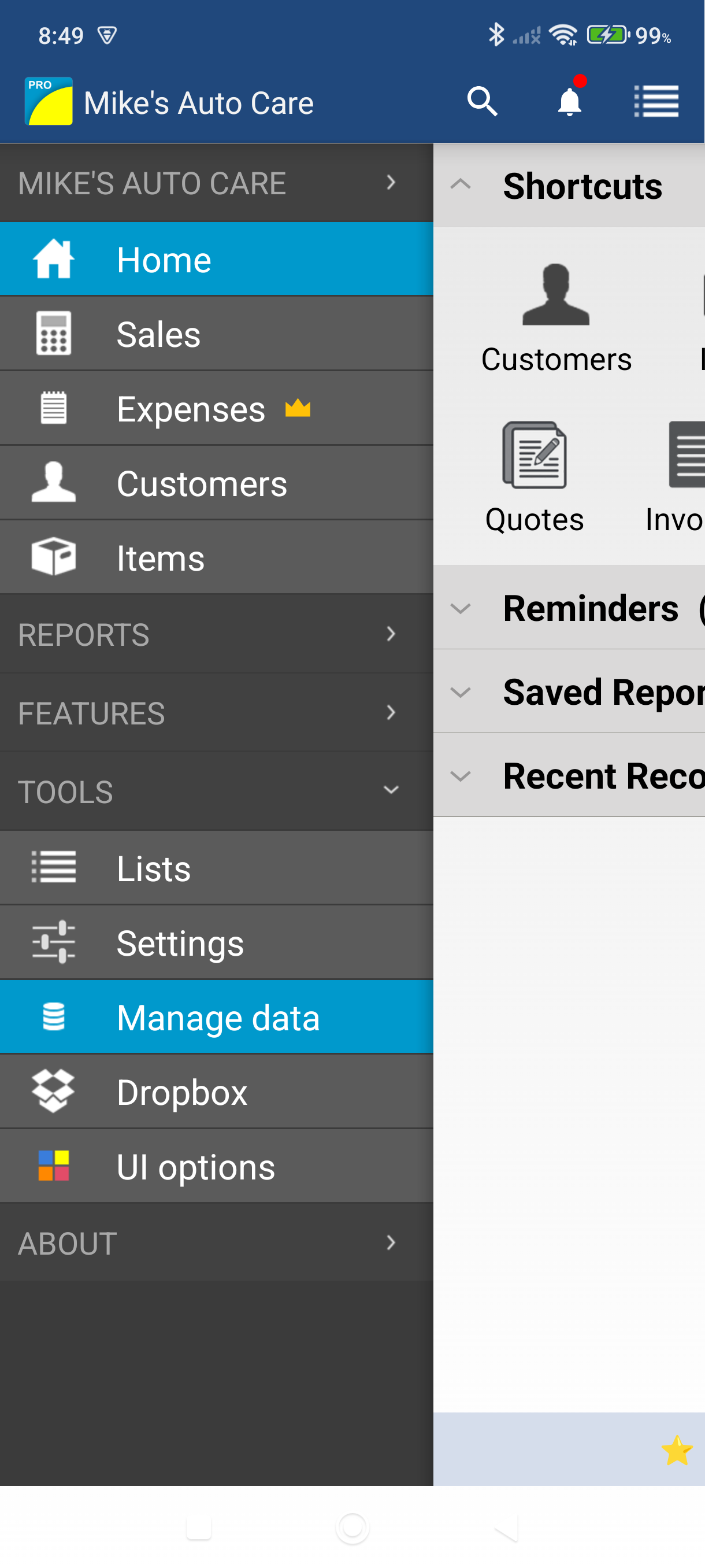
Open the side menu and tap Settings — it sits under the More heading.
-
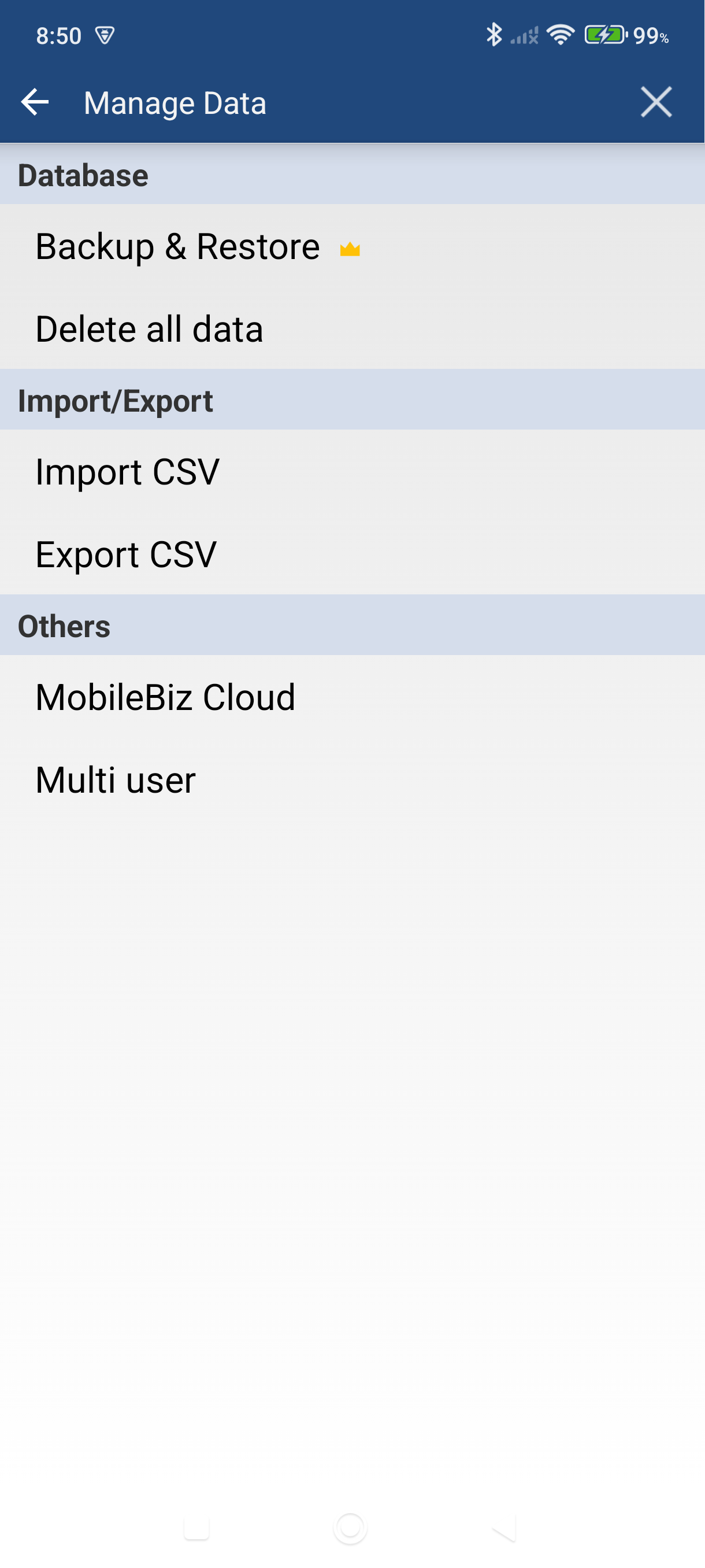
Scroll to Data & backup and tap Backup & restore. The Cloud Backup screen opens.
-
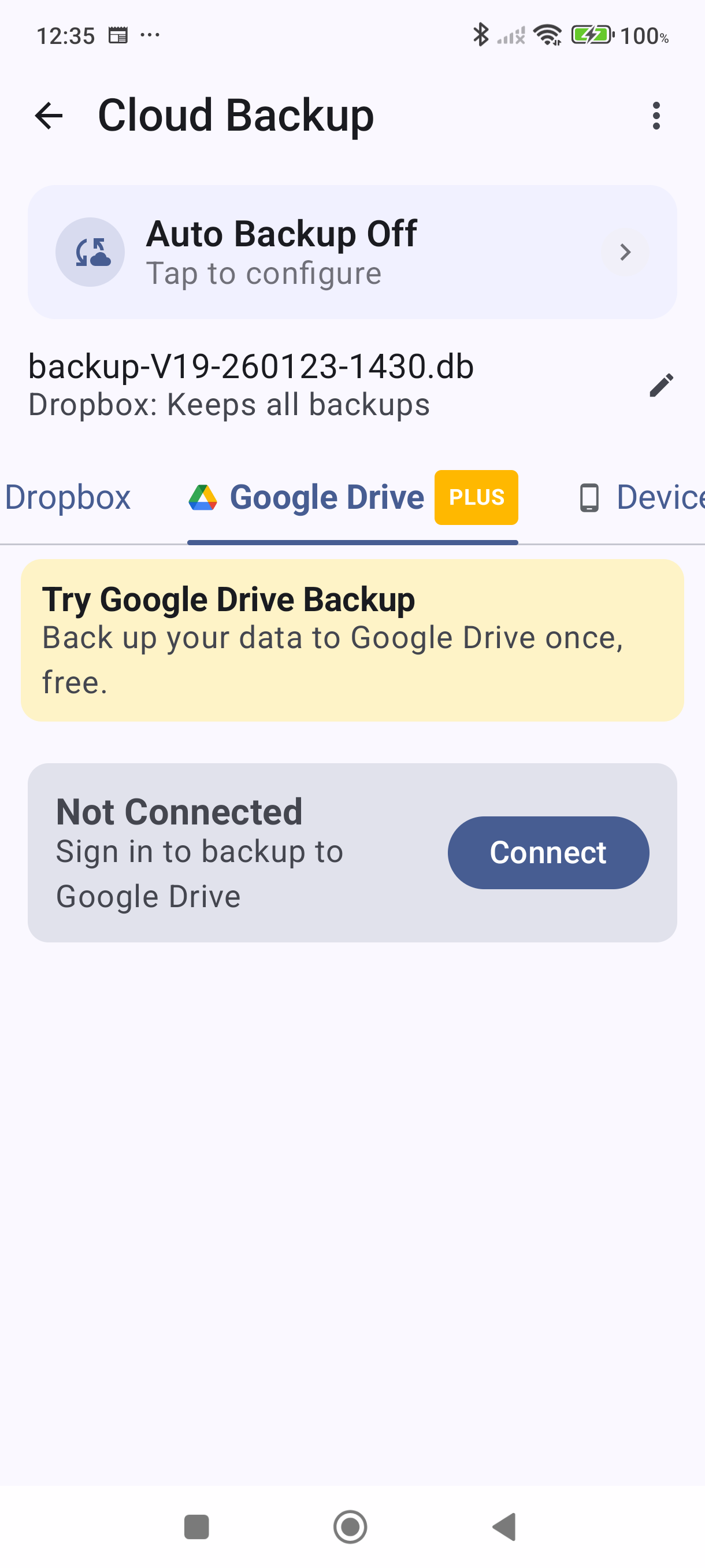
Tap the Google Drive tab — the tabs across the screen are Dropbox, Google Drive, and Device.
-
Tap Connect and sign in with your Google account. Grant the permissions the app requests. When the connection succeeds, the Connect button is replaced by a green dot and your Google account email, with a Disconnect link beside it.

-
Tap Backup Now. The app uploads your database to Google Drive. A success message appears when it's done.

-
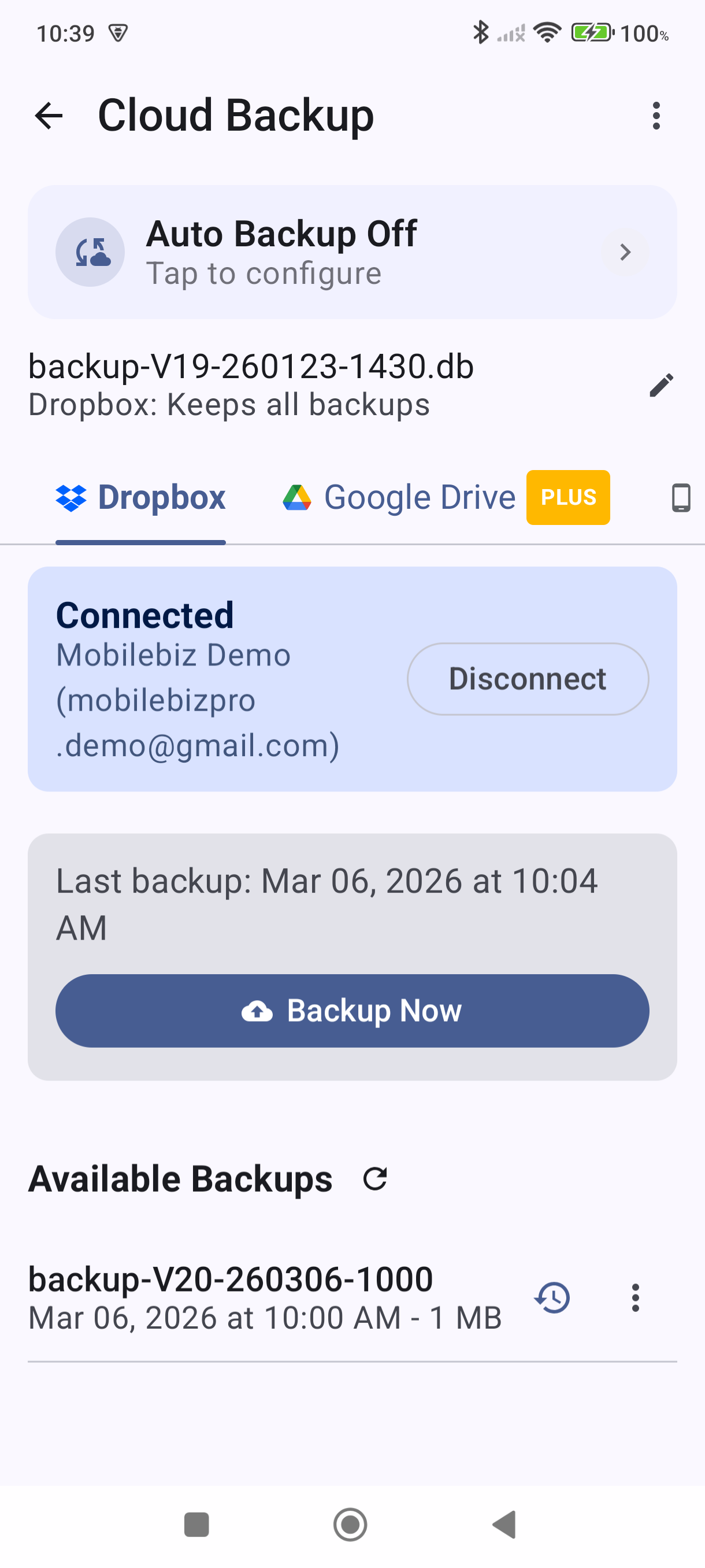
Confirm your backup appears in the list below. Tap the refresh icon if it doesn't update immediately.

Once your free backup is used, the Google Drive tab keeps showing your backups — headed Your Backups — so you can still restore from them, alongside an upgrade card. The Backup Now button returns with Plus.
Set Up Automatic Google Drive Backups
Automatic backup runs on a schedule so you never have to think about it. This requires a Plus subscription and an active Google Drive connection.
-
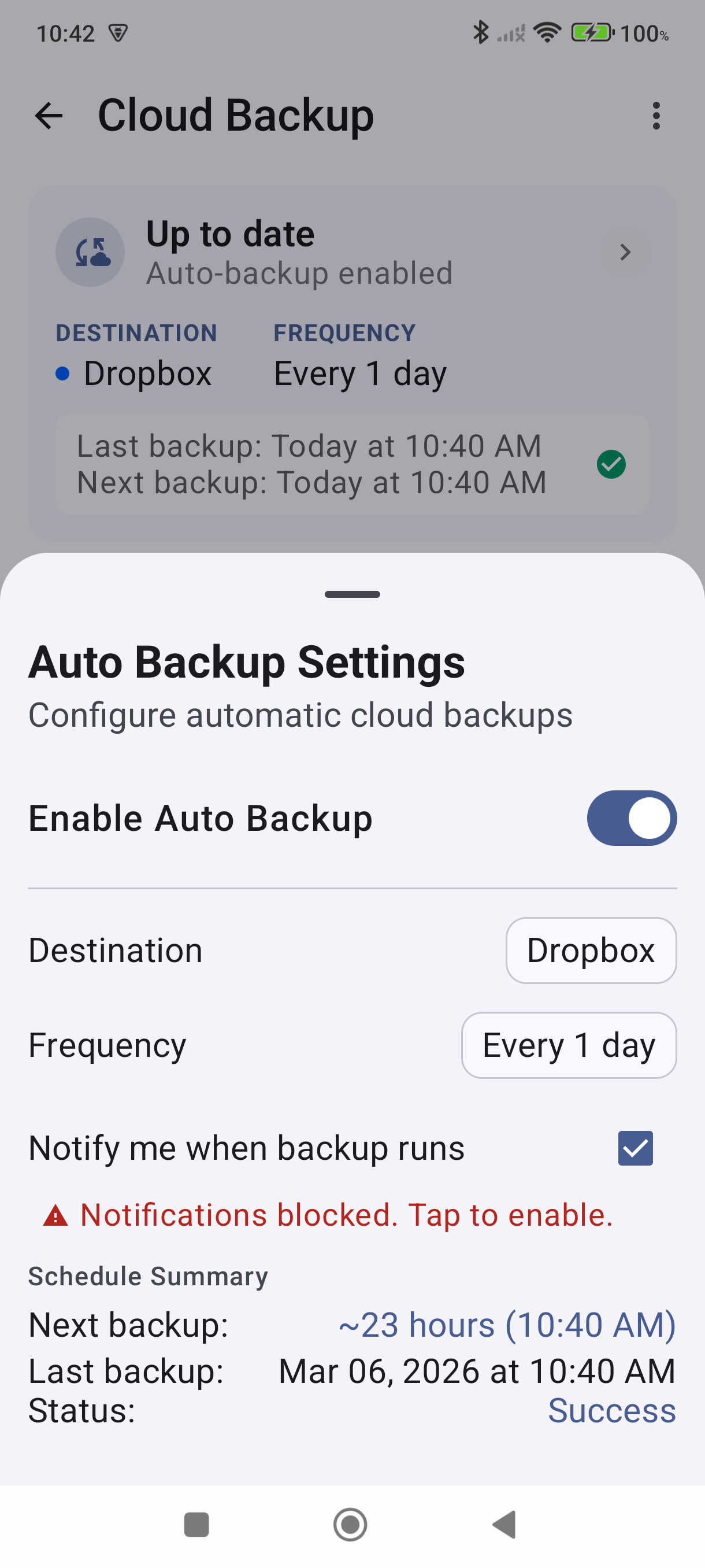
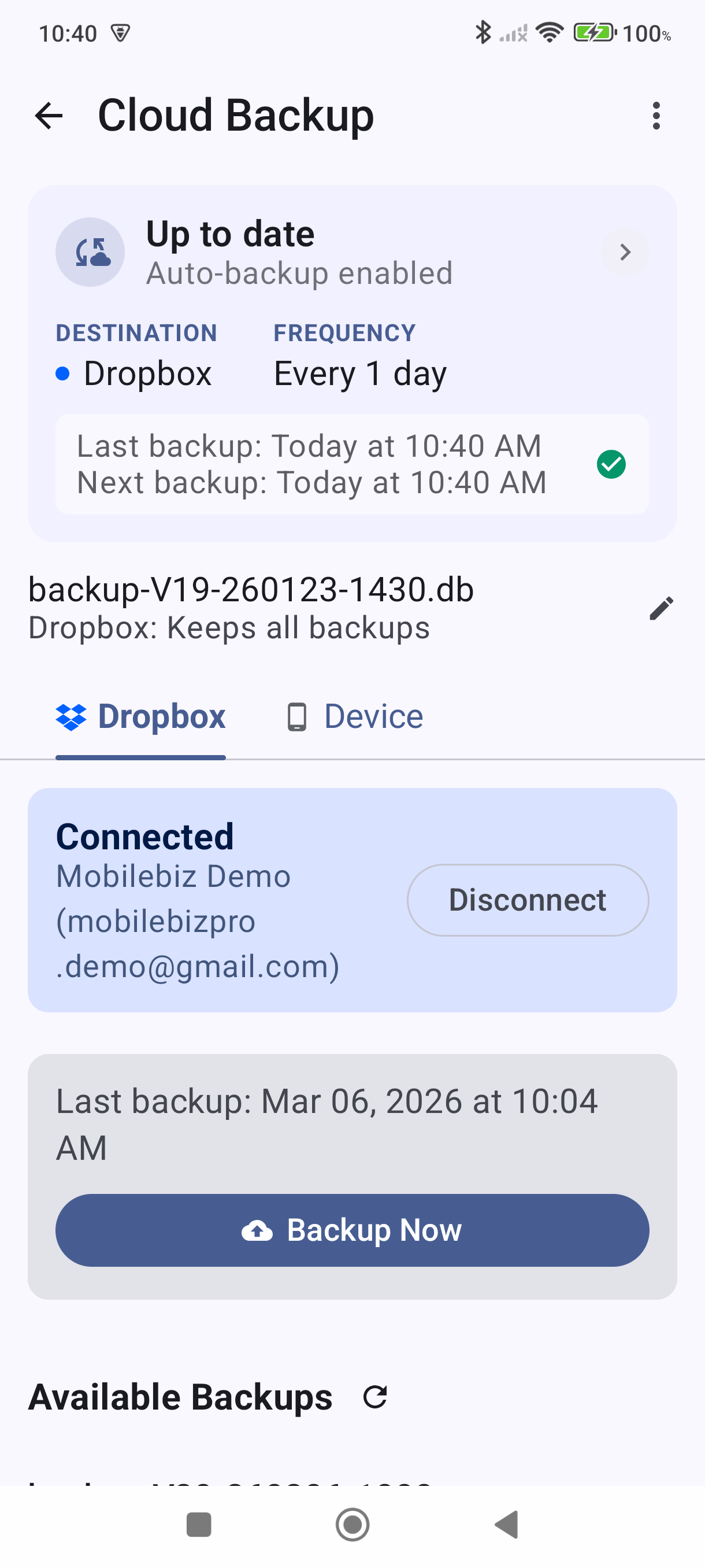
On the Cloud Backup screen, tap the auto-backup status bar at the top of the screen — it shows your current schedule, or that automatic backup is off. The Backup Settings sheet opens.
-
Toggle Cloud backup on. Set Destination to Google Drive, then use Also run on a schedule to choose how often backups run — options range from every 15 minutes up to every 7 days. Optionally check "Notify me when backup runs" to receive a notification each time a backup completes. If Google Drive isn't connected yet, complete steps 1–4 in the section above first.
-
Swipe the sheet down to close it. The status bar updates to show Google Drive as the destination and your chosen frequency. The first automatic backup runs according to your chosen schedule.
Good to Know
- Free users get one Google Drive backup. After that first backup, the tab shows an upgrade prompt. Your existing backup remains accessible for restore — you just can't create new ones without Plus.
- Automatic Google Drive backup requires Plus. Dropbox backup (manual and scheduled) is free for all users — a good option if you want hands-off backups without a subscription.
- Plus subscribers can back up manually as many times as they want, and enable automatic backup on any schedule.
- Backups include all companies in your database, not just the active company.
- To restore from a Google Drive backup, tap the restore icon (a clock with a back-arrow) on that backup's row and confirm. See How to Restore a Backup for full steps.
- If the connection shows "Session Expired," tap Reconnect to re-authenticate with Google.
- Backup filenames and how many backups are kept are set from the row that shows an example filename (something like
backup-V25-260123.db) with a line such as "Keeps one backup per day" underneath and a pencil icon at the end. The row has no heading — tap it to open Backup Options. See How to Set Up Automatic Backups for details on those settings. - A tab can disappear. Once automatic backup is switched on, the Cloud Backup screen shows only the destination you picked plus Device — the other provider's tab is hidden. Switch automatic backup off, or change its destination, to get it back.
- The status bar shows your last backup time and the next scheduled run when automatic backup is on.
- Back up when I close the app. The Backup Settings sheet also has a Back up when I close the app toggle, which saves your latest changes each time you exit the app. It's part of Plus.
Still stuck? Contact Support for help.