Send a professional PDF invoice to your customer in a couple of taps. The app generates the PDF, attaches it to an email, and pre-fills the subject and body from your template.
What You'll Need
Before you start: Set up an email template for invoices — MobileBiz Pro doesn't include one. Without a template the email still goes out, but the subject and body arrive empty and you'll be typing them yourself every time. See How to Create an Email Template to set one up first. Your customer's email address should also be saved on their record.
Steps
-
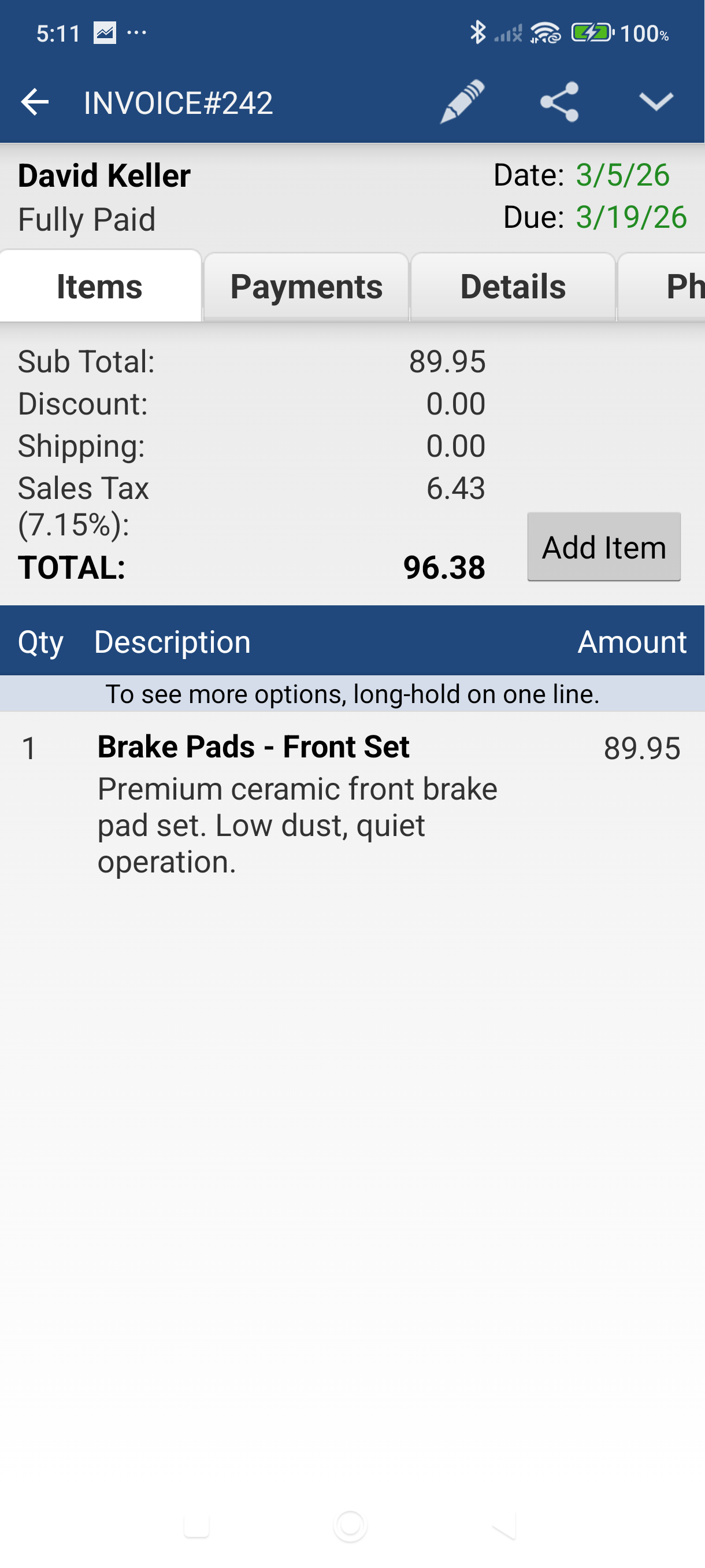
Open the invoice you want to send — tap it from the Invoices list or from the Dashboard's Recent Records.
-
Tap Send in the bar at the bottom of the invoice. The Send sheet opens with a grid of tiles: Email, Text, Share…, Print PDF, Print HTML, and Print receipt — plus Copy link on an unpaid invoice.
-
Tap Email — MobileBiz Pro generates a PDF of your invoice. This takes a moment and requires an internet connection.
-
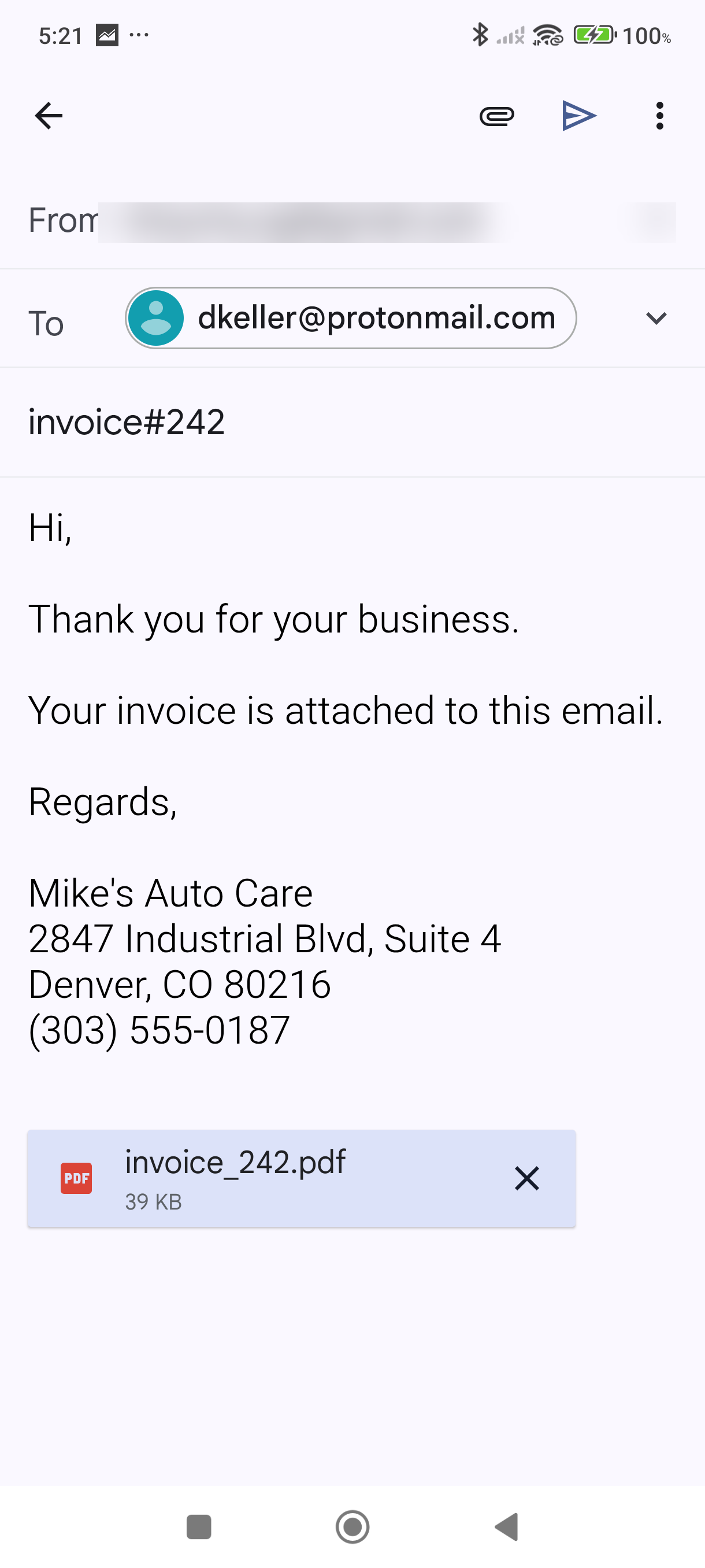
Review the email that opens in your email app. Your customer's address, the subject, and the body are all pre-filled from your email template. The PDF is attached.
-
Tap Send in your email app — the invoice is on its way.
-
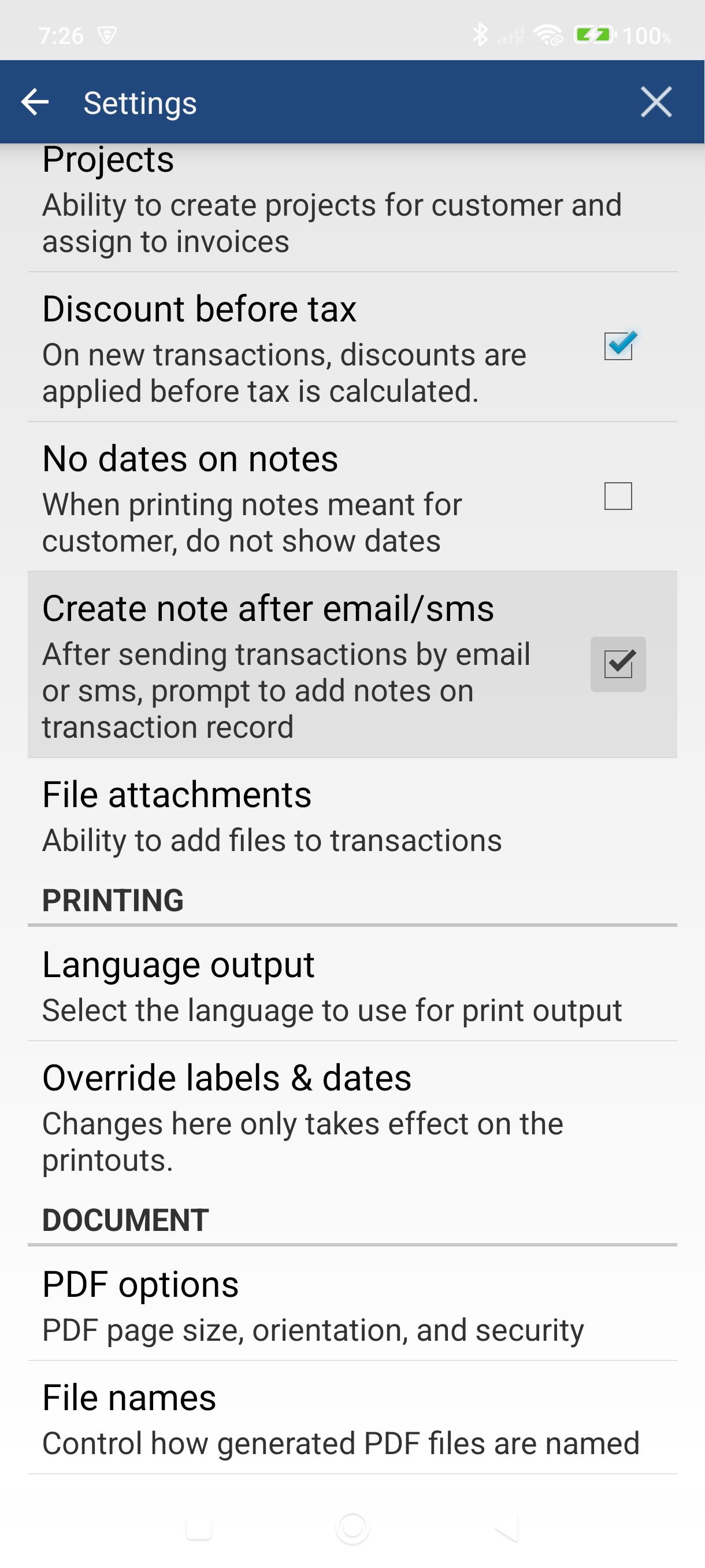
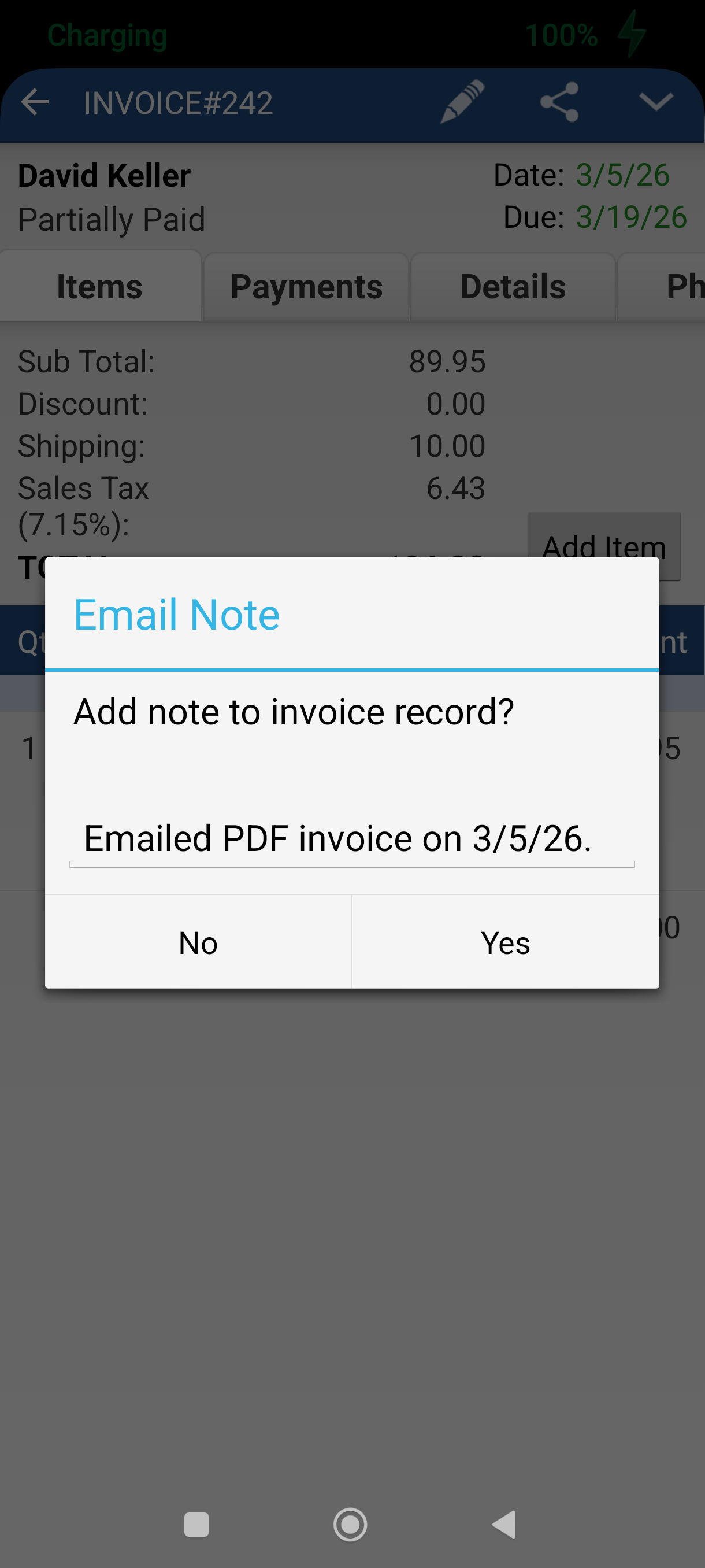
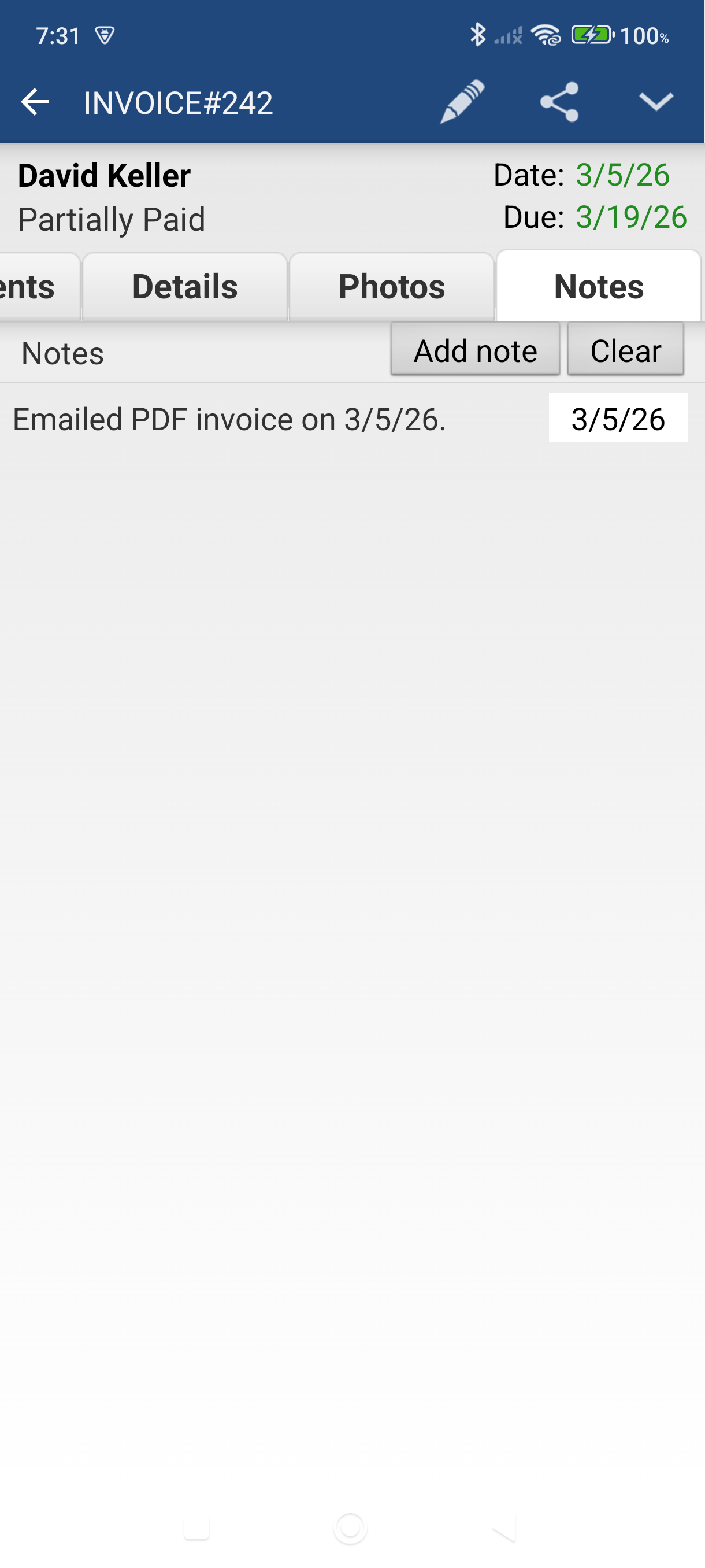
Add a note (optional) — if Prompt to add a note after email/SMS is switched on, a dialog asks whether to log a timestamped note (e.g., "Emailed PDF invoice on 3/5/26.") to the invoice's Notes tab. Tap Yes to keep a record. The switch lives in Settings > Invoicing & documents > Notes on sending.
The note appears on the invoice's Notes tab with a date stamp.
Good to Know
- No internet? Use HTML instead. On the Send sheet, tap Print HTML to generate a document that works offline.
- Send it another way. Share… on the same sheet generates the PDF and hands it to your phone's share chooser, so you can send it through WhatsApp, Drive, or any other app.
- Asked to pick a template? If you have more than one invoice template and none is marked as the default, the app asks which one to use before it sends. Mark one as default to skip the question.
- Edit your template on the fly. At the bottom of the Send sheet, tap Modify templates > Email template to update your subject or body without leaving the invoice.
- The top bar holds Edit and More. Everything you send to a customer lives in the bottom Send bar.
- Photos in emails require Plus. If the invoice has photos attached and you're on the free plan, a Photos Won't Be Attached dialog appears — tap Send Without Photos to email the invoice without them.
- This same flow works for Quotes, Sales Orders, and Cash Sales — just open that transaction type and follow the same steps.
Still stuck? Contact Support for help.