Shipping charges are added directly from the Edit menu on any invoice, quote, sales order, or cash sale. You can pick an existing shipping method or create a new one on the spot.
Steps
-
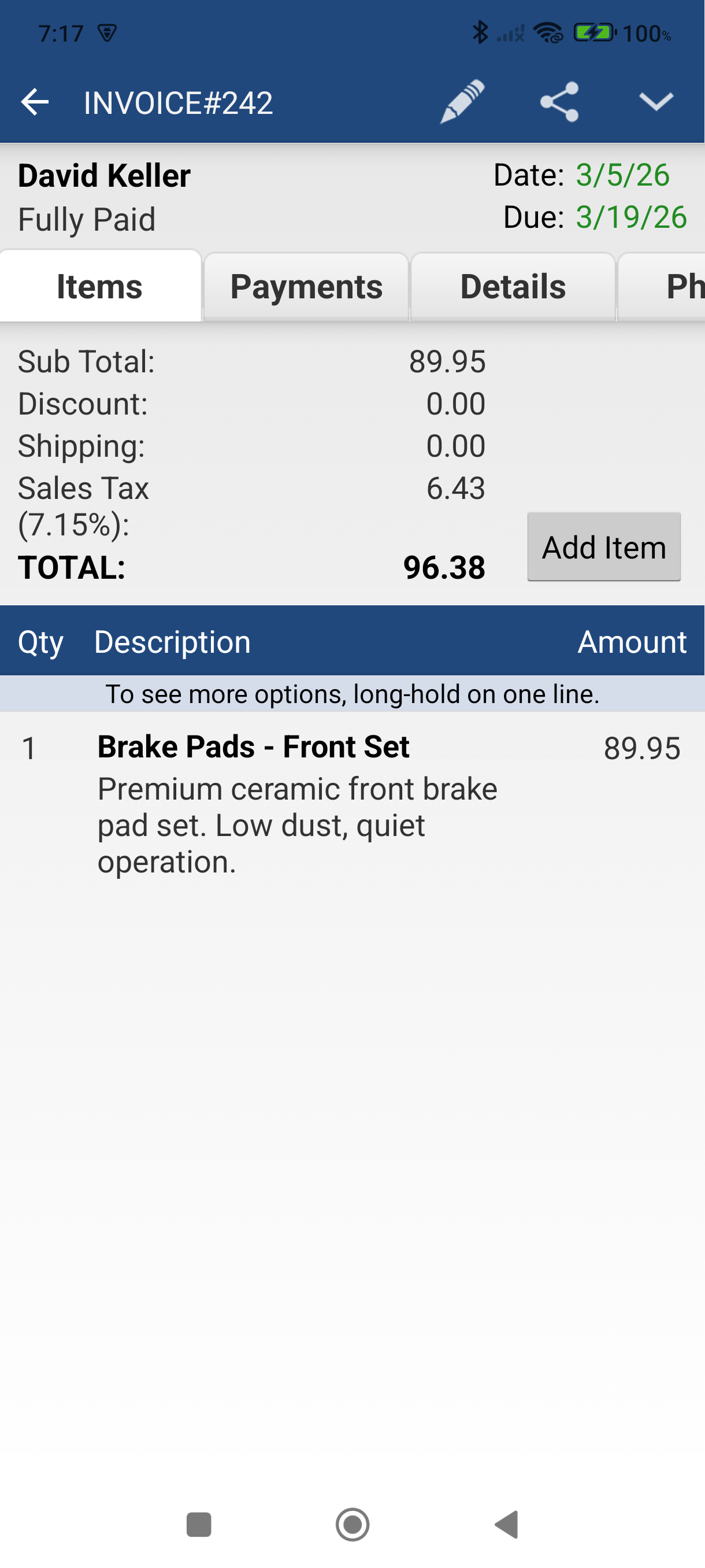
Open the invoice you want to add shipping to.
-
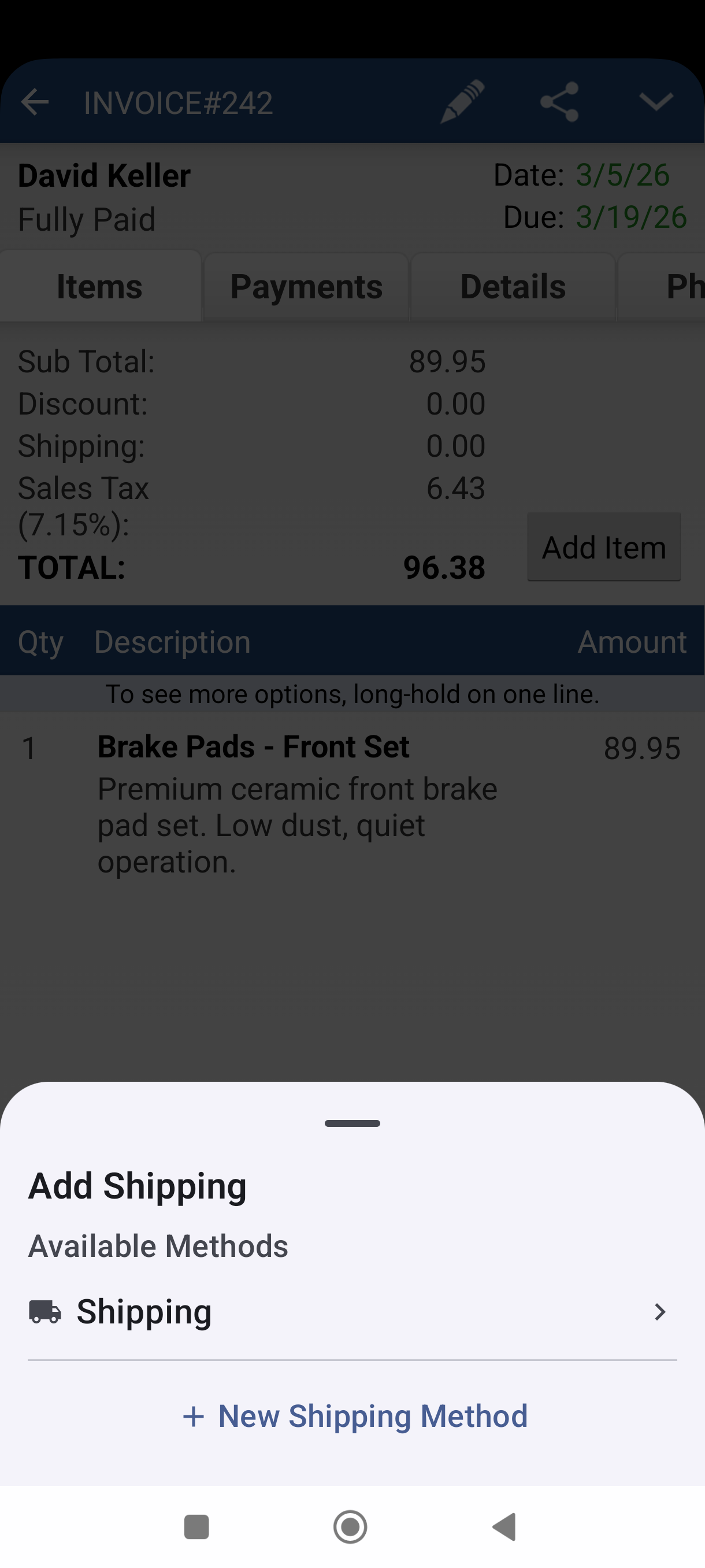
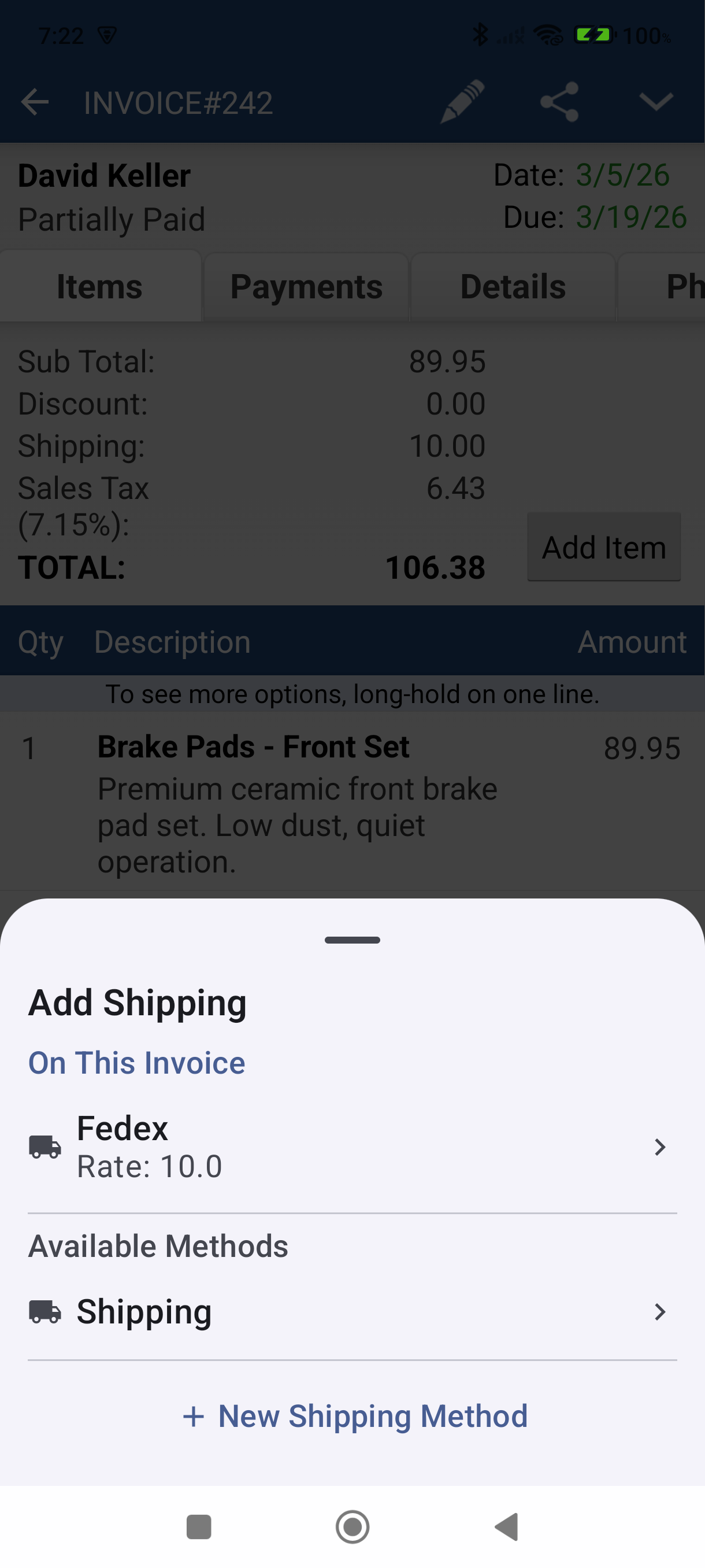
Tap the Edit icon (pencil) in the action bar, then tap Add Shipping — a bottom sheet appears showing your available shipping methods.
-
Pick an existing method from the Available Methods list, or tap New Shipping Method at the bottom of the sheet to create one.
-
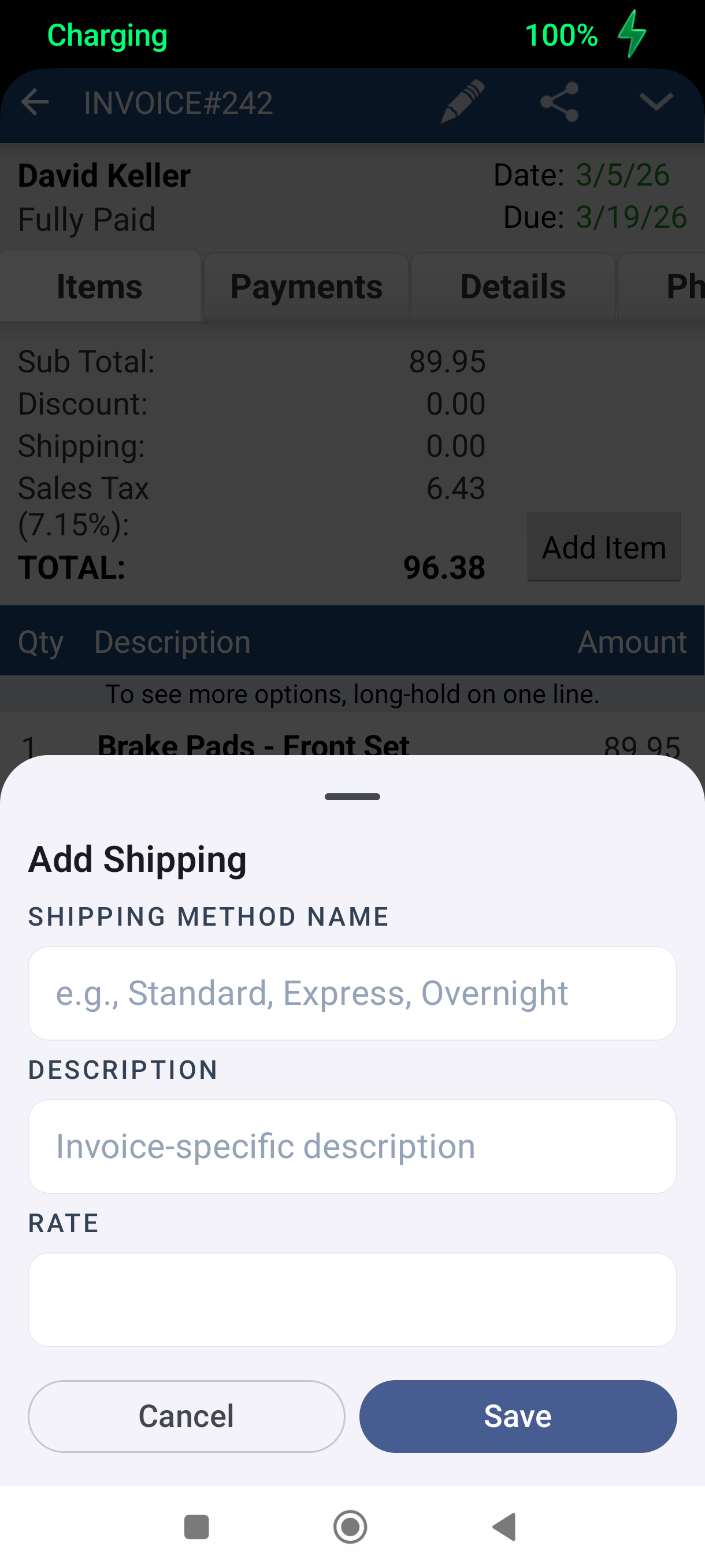
If creating a new method, fill in Shipping Method Name (e.g., "Fedex") and Rate — both are required — plus an optional Description. Tap Save.
-
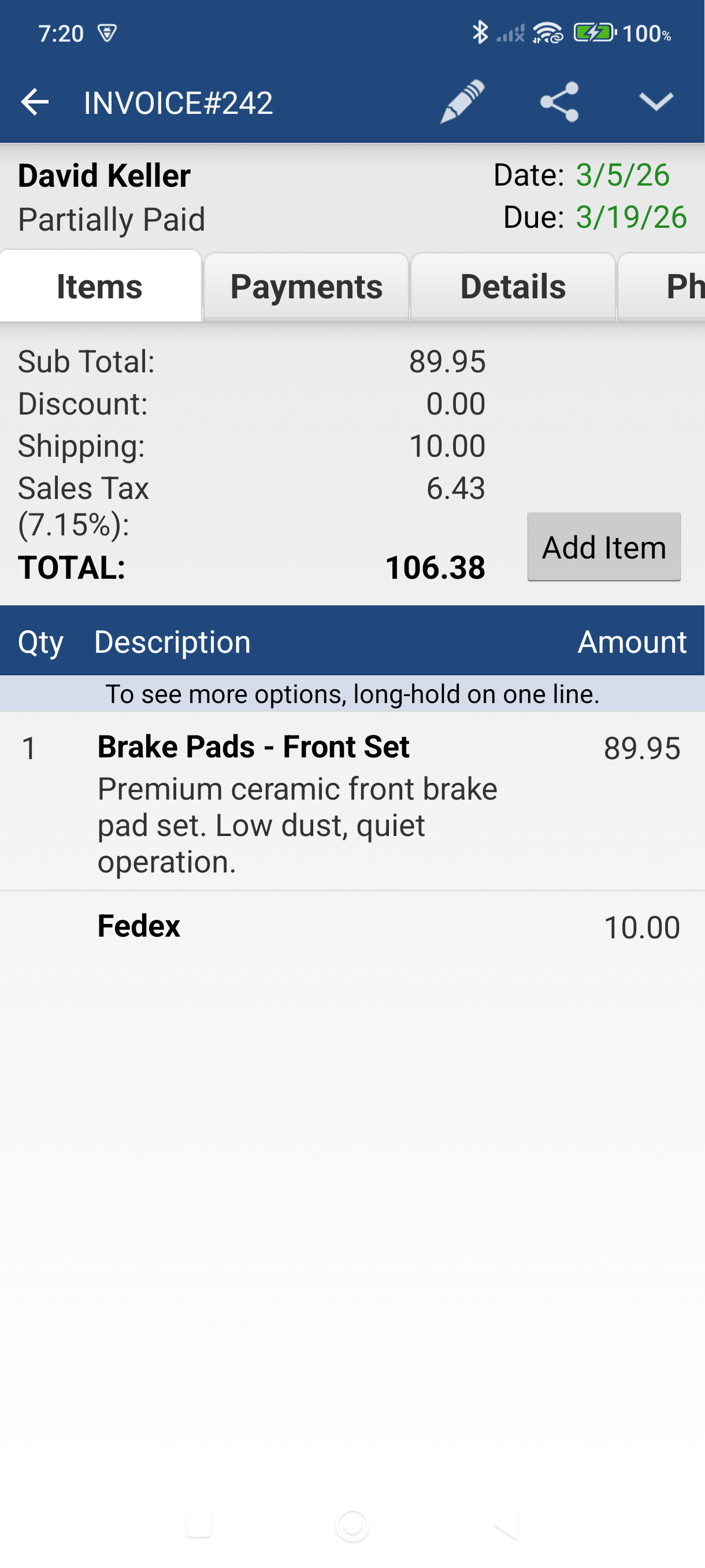
The shipping charge appears as a line item on the invoice, and the Shipping total in the summary updates immediately.
Editing or Adding More Shipping
Tap the Edit icon > Add Shipping again to reopen the sheet. Methods already on the invoice appear under On This Invoice — tap one to edit its rate or description. Other methods appear under Available Methods.
Good to Know
- Reusable methods. Any shipping method you create is saved to your items list and available on future transactions.
- Works everywhere. Shipping is available on invoices, quotes, sales orders, and cash sales.
- Taxing shipping. A method created from this sheet starts out non-taxable. To tax it, open it from your Items list and set Taxable? to Yes — it is then included when you use Edit > Apply tax.
- Variable rates. Set the default rate to 0 when you create the method, then type the actual amount each time you pick it. The rate you type applies to that transaction only — the method's default stays as it is.
Still stuck? Contact Support for help.