Adding your logo makes every invoice look professional and on-brand. Once set, it appears automatically on all PDFs you generate — invoices, quotes, receipts, and more.
What You'll Need
Before you start: Have your logo ready — in your phone's photo gallery, on your camera, or at a web link you can paste.
Steps
-
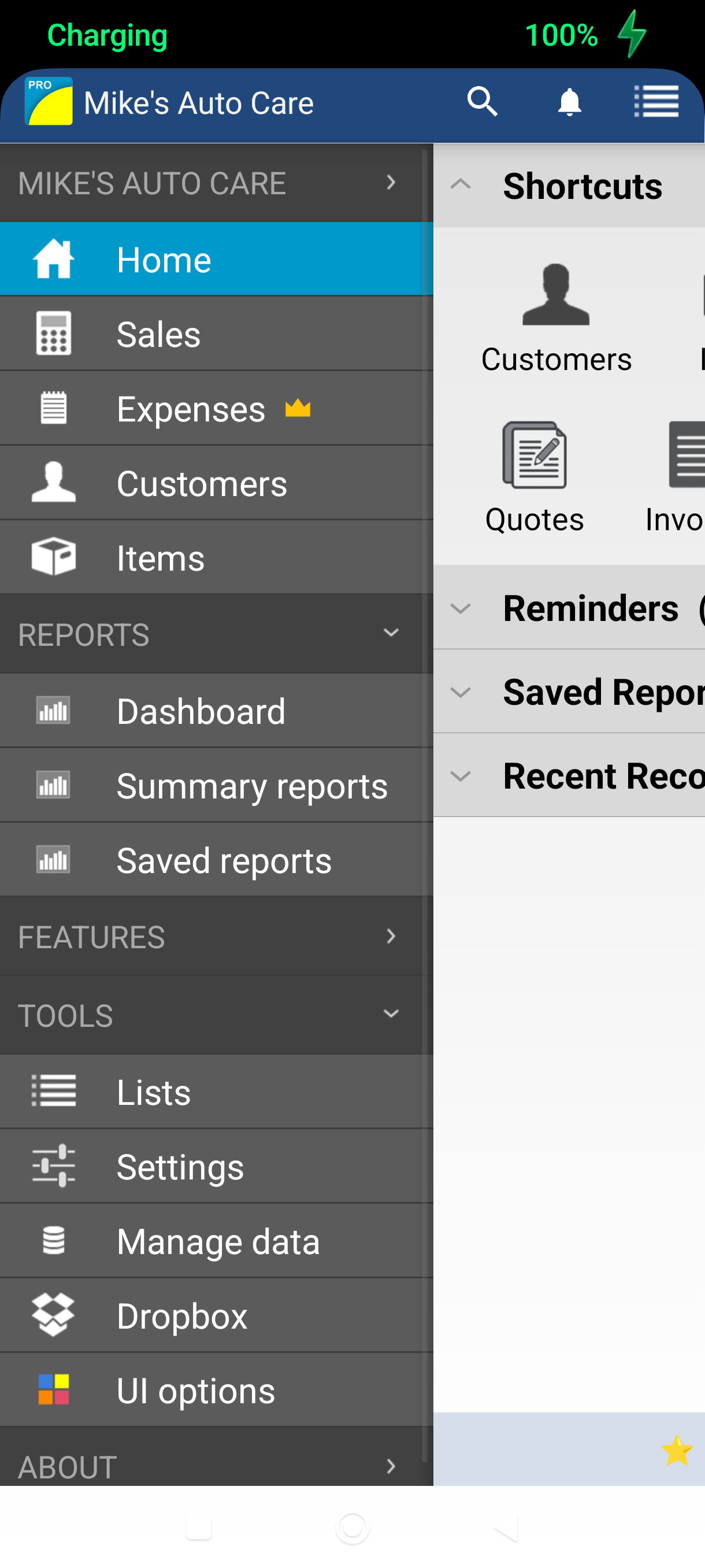
Swipe from the left edge of the screen to open the navigation menu, then tap Settings under More.
-
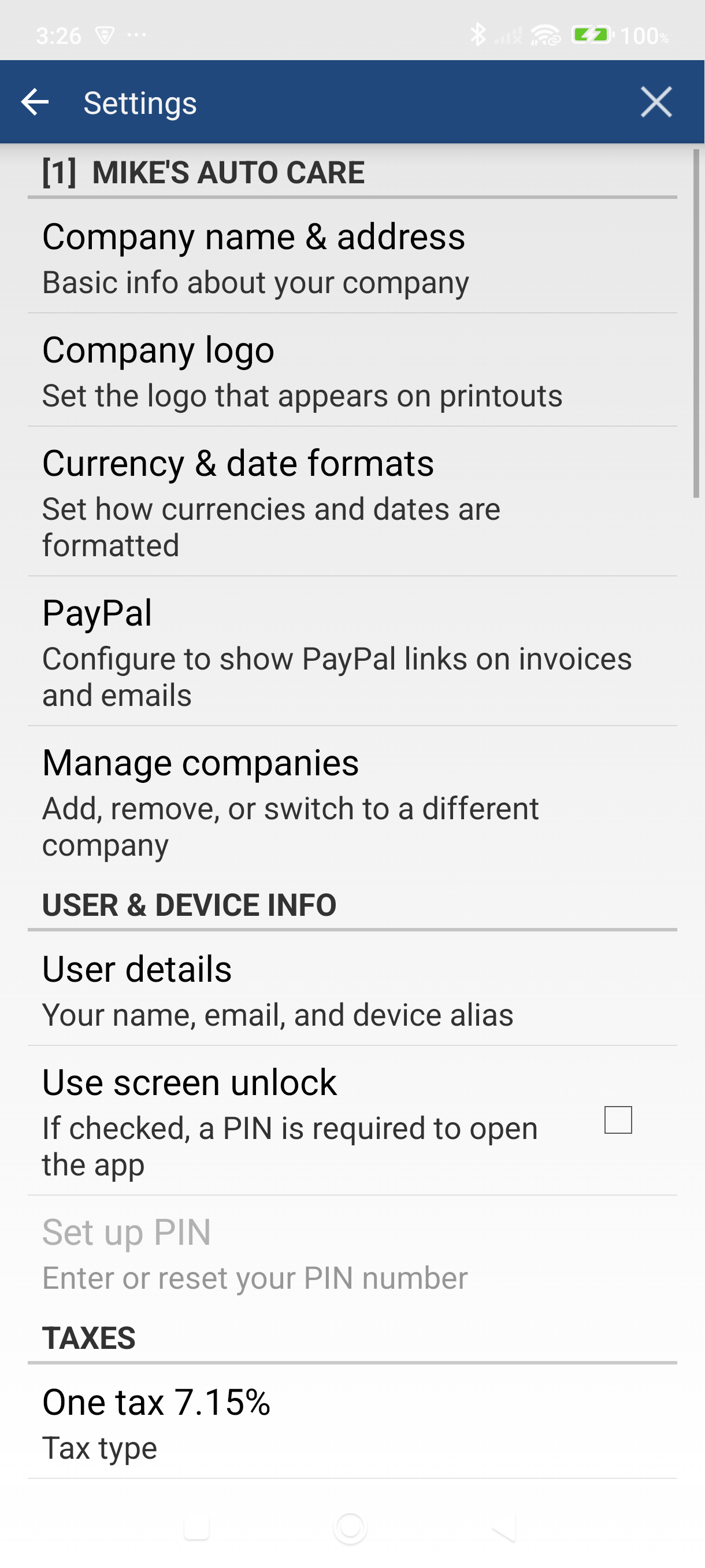
Tap "Company logo" in the Settings screen, under COMPANY.
-
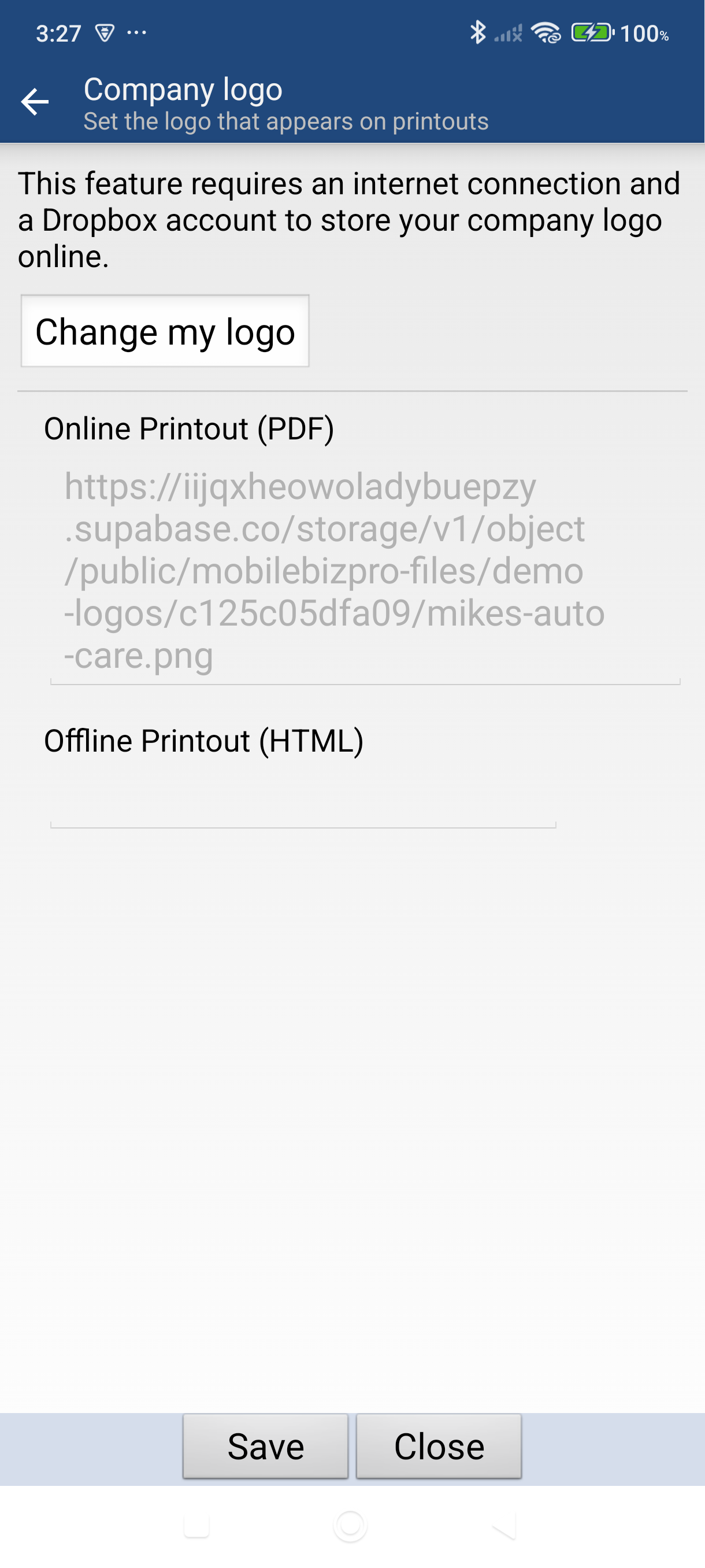
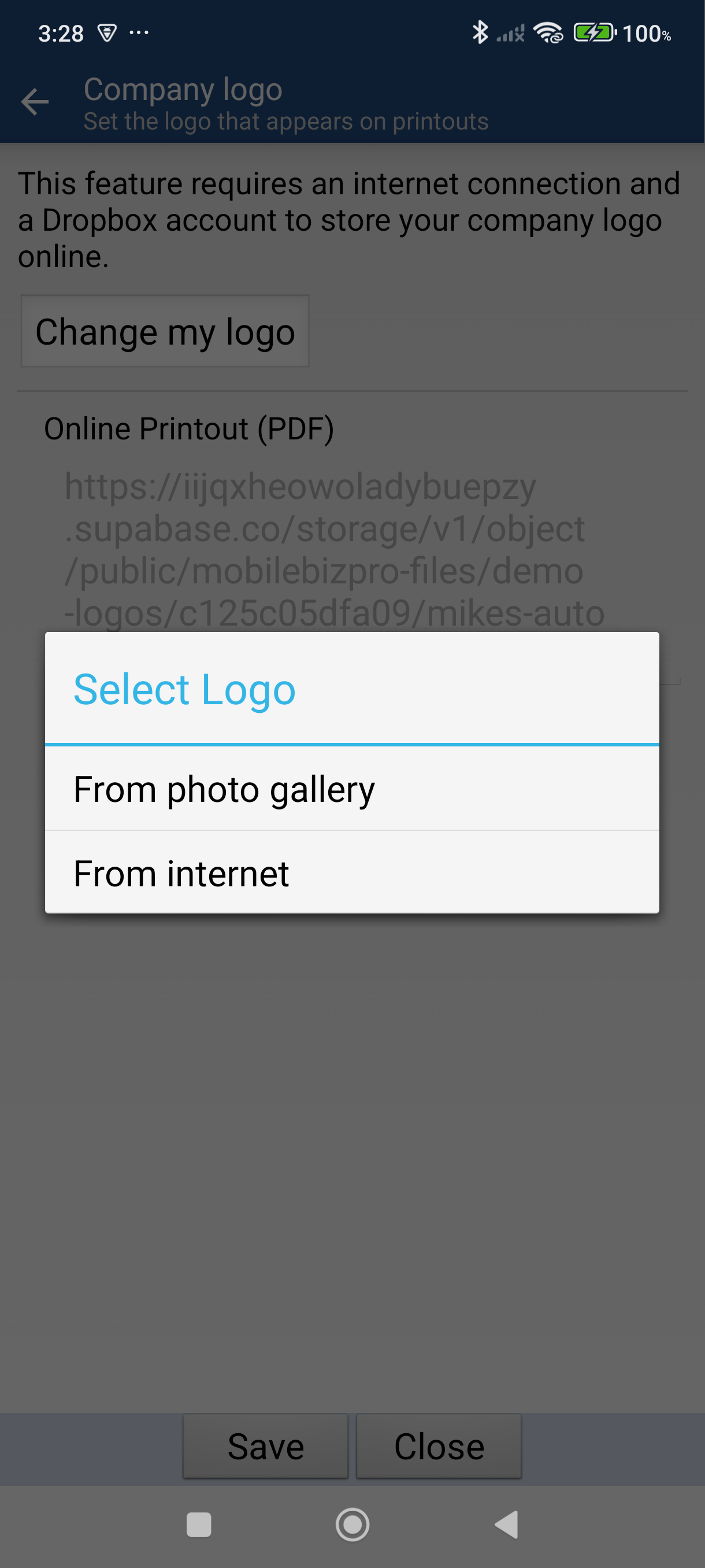
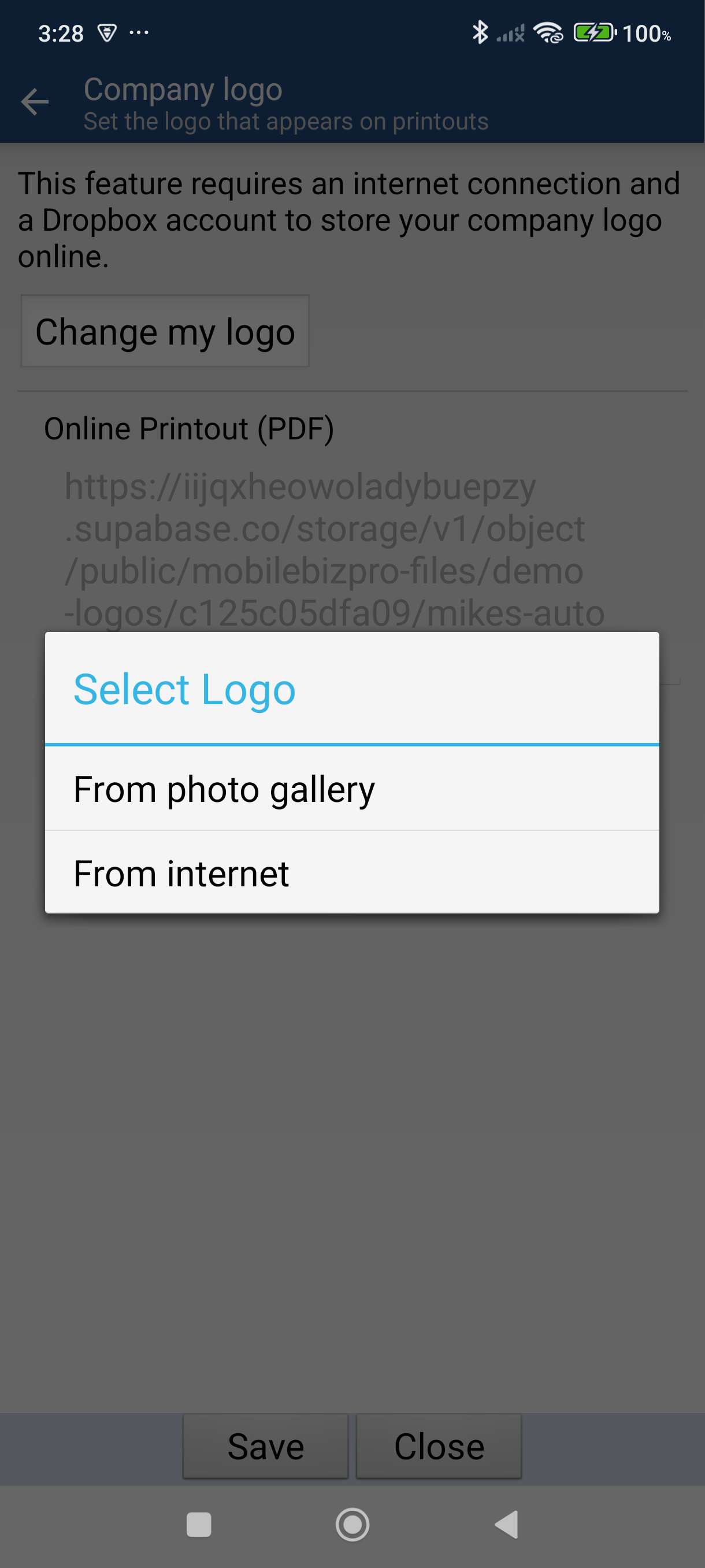
Tap the dashed card reading "Add your company logo". A sheet titled Choose logo source slides up with three options:
- Photo gallery — select from your photos
- Take a photo — use your camera
- From a website — paste a link to your logo
-
Tap "Photo gallery" and select your logo image. It opens in the Edit Photo editor — crop, rotate, or scale it, then tap the checkmark to confirm.
-
Adjust the logo size with the slider or the preset buttons — 10%, 25%, 50%, 75%, or 100%. The size is saved as soon as you release the slider or tap a preset, so there is no Save button.
-
Tap Back to leave the screen. Your logo is saved and uploaded so it can print on your PDFs. If you're offline, a No internet connection message offers Retry or Skip for now.
Good to Know
- Your logo appears on every PDF you generate — invoices, quotes, receipts, and statements.
- If you tapped Skip for now. The logo still prints on invoices and other transaction PDFs — the app uploads it the next time you generate one while online. Customer statements only pick it up after that upload has happened, so generate one invoice PDF online and the logo shows on statements too.
- Once a logo is set, the buttons at the bottom of the screen read Change, Edit, and Remove — tap Change to swap in a different image, Edit to re-crop the current one.
- Logo hosted online? Choose From a website and paste the link (for example
https://example.com/logo.png) into the Image URL box. The link needs to be one anyone can open.
Still stuck? Contact Support for help.