You can control how currency values and dates appear across the app and on your printed documents through Company Settings.
Steps
-
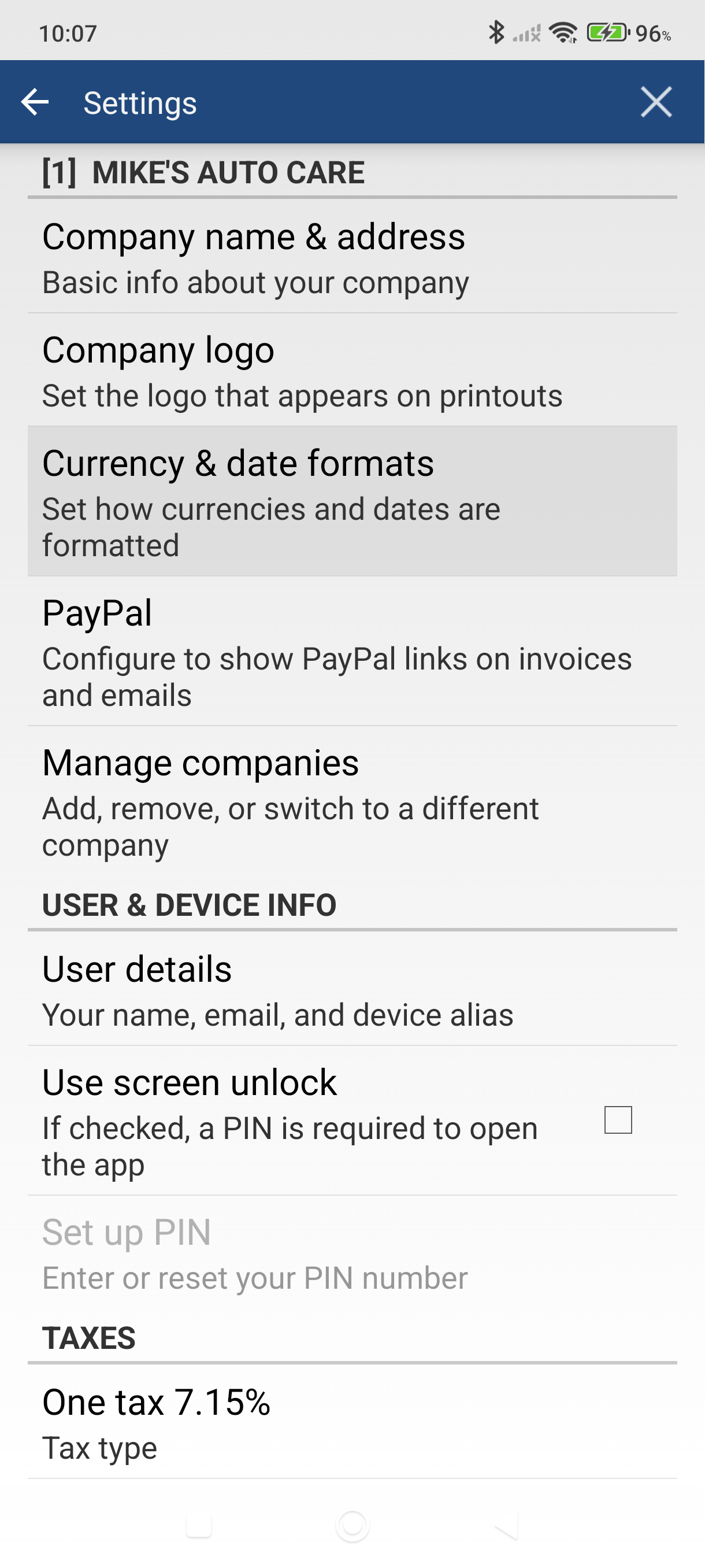
Open Settings and tap Currency & date formats under the Company section.
-
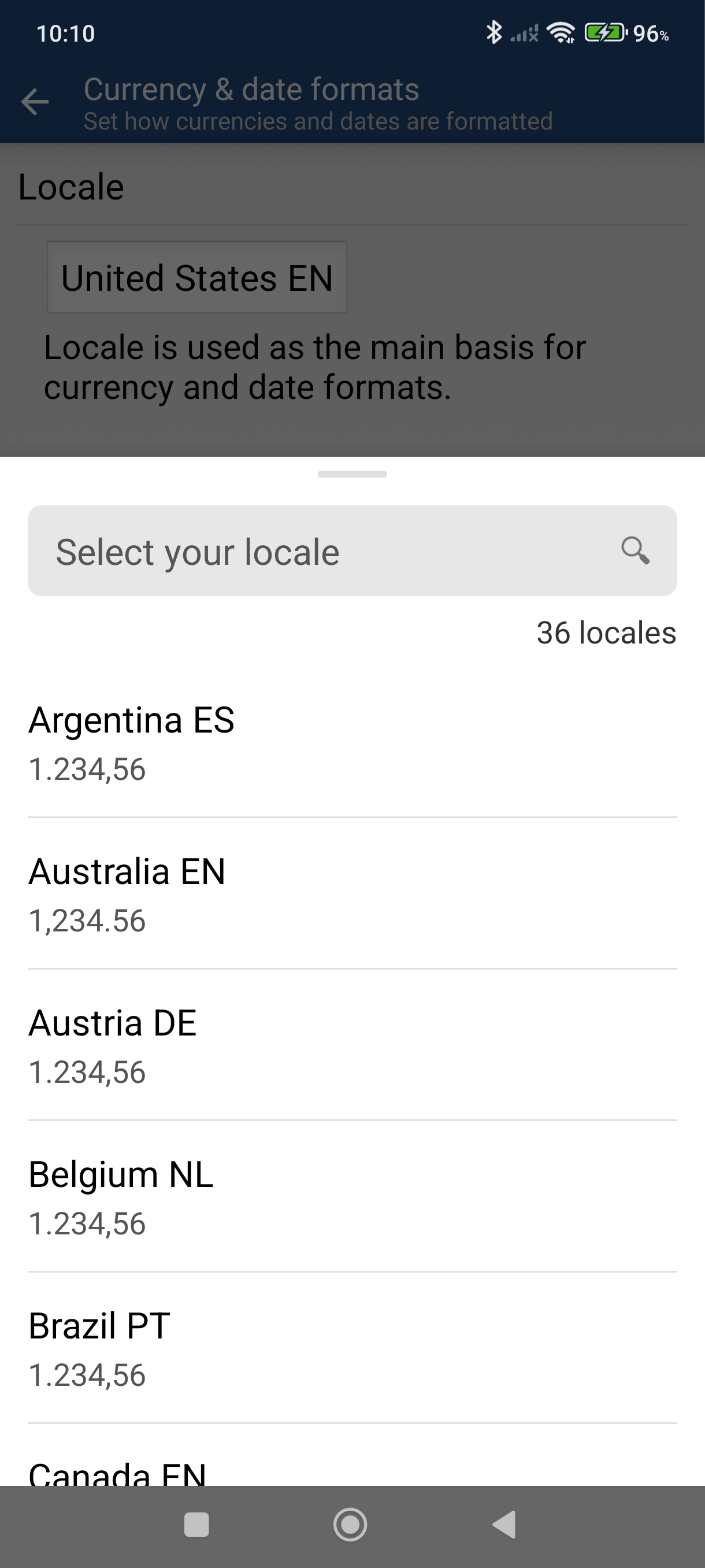
Select your Locale — this is the main basis for currency and date formats. Tap the Locale button to open a searchable list of 265 locales. Each entry shows the country, the language code, and a sample of how numbers are grouped.
-
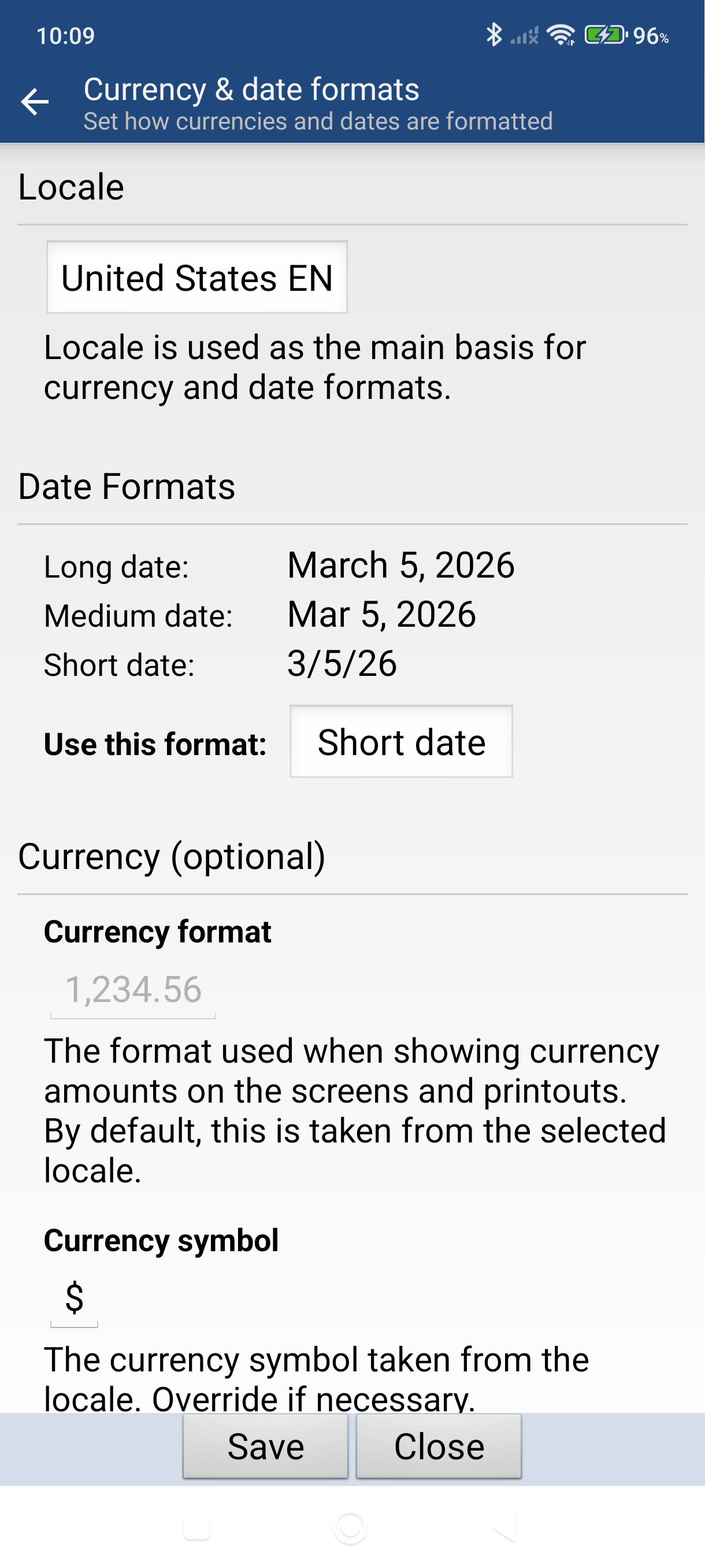
Review the date settings — picking a locale fills in the Long, Medium, and Short date formats. Use this format decides which of the three the app shows.
-
Pick your Currency under Currency (optional). Tap the Currency button to open the Choose your currency sheet and select a currency code — it shows as, for example,
USD — US Dollar. This is the currency used on your invoices and payments.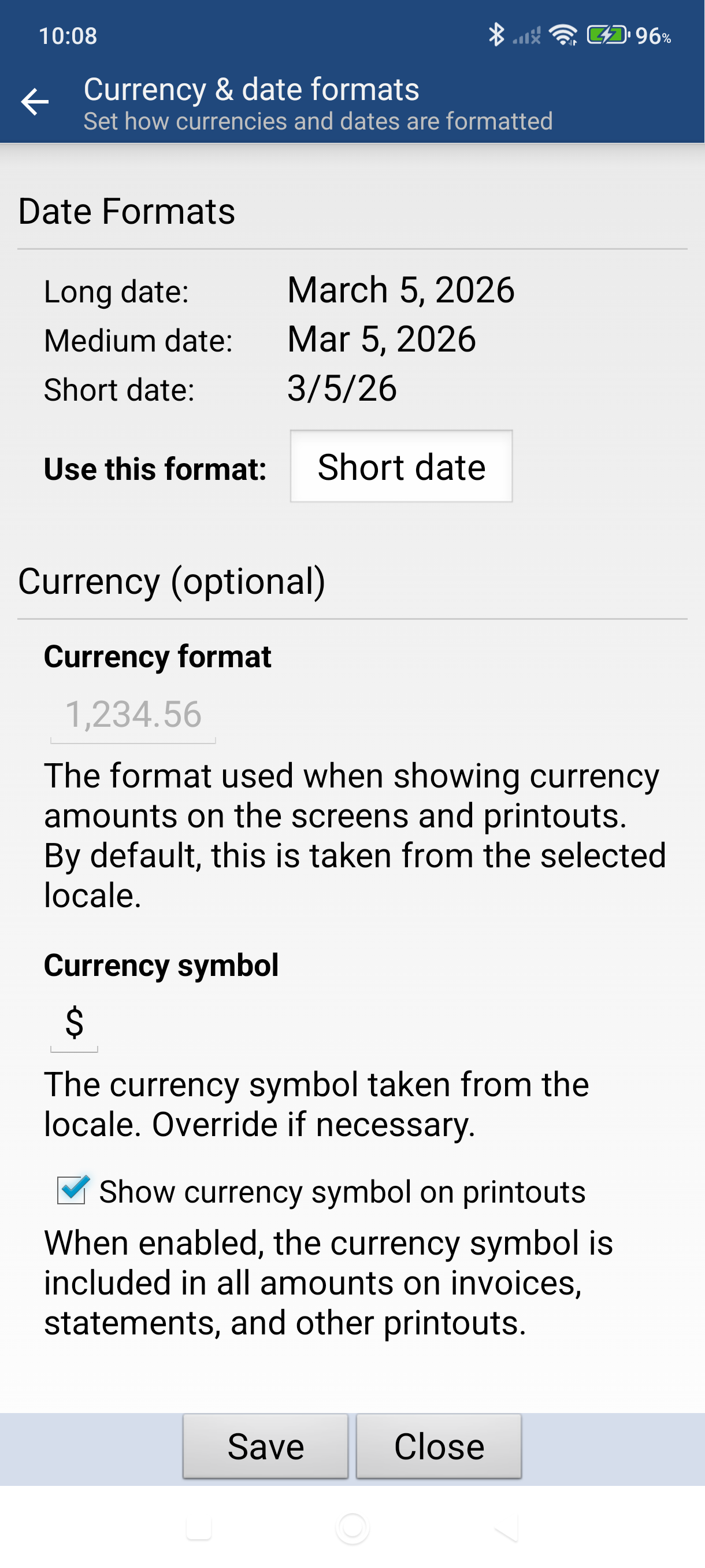
-
Check the symbol and format. Currency format shows how amounts are grouped and spaced (taken from the locale), and Currency symbol is taken from the locale too — type over it to override.
-
Check "Show currency symbol on printouts" if you want the currency symbol (e.g., $) included on all amounts on invoices, statements, and other printouts.
-
Tap Save at the bottom of the screen — the new currency symbol and format apply everywhere immediately. (Nothing is saved until you tap Save.)
Good to Know
- Currency and date format settings are per company. If you manage multiple companies, switch to each one and set the format separately.
- If you want to show a currency code like "USD" next to amounts on printed PDFs (for example, "Subtotal USD"), you can rename the total labels. Open any invoice, tap Preview in the bottom bar, tap Customize, then edit the labels in the Totals section.
- The date format set here is also used as the default on printouts. You can override the print date formats independently under Settings > Invoicing & documents > Print labels & dates, in the Print date formats section.
Still stuck? Contact Support for help.