When a customer accepts your quote, convert it to an invoice instantly. All line items, the customer, addresses, and notes carry over — no re-entry needed.
Steps
-
Open the quote you want to convert — tap the Quotes tile on the Dashboard (the list screen is titled Estimates), then tap the quote. It's also in your Recent Records on the Dashboard.
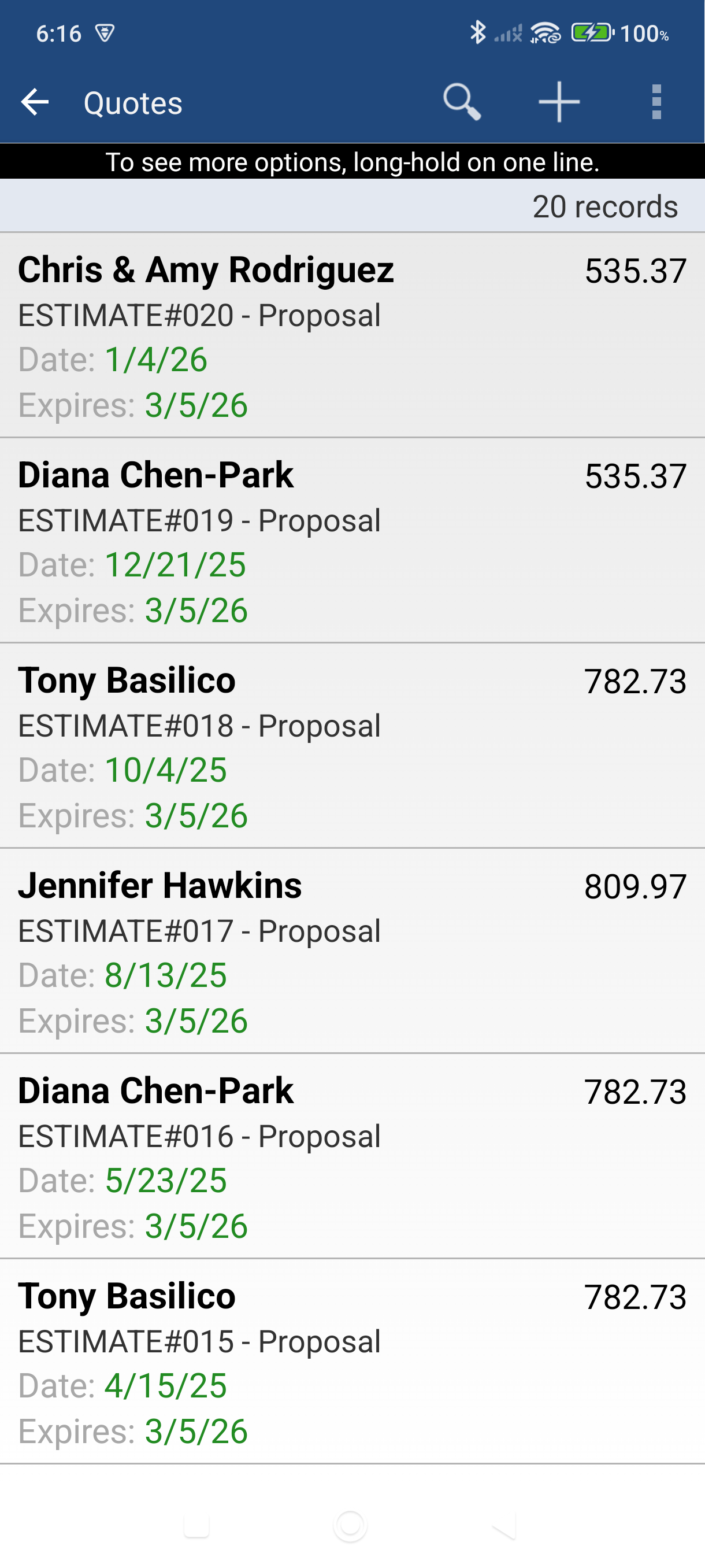
-
Tap Convert in the bar at the bottom of the quote — the Convert to sheet opens with Invoice, Sales order, and Cash sale.
-
Tap Invoice — the app creates a new invoice immediately with all the data from the quote.
Prefer the menus? Tap the Edit icon (pencil) in the top bar and choose Convert to invoice instead.
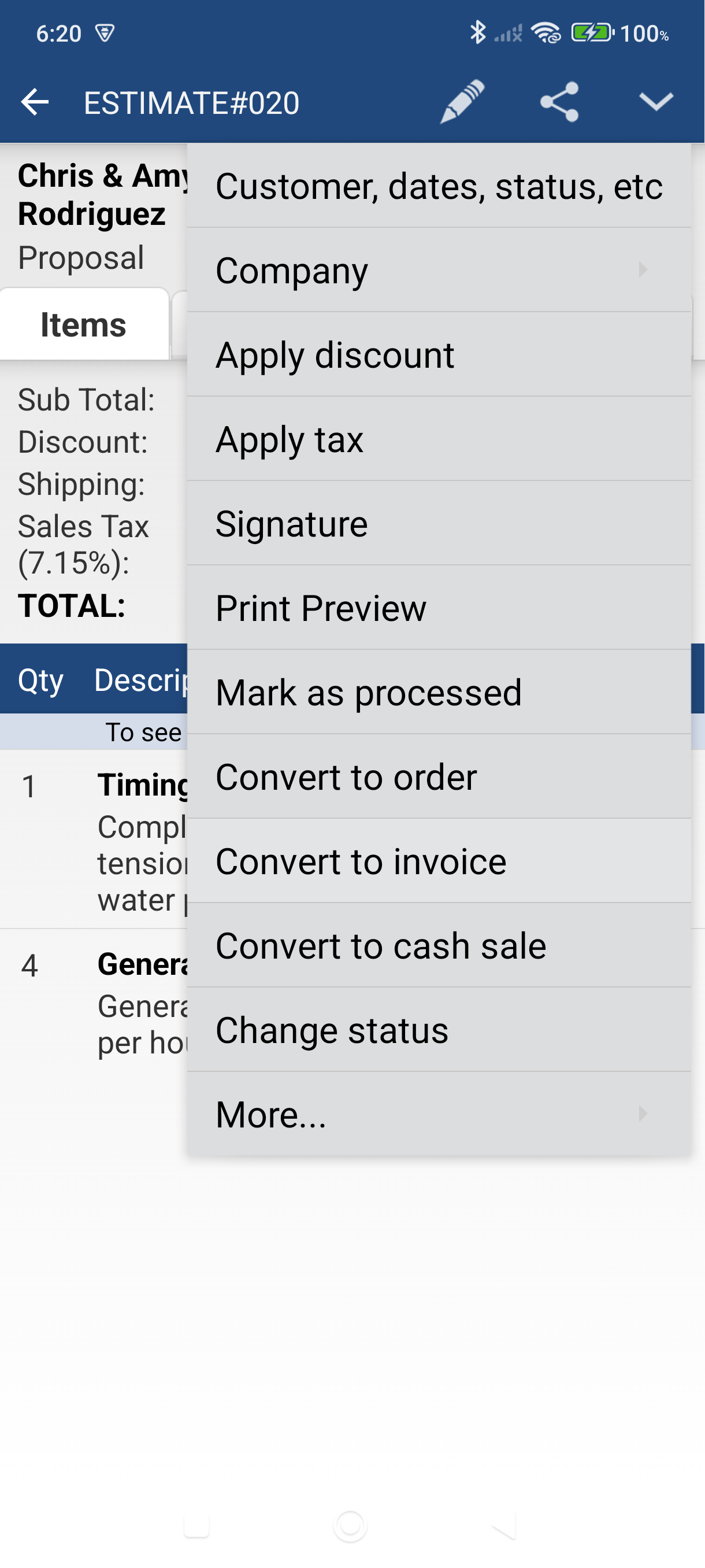
-
Review the new invoice — the app navigates to it automatically. The customer, line items, dates, and addresses are all copied over. A new invoice number is assigned.
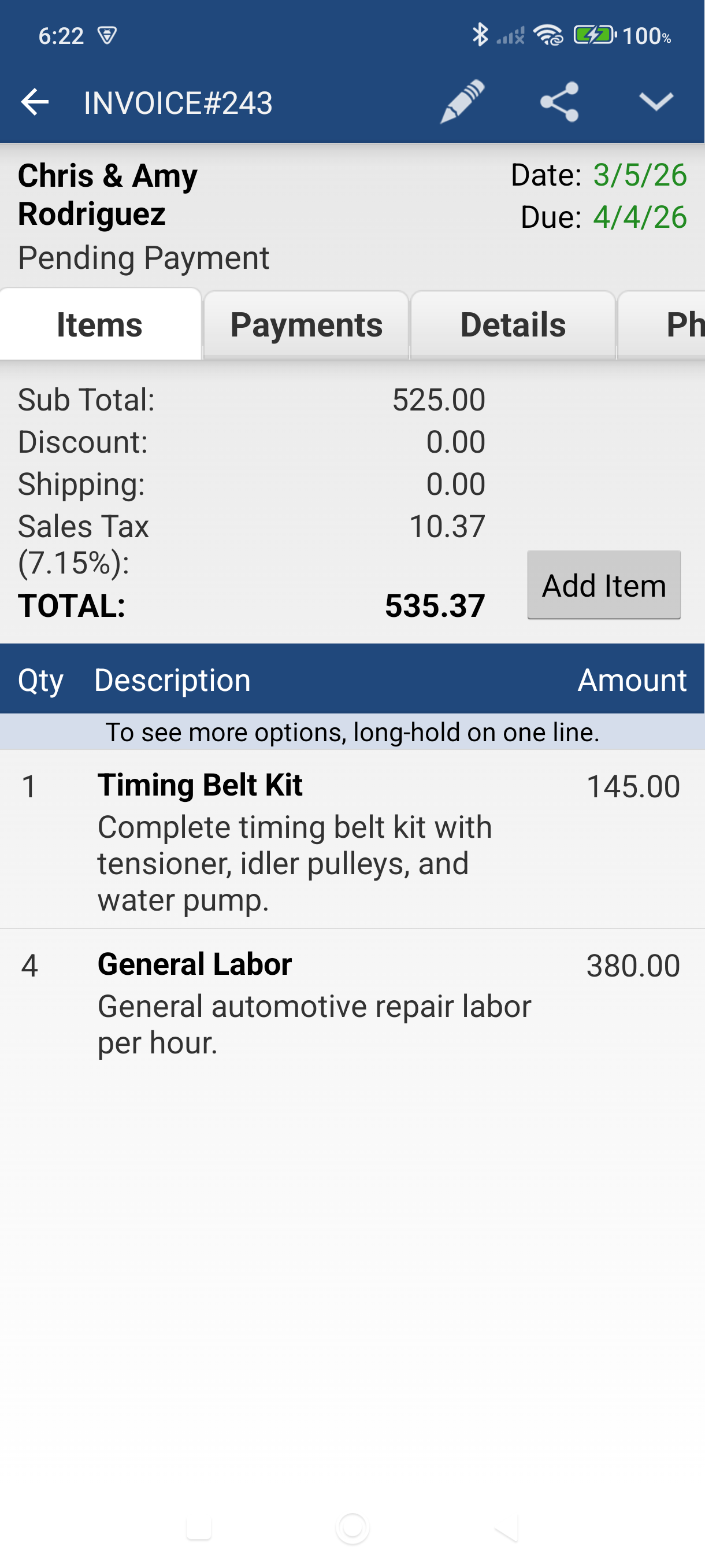
-
Adjust the Due Date if needed, then the invoice is ready to send. Tap Send in the bar at the bottom of the invoice, then tap Email on the Send sheet.
Good to Know
- The original quote is preserved in your records — it won't be deleted or changed.
- Both documents stay linked: open the new invoice and tap the More menu (the chevron in the top bar) > Created from (quote number) to jump back to the quote it came from.
- The same Convert to sheet turns a quote into a Sales order or a Cash sale if that suits your workflow better.
- Once a quote has been converted, the Convert button reads Converted and can't be used again — the two documents stay linked instead.
- To convert from the list without opening the quote first, long-press the quote in the list — an actions sheet slides up — and tap Convert to Invoice.
Still stuck? Contact Support for help.