Track your business spending directly in MobileBiz Pro — enter expenses, assign categories, and attach receipt photos. Your expenses feed into the Income Statement report so you always know where you stand.
What You'll Need
Before you start: Expense tracking is a Plus feature with a free preview. The first time you create an expense, an Expense Tracking card offers Try free for 14 days — tap it and carry straight on. While the preview runs, a banner above the list reads Free preview — N days remaining.
Steps
Create an Expense
-
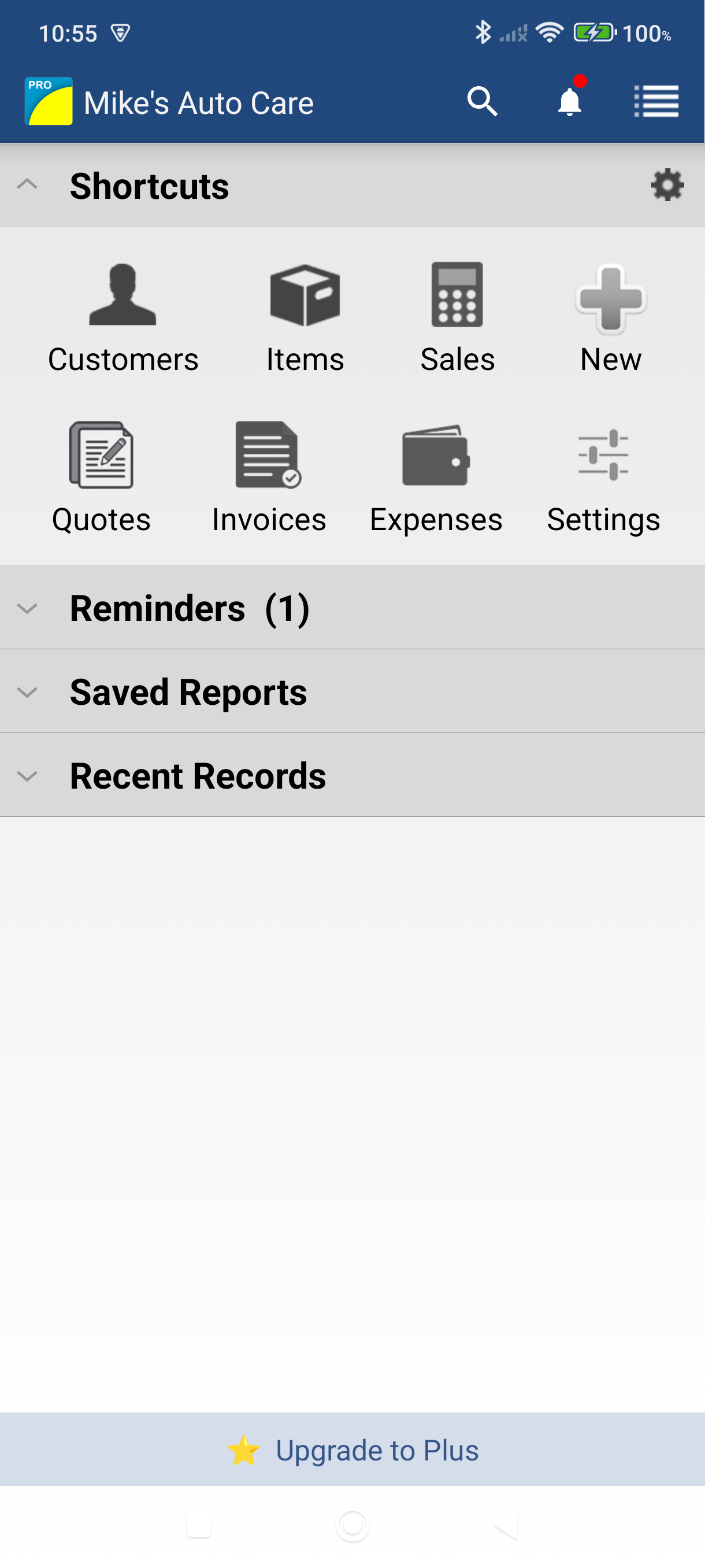
Tap the Expenses tile in the Dashboard's Shortcuts grid.
-
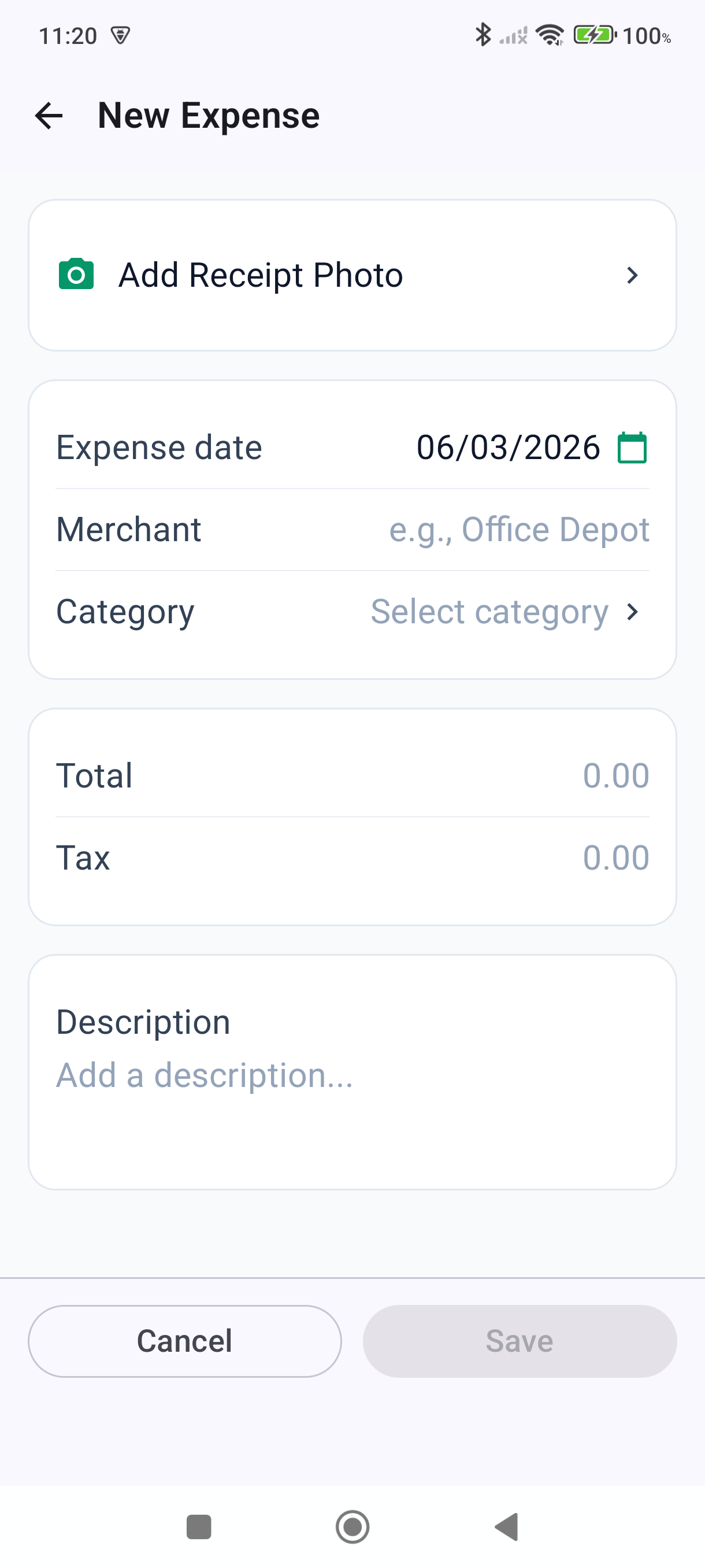
Tap the + button (bottom-right). The New Expense screen opens.
-
Fill in the expense details:
- Expense date — defaults to today; tap it to pick another date
- Merchant — who you paid
- Category — tap Select category and choose one
- Total — what you paid
- Tax — the tax portion, if any
- Description — optional note about the expense
-
Tap Save in the bar at the bottom of the screen. Save stays greyed out until you've picked a category and entered a Total above zero.
Attach a Receipt Photo
-
Tap Add Receipt Photo — the camera row at the top of the expense form.
-
On the Select image sheet, tap Take from camera or Choose from gallery, then take or pick your photo.
-
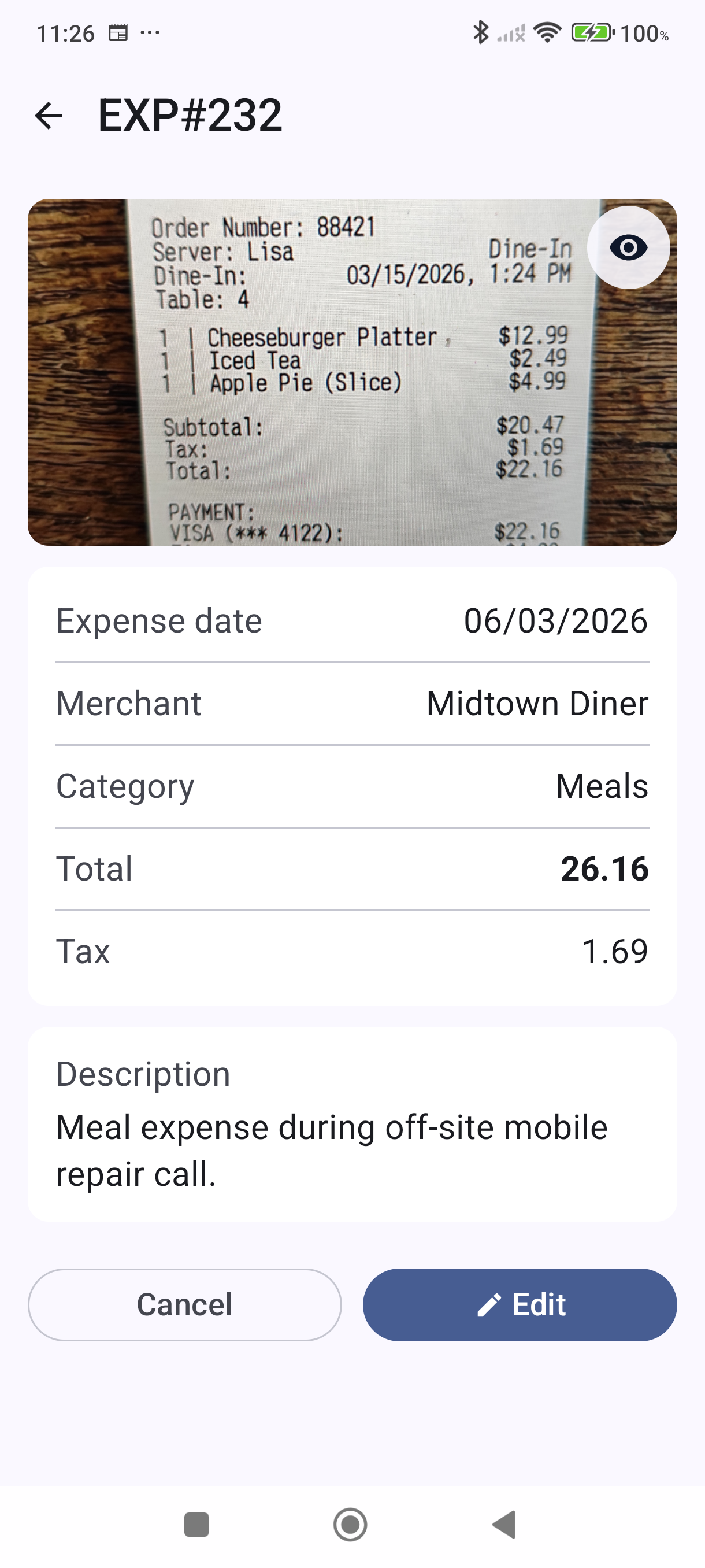
The receipt appears at the top of the expense. Tap the eye icon on it to view it full-screen.
-
To add a receipt to an expense you already saved, open it from the list and tap Edit first.
View Your Expenses
Your expenses appear as a list sorted by date. Filter chips above the list narrow it by date range and by category, and the total for what's showing sits in a bar at the bottom of the screen.
Good to Know
- Expenses are company-specific — switch to the correct company first if you manage more than one.
- Your expense categories appear in the Income Statement report, giving you a clear view of revenue vs. spending. Open Reports > Summary Reports > Income Statement to see your profit breakdown.
- All expenses you create remain visible even if your Plus subscription expires — you just won't be able to add new ones without an active subscription.
- Expense data is stored on your device. Back up regularly using Settings > Data & backup > Backup & restore to avoid data loss.
For subscription details, see MobileBiz Pro Plus — What's Included.
Still stuck? Contact Support for help.