Save time by importing your customer list from a spreadsheet instead of adding contacts one by one. MobileBiz Pro reads standard CSV files and lets you map your columns to the right fields.
What You'll Need
Before you start: Your customer data saved as a
.csvor.txtfile with column headers in the first row. Place the file on your device (in the MobileBiz CSV imports folder) or in your Dropbox account.
Steps
-
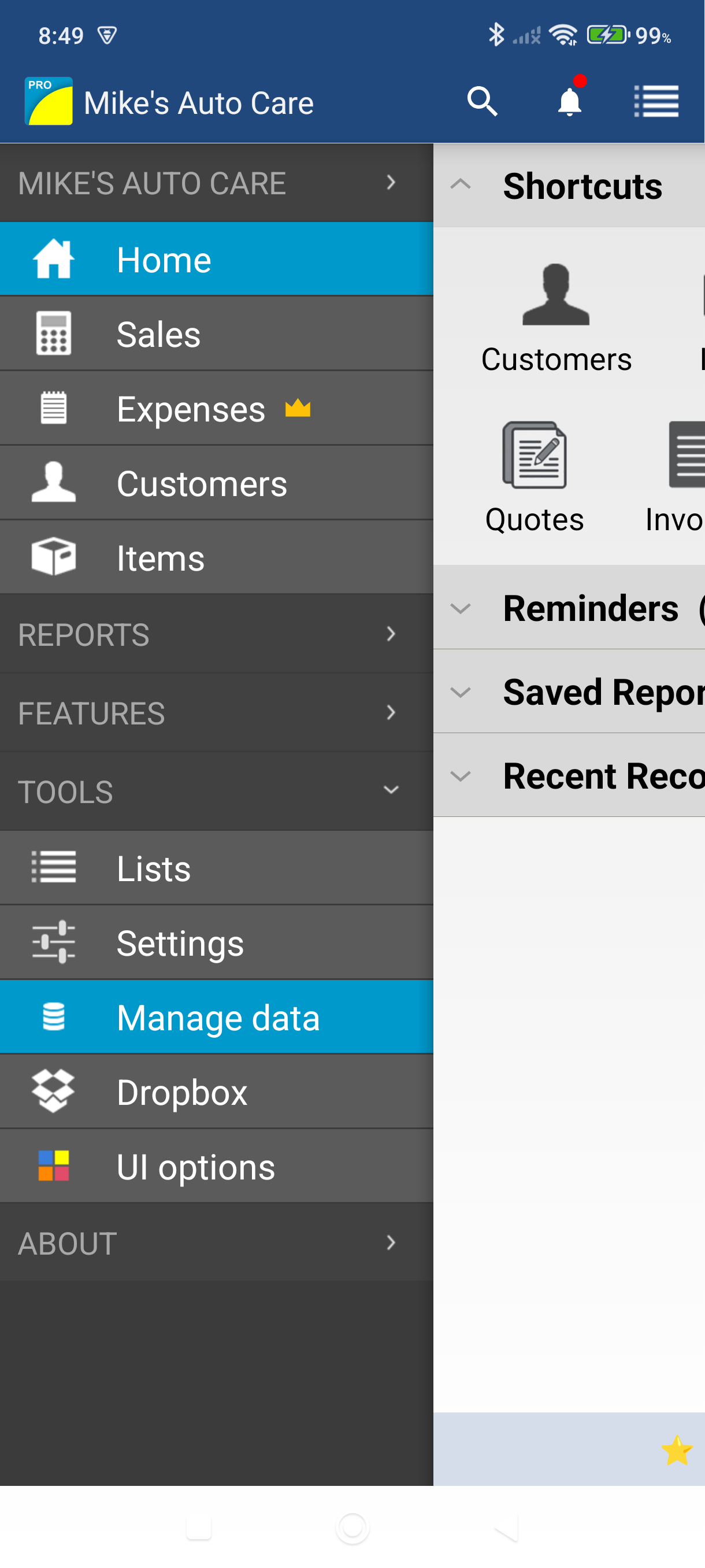
Open the side menu and tap Settings — it sits under the More heading.
-
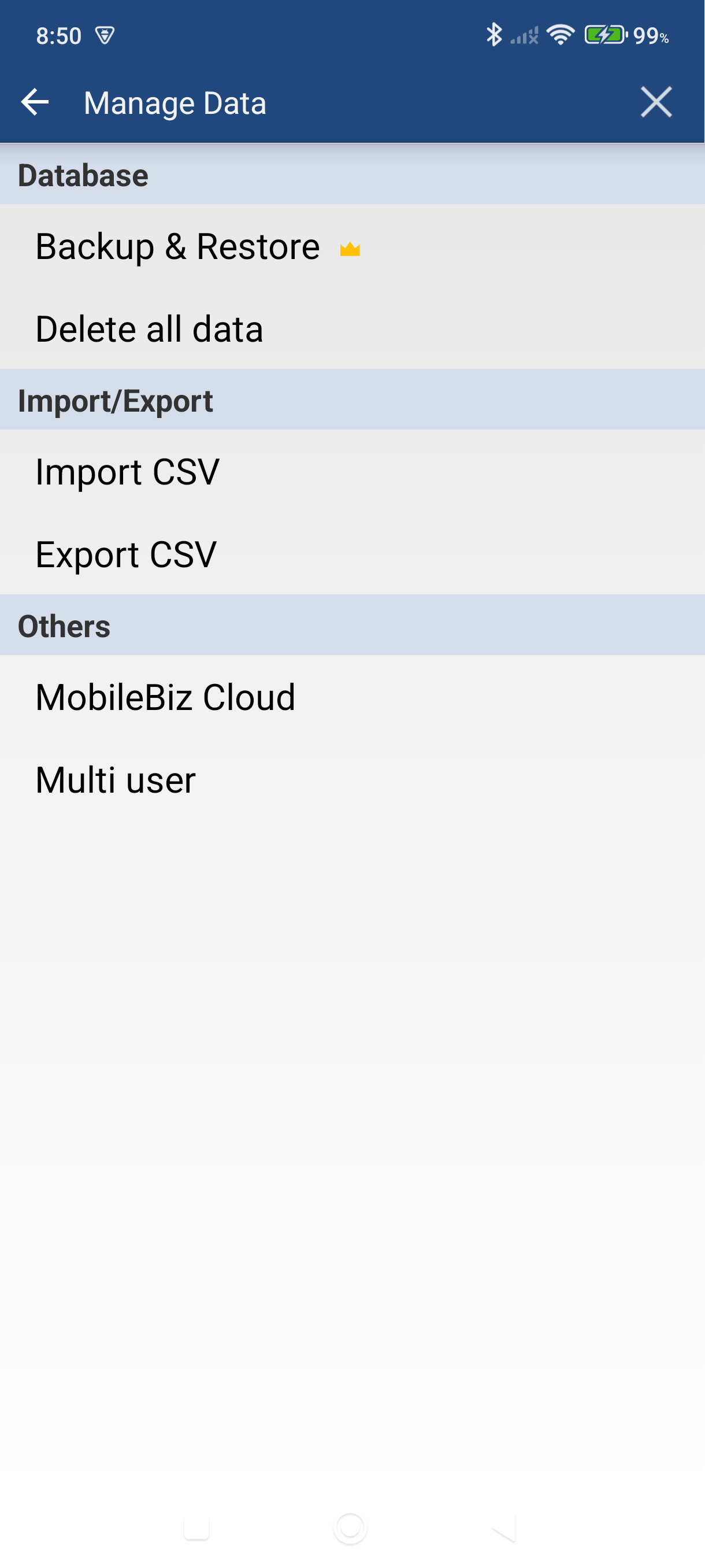
Scroll to Data & backup and tap Import CSV.
-
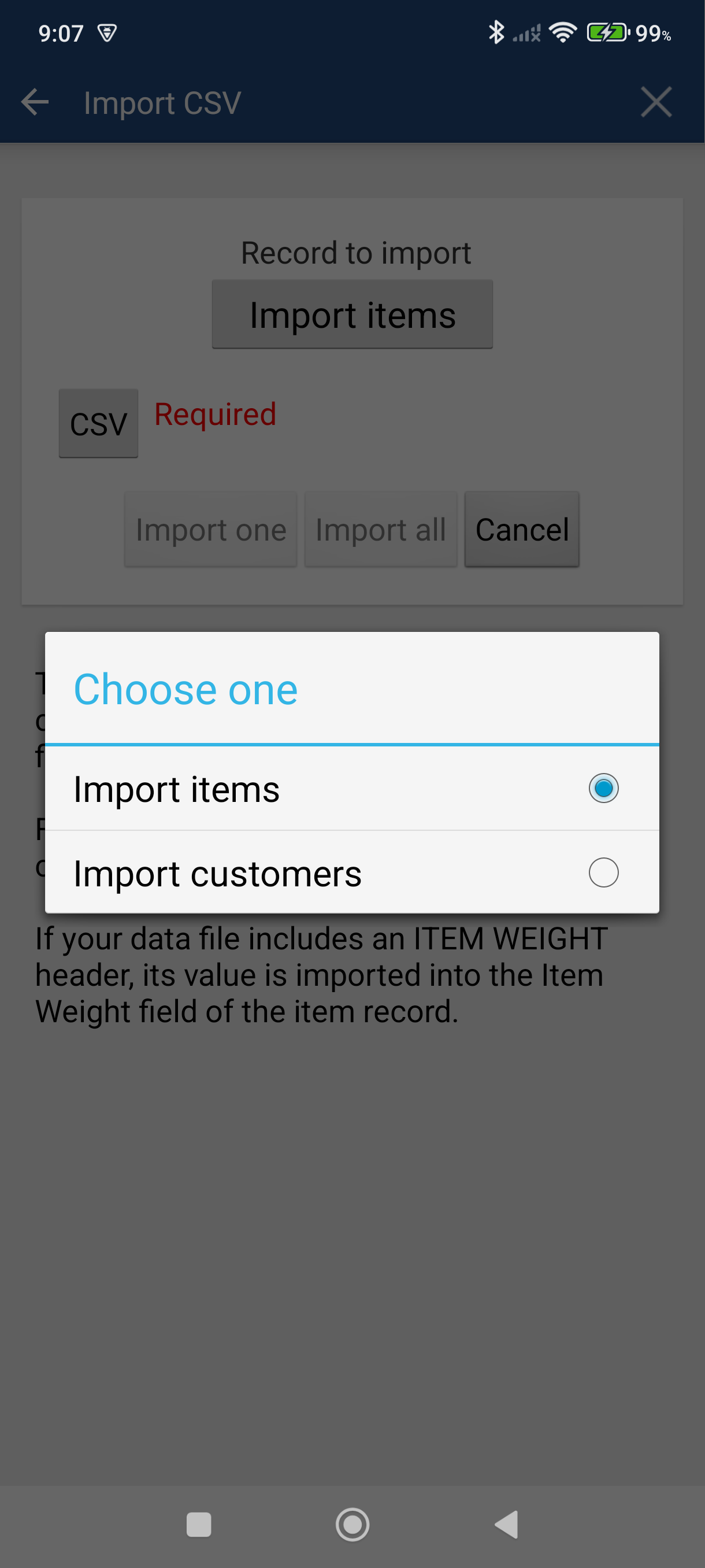
Tap the record type button and select Import customers.
-
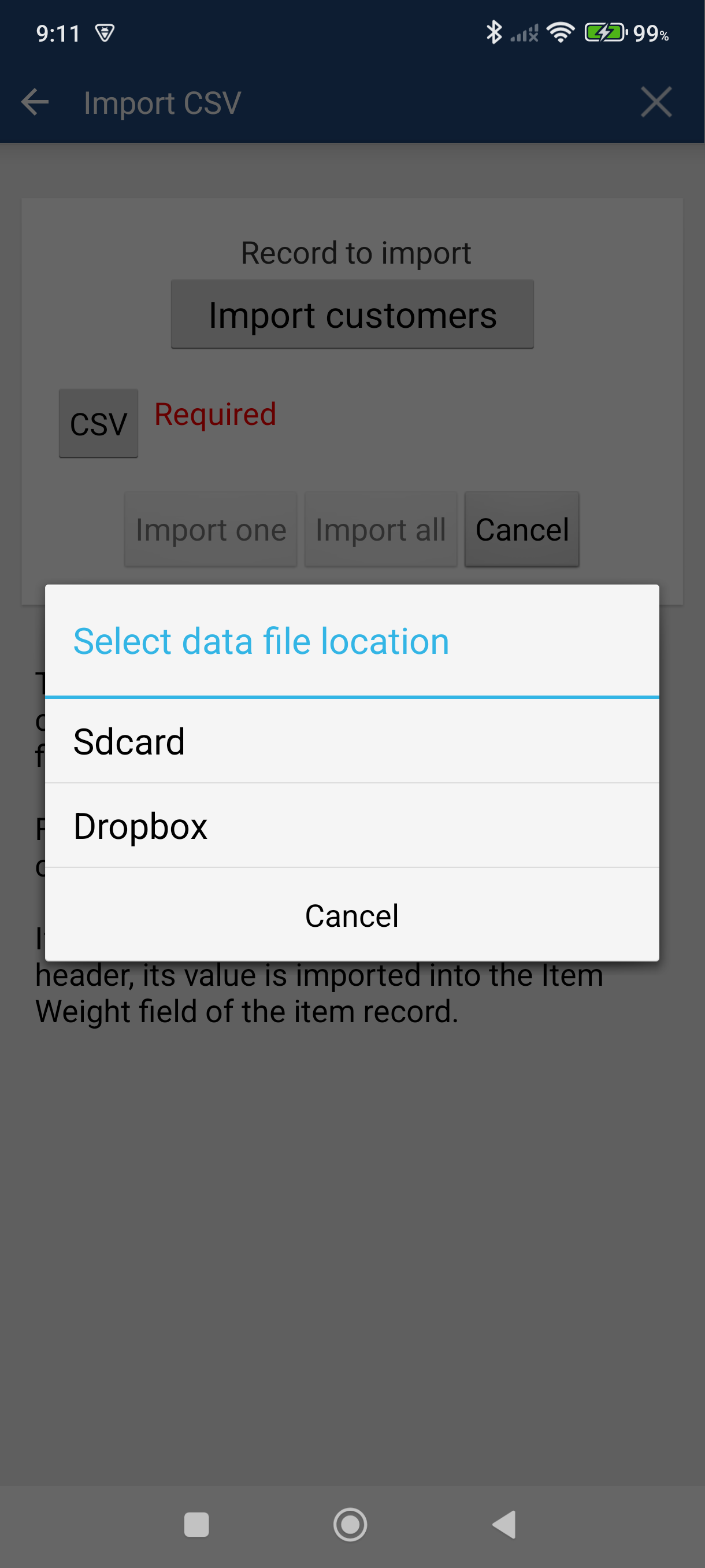
Tap the file button and choose where your CSV is stored. Tap Sdcard to browse your device, or Dropbox to pick a file from your Dropbox account. Then select your file.
-
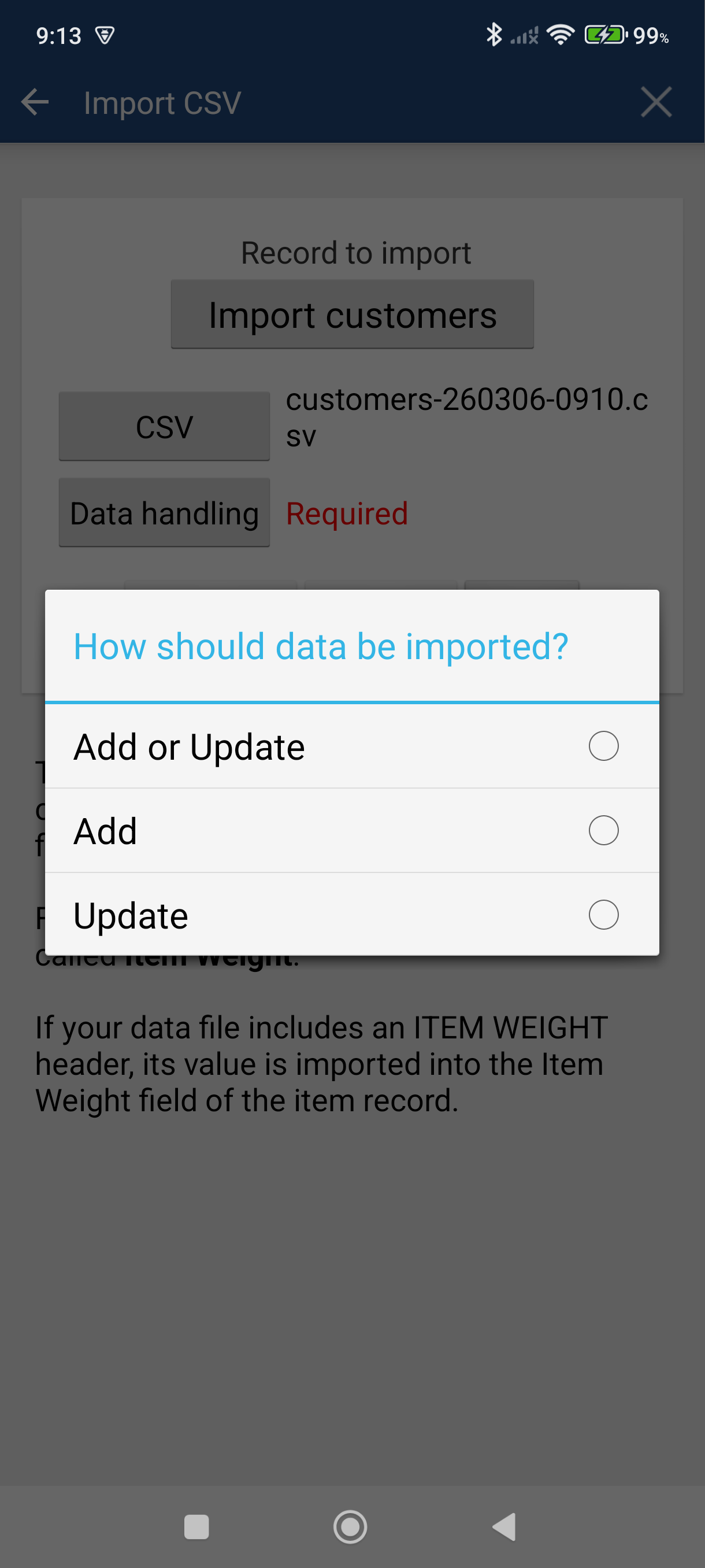
Tap Data handling and choose how to handle the data:
- Add or Update — adds new customers and updates existing ones that match.
- Add — only adds new customers; skips any that already exist.
- Update — only updates existing customers; skips new ones.
Picked Add or Update, or Update? An ID Column row appears and the Mapping row stays hidden until you fill it in. Tap ID Column, pick the field the app should match existing customers on (Customer name, for example), then tap Done. Mapping appears once the ID column is set. If you picked Add, go straight to the next step.
-
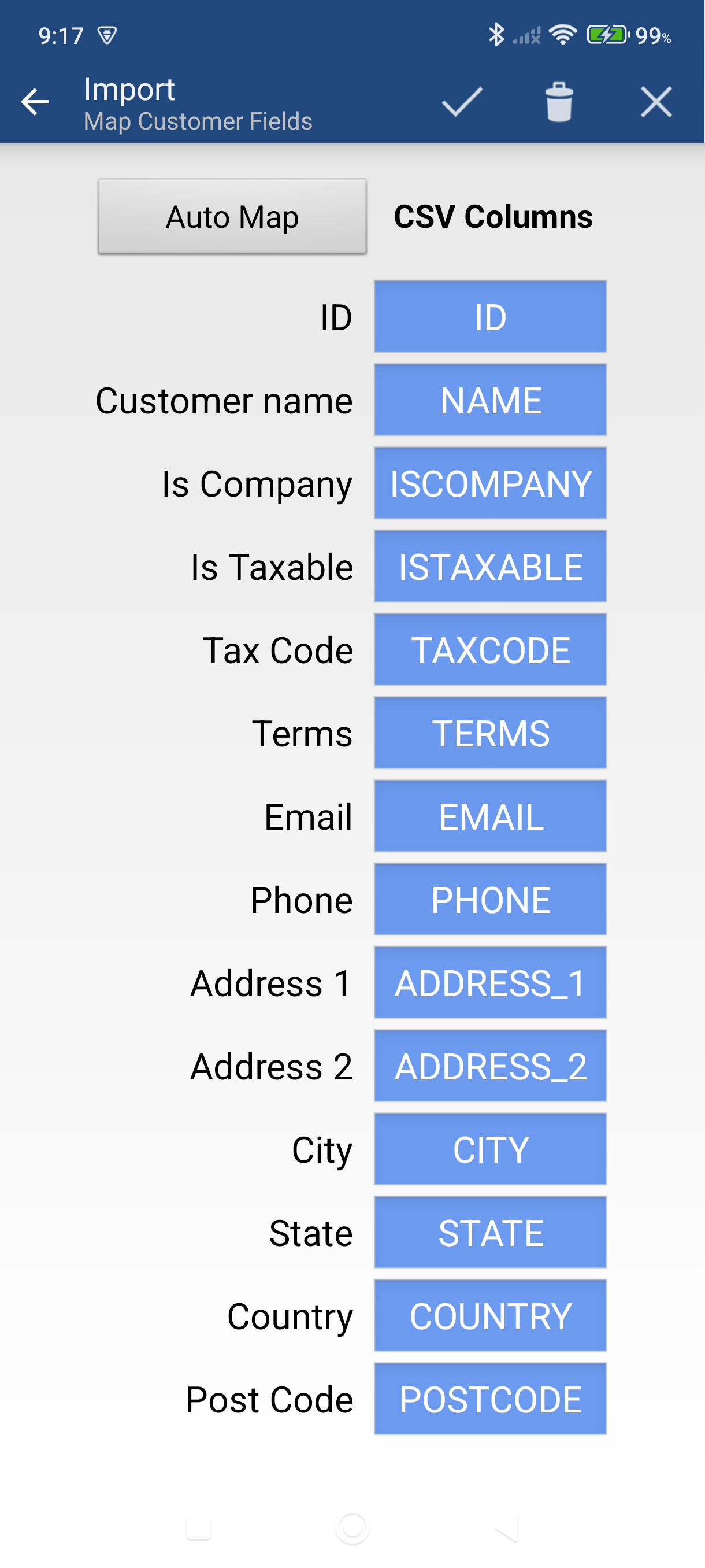
Tap Mapping. Assign each MobileBiz field to the matching column in your CSV. Tap Auto Map to let the app match columns automatically — works best when your headers use standard names like NAME, EMAIL, or PHONE.
-
Tap Done when your mapping looks correct.
-
Tap Import one to test with the first row of your file. If the result looks right, tap Import all to bring in the rest.
Good to Know
- Fields left as "Not mapped" are simply skipped — no data is lost from your CSV file.
- The ID column is what the app matches on. Pick a field that's unique per customer — a name or an email — so updates land on the right record.
- Customer fields you can map: Customer name, Is Customer, Is Vendor, Is Company, Is Taxable, Tax Code, Terms, Email, Phone, Address 1, Address 2, City, State, Country, and Post Code.
- Always test with Import one first — it's quick to adjust your mapping before committing to a full import.
- Need to build a CSV from scratch? Export your current customers first to use as a template — see How to Access MobileBiz Pro from a Computer for CSV export steps.
Still stuck? Contact Support for help.