Barcode scanning in MobileBiz Pro lets you look up items instantly while creating an invoice — no manual searching required. You set it up once per item, then scan to add.
What You'll Need
Before you start: Barcodes must be switched on. Go to Settings > Use barcodes under Inventory & items — it's on by default, so you only need to check this if the barcode buttons don't appear.
Part 1 — Add a Barcode to an Item
-
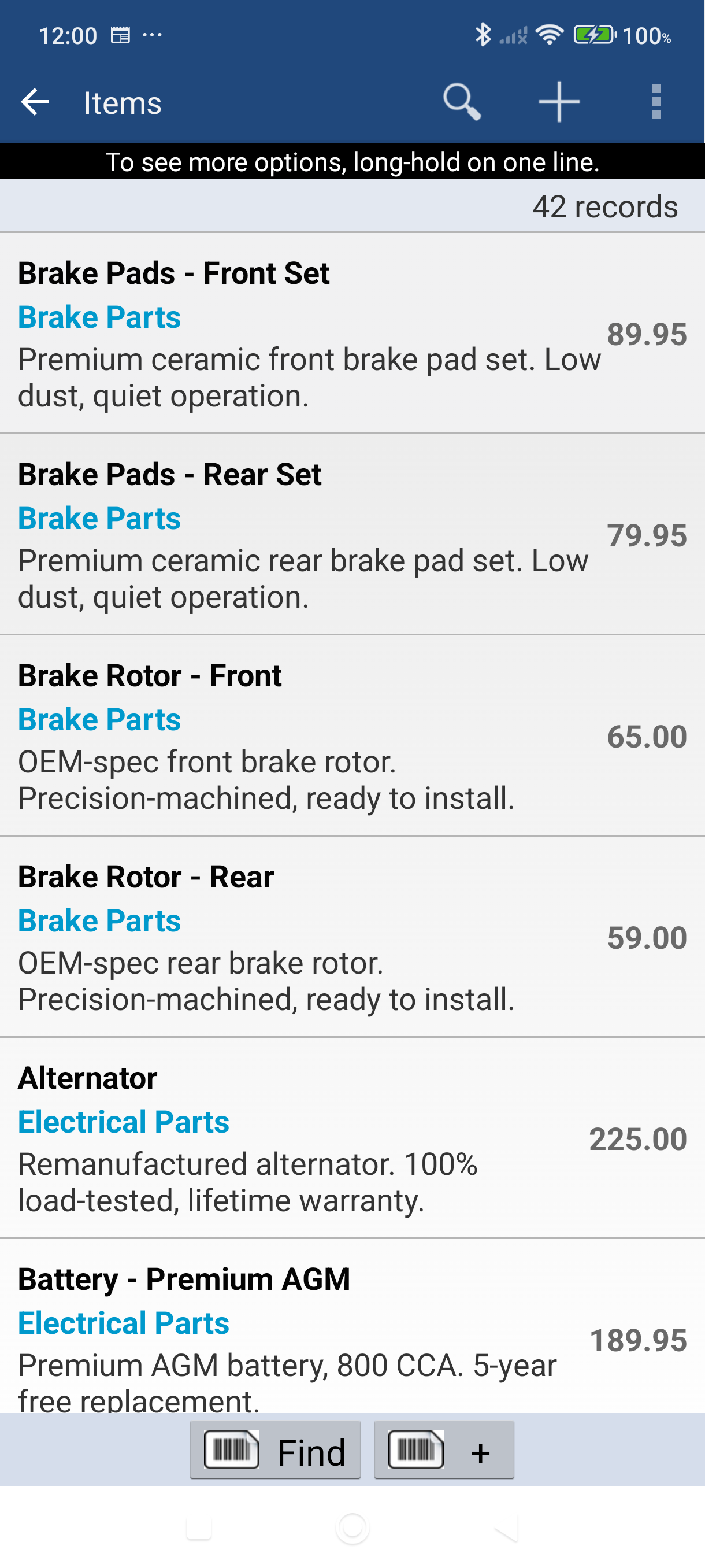
Open the side menu and tap Items.
-
Tap the item you want to add a barcode to.
-
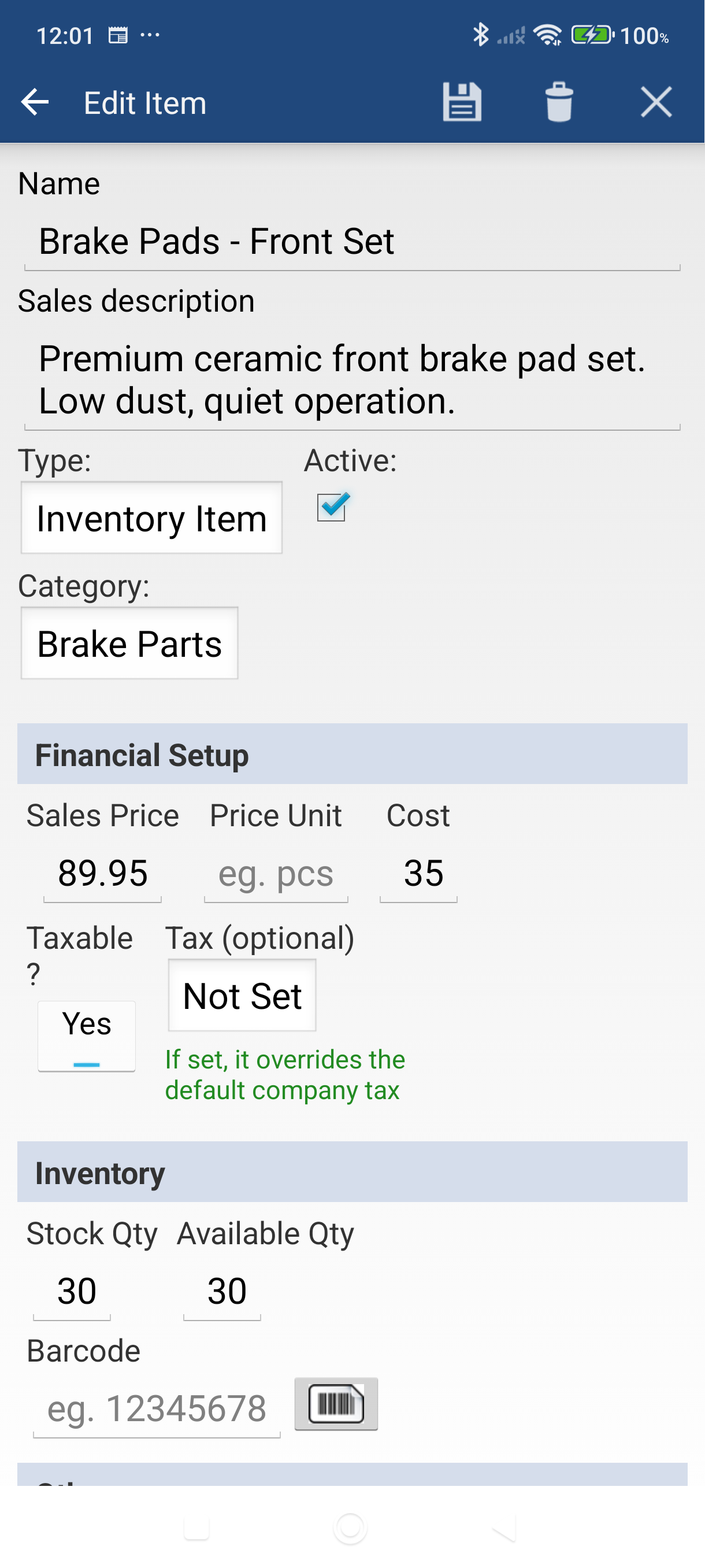
Tap the edit icon (pencil), then tap Edit item on the Edit actions list that appears.
-
Set Type to Inventory Item. The Barcode field only exists on inventory items — tap the Type box, choose Inventory Item, and an Inventory section appears with Stock Qty, Available Qty and Barcode.
-
Tap the barcode icon next to the Barcode field — this activates your camera.
-
Point your camera at the barcode on the product until the number appears on screen.
-
Tap the Save icon (the floppy disk) — the barcode is now linked to this item.
Repeat for each item you want to scan.
Part 2 — Scan Items onto an Invoice
-
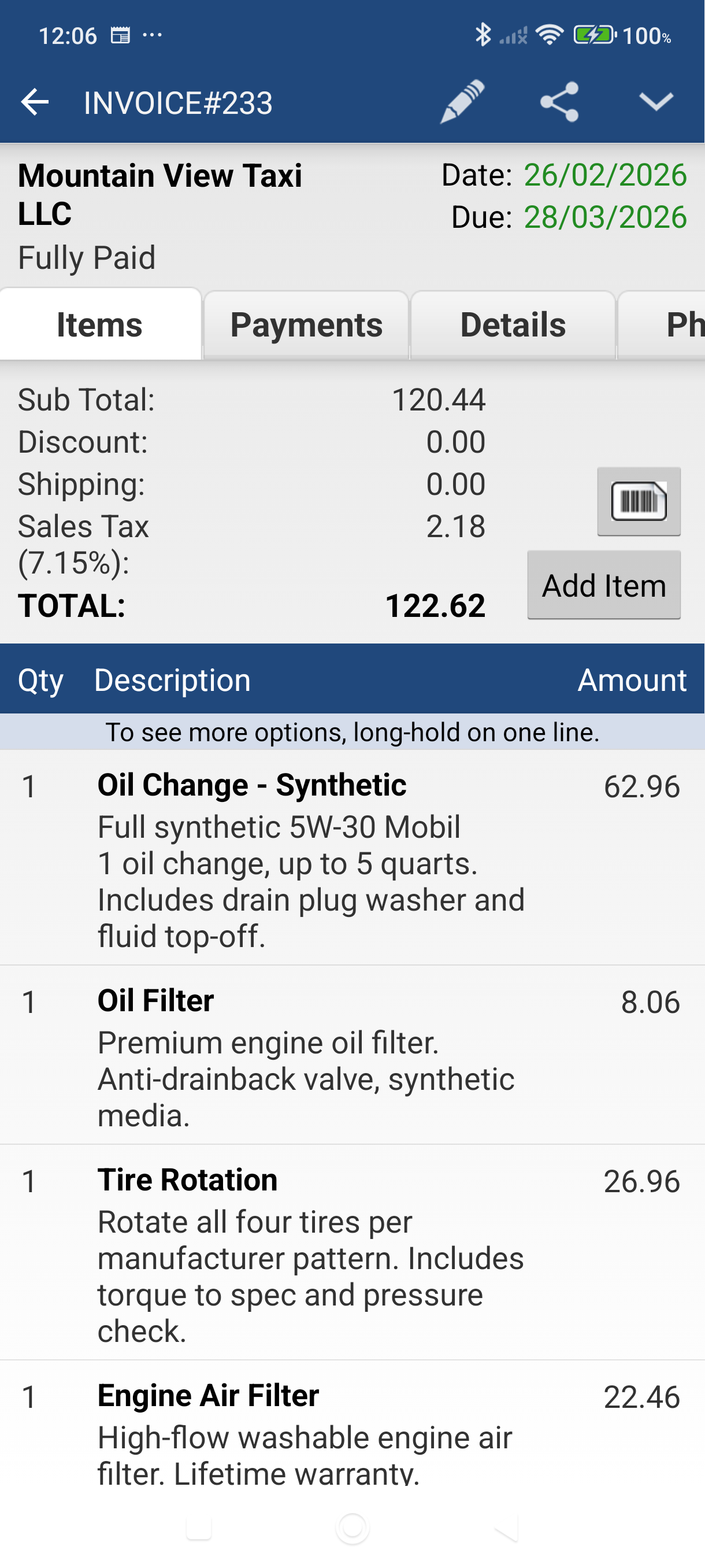
Open or create an invoice, then tap the Items tab.
-
Switch the scan button on. It's hidden until you ask for it: tap the More menu in the action bar, tap Show item buttons, then tick Scan Item button on the Select buttons to show dialog. You only do this once.
-
Tap the barcode button in the totals block, directly above Add Item.
-
Enter a quantity on the Continuous scan prompt and tap Continue — this is how many units each scan adds.
-
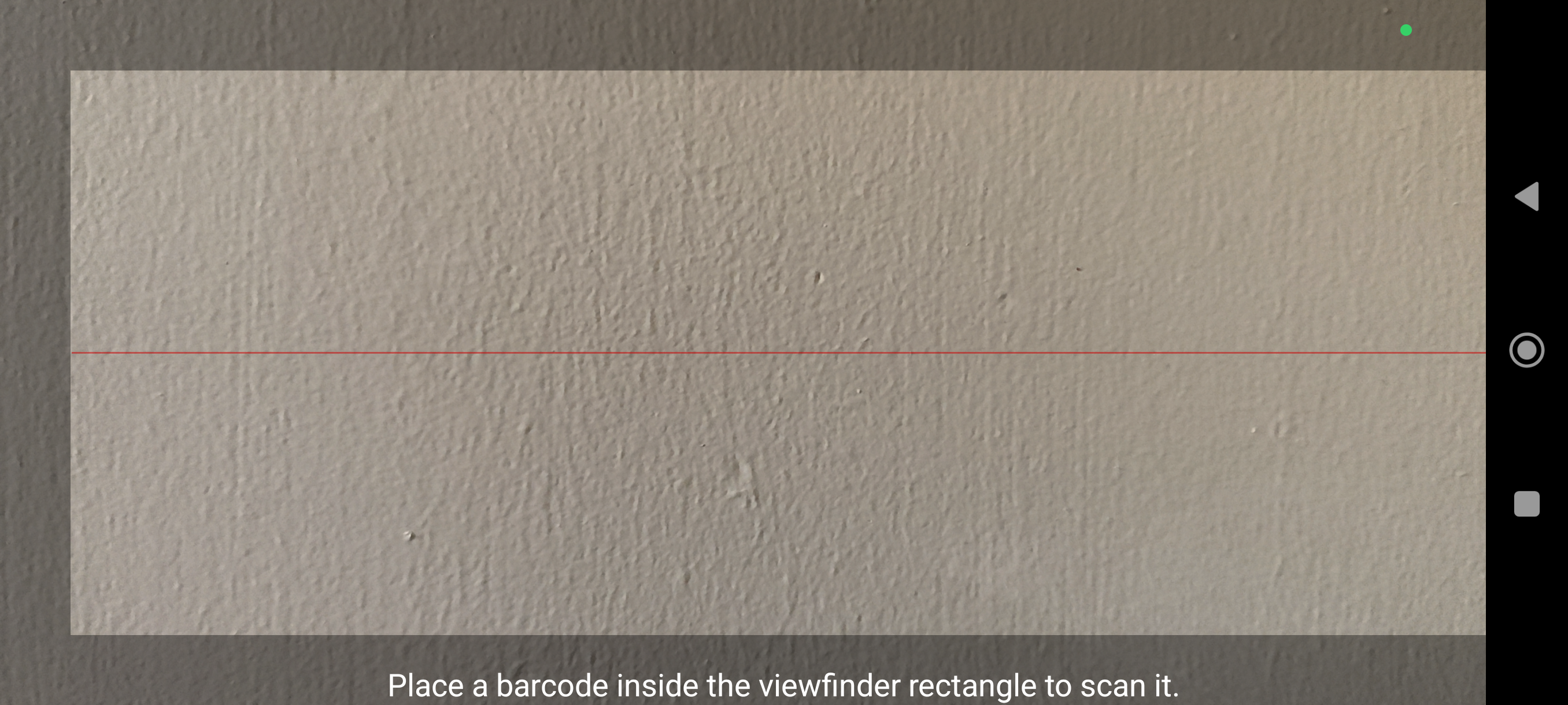
Line the barcode up inside the frame. A full-screen scanning view opens with a framing rectangle in the middle, and reads the code as soon as it's in view. This scanner is provided by Google Play services, so its exact look can differ from one device to another.
-
Confirm the line. An Add to sale? panel shows the item, its price and a Qty box. Tap Add to sale to add it, or Skip to ignore that scan. The camera reopens for the next item — tap the ✕ on the panel when you're done.
Good to Know
- Each item can only have one barcode stored. Rescanning replaces the previous value.
- If a scanned barcode doesn't match any item, the app asks Create item with barcode …? — tap Yes to set up the item there and then, or No to keep scanning.
- Barcode scanning works anywhere you can add line items — invoices, quotes, sales orders, cash sales, purchase orders and vendor bills.
- The Items list has its own barcode button inside the search box — scan there to jump straight to an item.
- Good lighting helps. If the camera has trouble reading the barcode, try moving closer or increasing screen brightness.
Still stuck? Contact Support for help.