Have your customer sign directly on the screen — the signature is saved to the invoice and printed on the PDF automatically.
What You'll Need
Before you start: Signature capture is on out of the box. If it isn't working, open the side menu, tap Settings, then under Invoicing & documents tap Signatures and confirm Enable signatures is ticked.
Steps
-
Open the invoice you want the customer to sign.
-
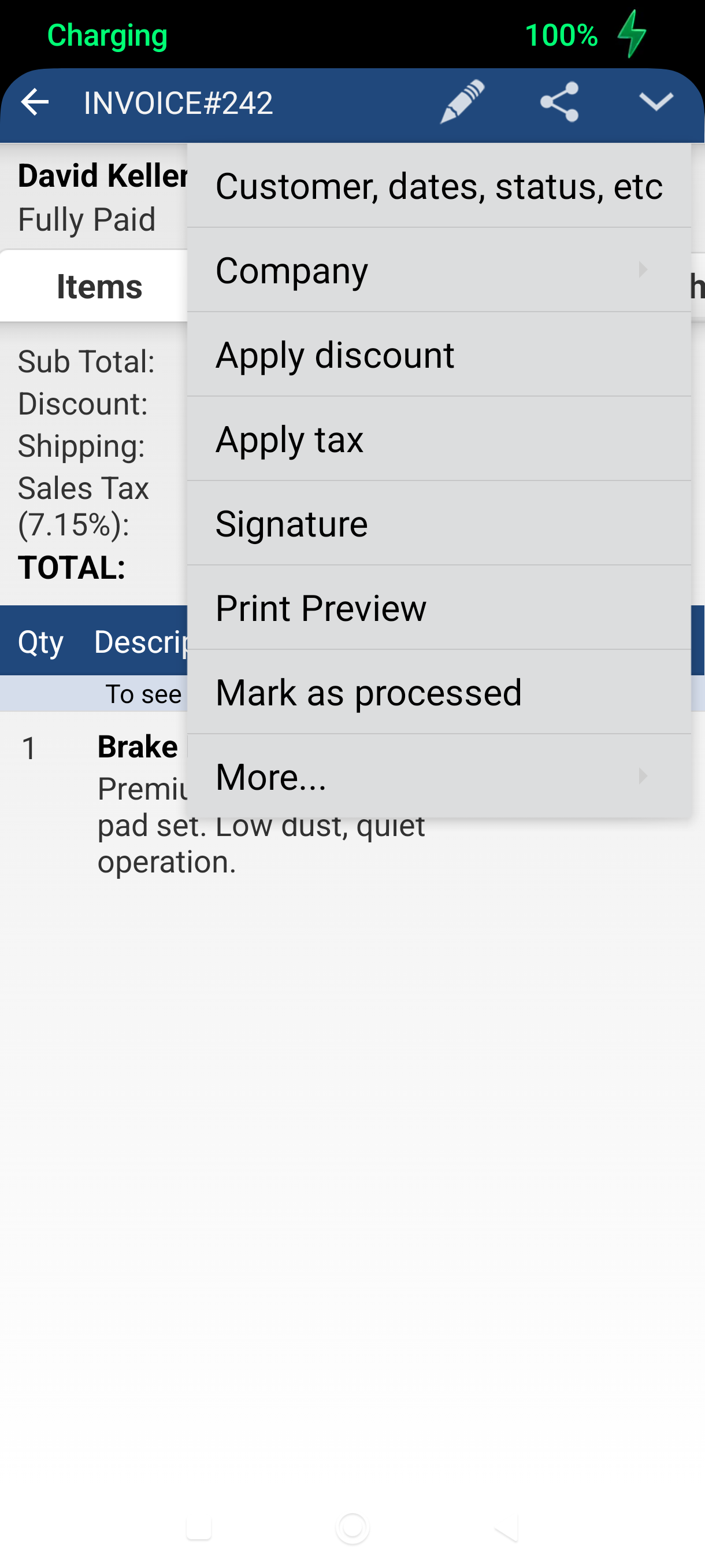
Tap the Edit icon (pencil) in the action bar — the Edit menu appears.
-
Tap Signature — the Signature screen opens, headed Signature with the transaction number underneath.
-
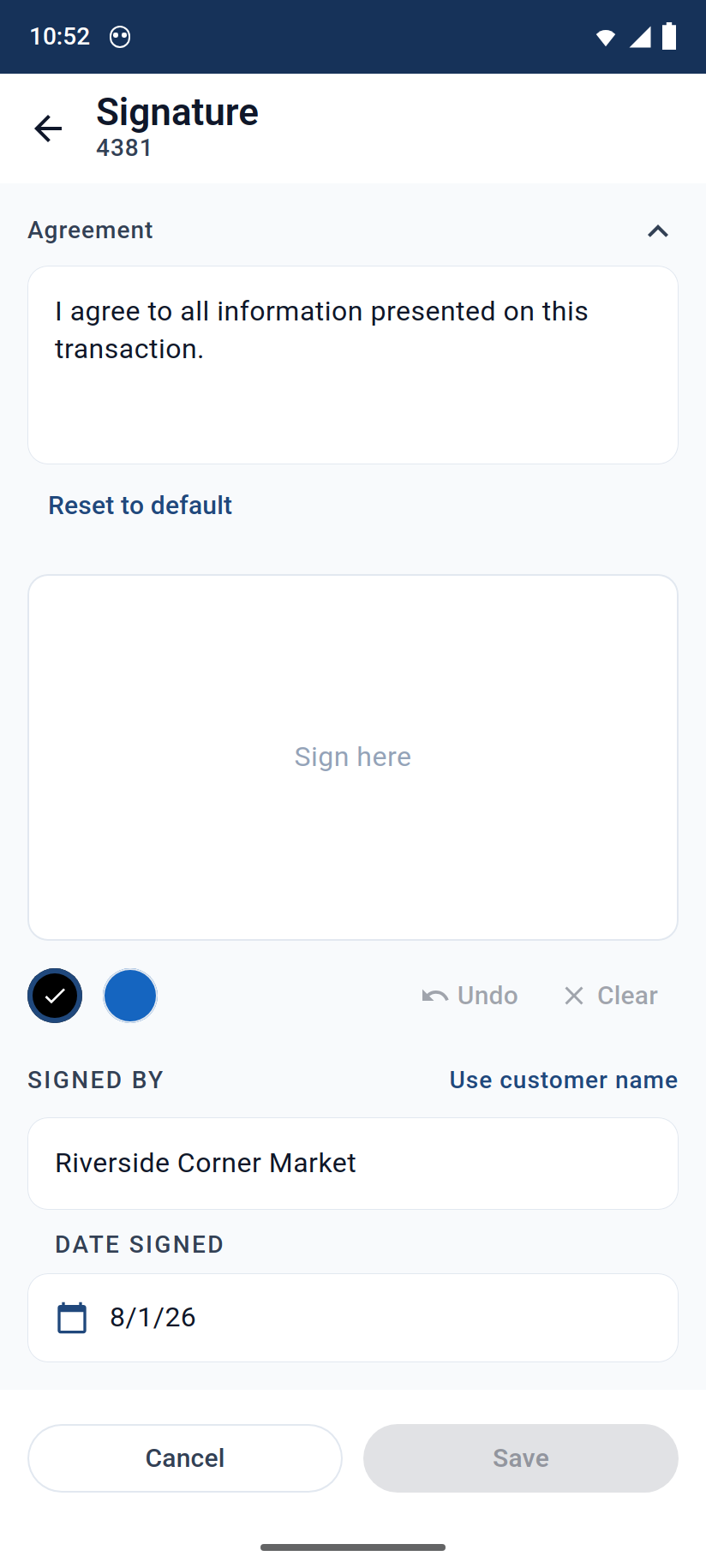
Check the Agreement text at the top — this is what your customer is agreeing to. Edit it for this transaction if you like, or tap Reset to default to put your company wording back.
-
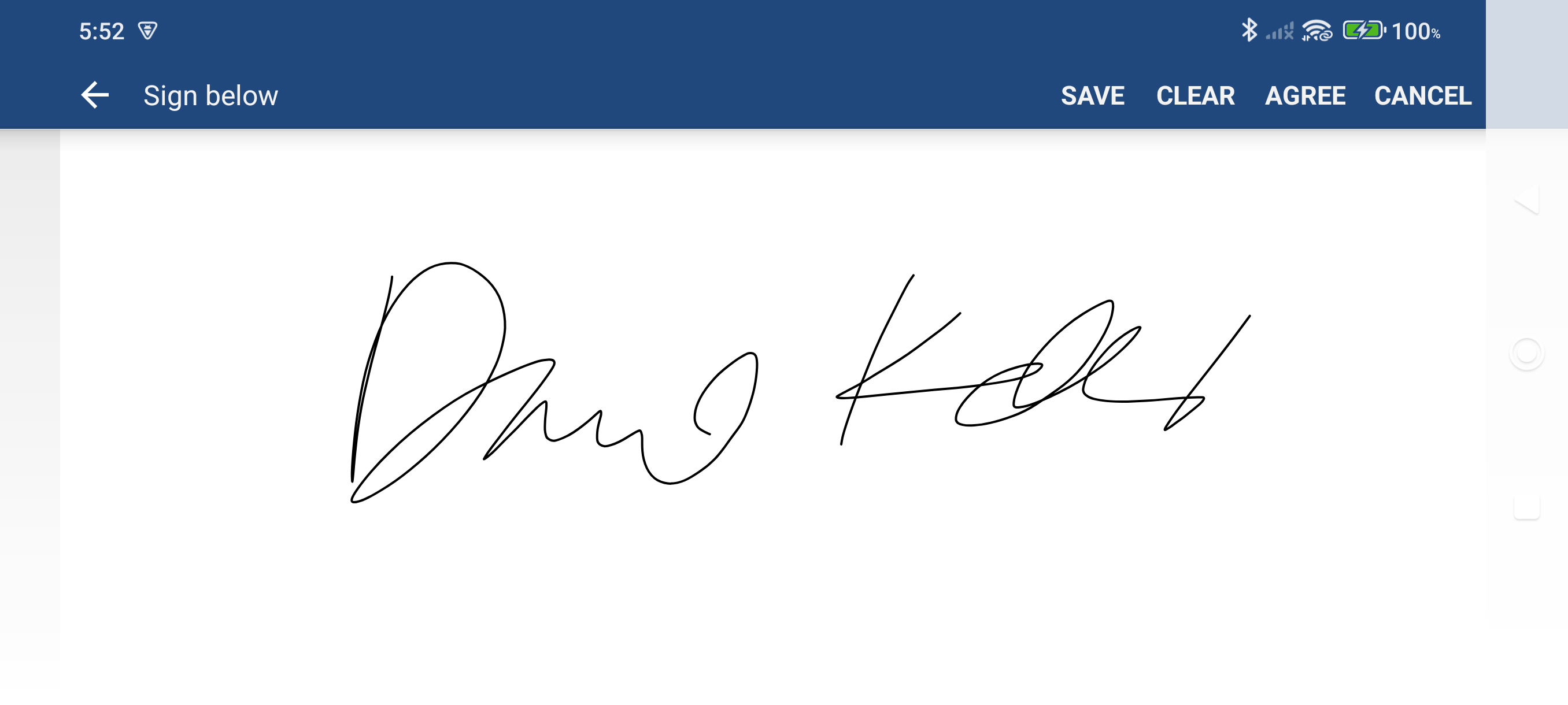
Hand the device to your customer and have them sign with a finger on the white pad marked Sign here. Undo removes the last stroke and Clear wipes the pad.
-
Check the details, then tap Save. SIGNED BY is pre-filled with the customer's name — type over it if someone else signed, or tap Use customer name to put it back. Set DATE SIGNED if it isn't today. Save stays greyed out until something has been drawn.
-
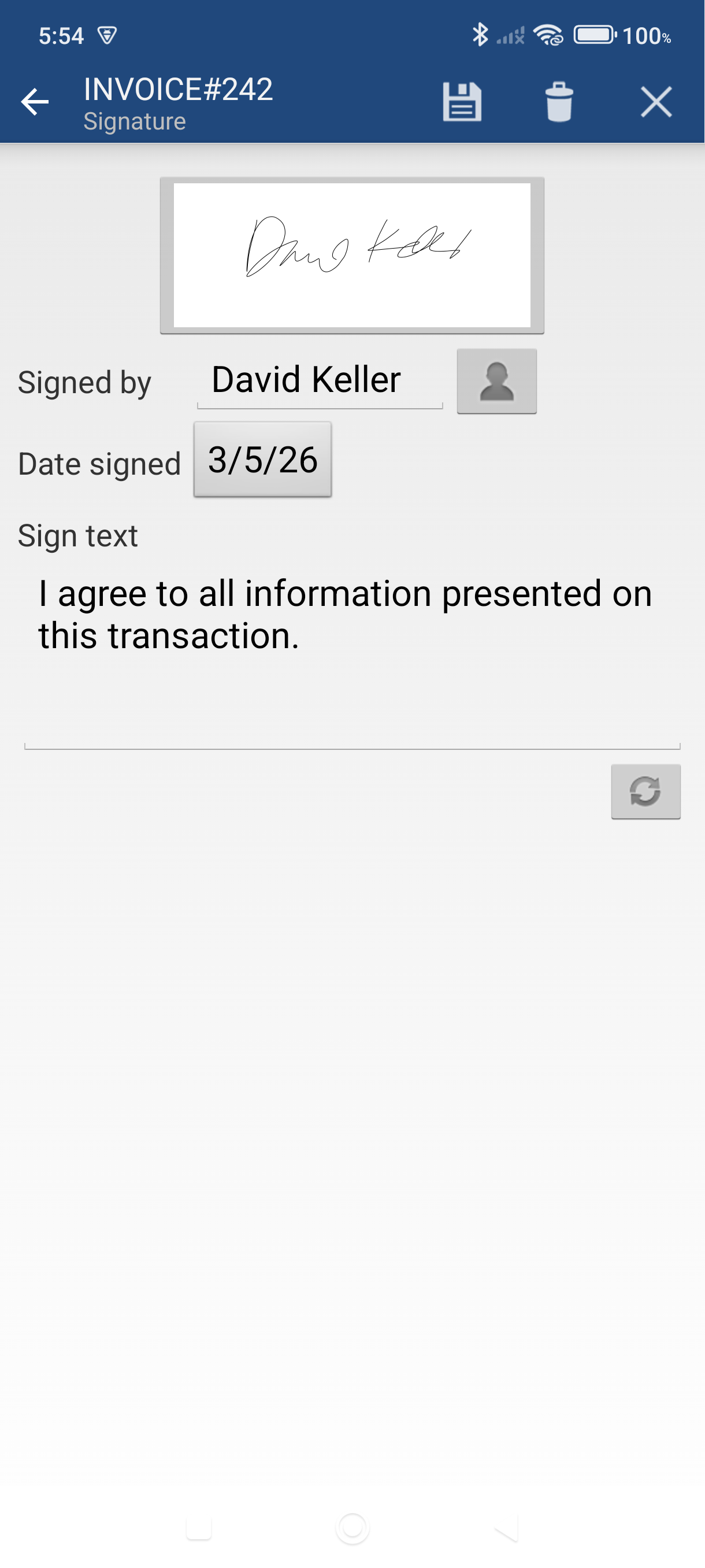
To verify it was saved, tap the Details tab on the invoice — Signed by, Sign Date, and the signature image appear near the bottom.
Good to Know
- Reopening a signed invoice. Edit menu > Signature shows the saved signature instead of a blank pad. Tap Re-sign to draw a new one, or edit SIGNED BY and DATE SIGNED and tap Save without re-drawing.
- Removing a signature. Tap Remove on that same screen and confirm Remove signature?.
- Pen color. The two dots under the pad switch the ink between black and blue.
- Signature on PDFs. The signature appears on all PDF and print output for this invoice. Change how big it prints with Signature size on the Signatures settings screen.
- Default agreement wording. Set it once under Settings > Signatures > Signature text — every new signature starts from it.
- Signatures work on invoices, quotes, sales orders and cash sales, and on purchase orders and vendor bills too.
Still stuck? Contact Support for help.