Getting a new phone? You can bring your entire MobileBiz Pro database with you in just a few minutes using Dropbox. This method works even if the two phones are never in the same room.
What You'll Need
Before you start: A Dropbox account connected to MobileBiz Pro on your old phone. If you haven't set up Dropbox yet, go to Settings > Data & backup > Backup & restore > Dropbox and connect your account first. MobileBiz Pro installed on your new phone.
Steps
On Your Old Phone
-
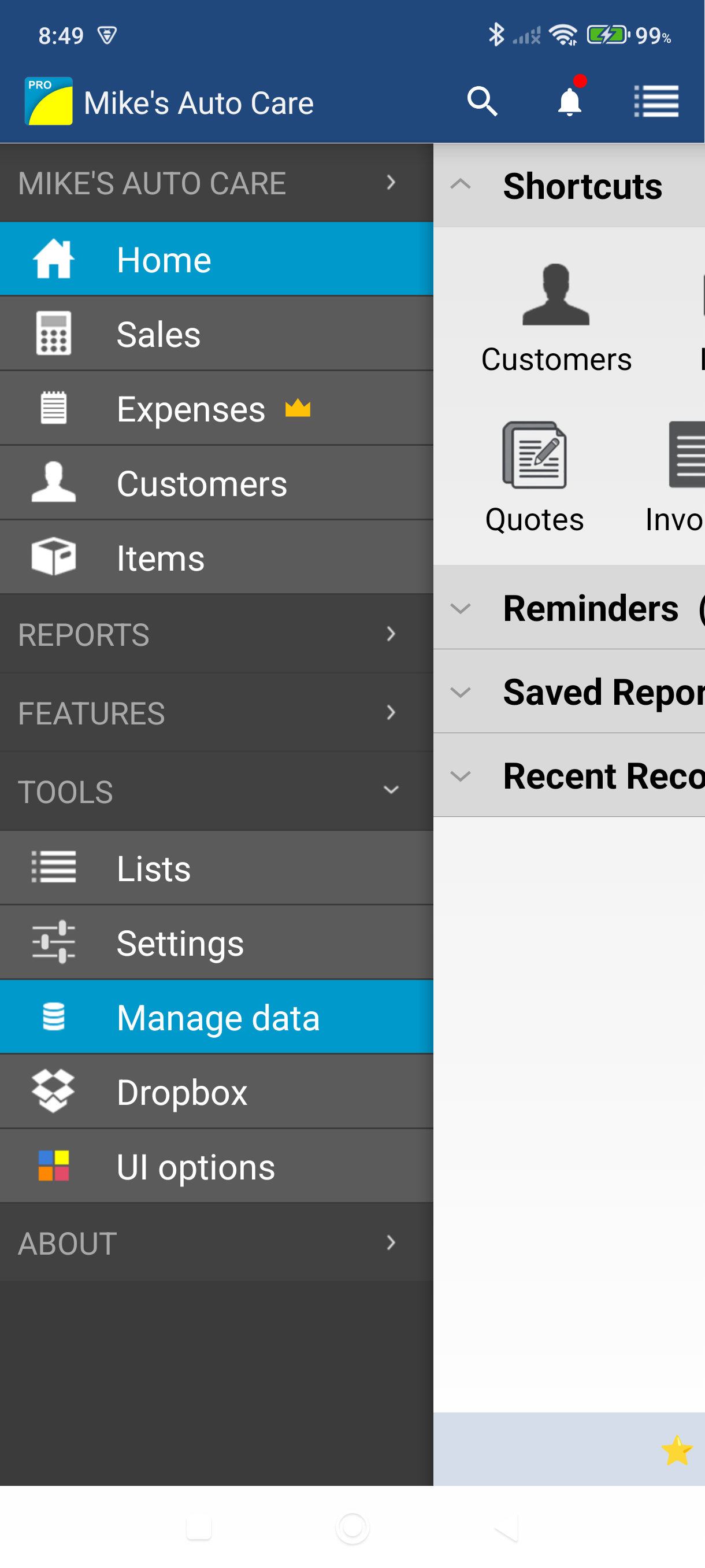
Open the side menu and tap Settings — it sits under the More heading.
-
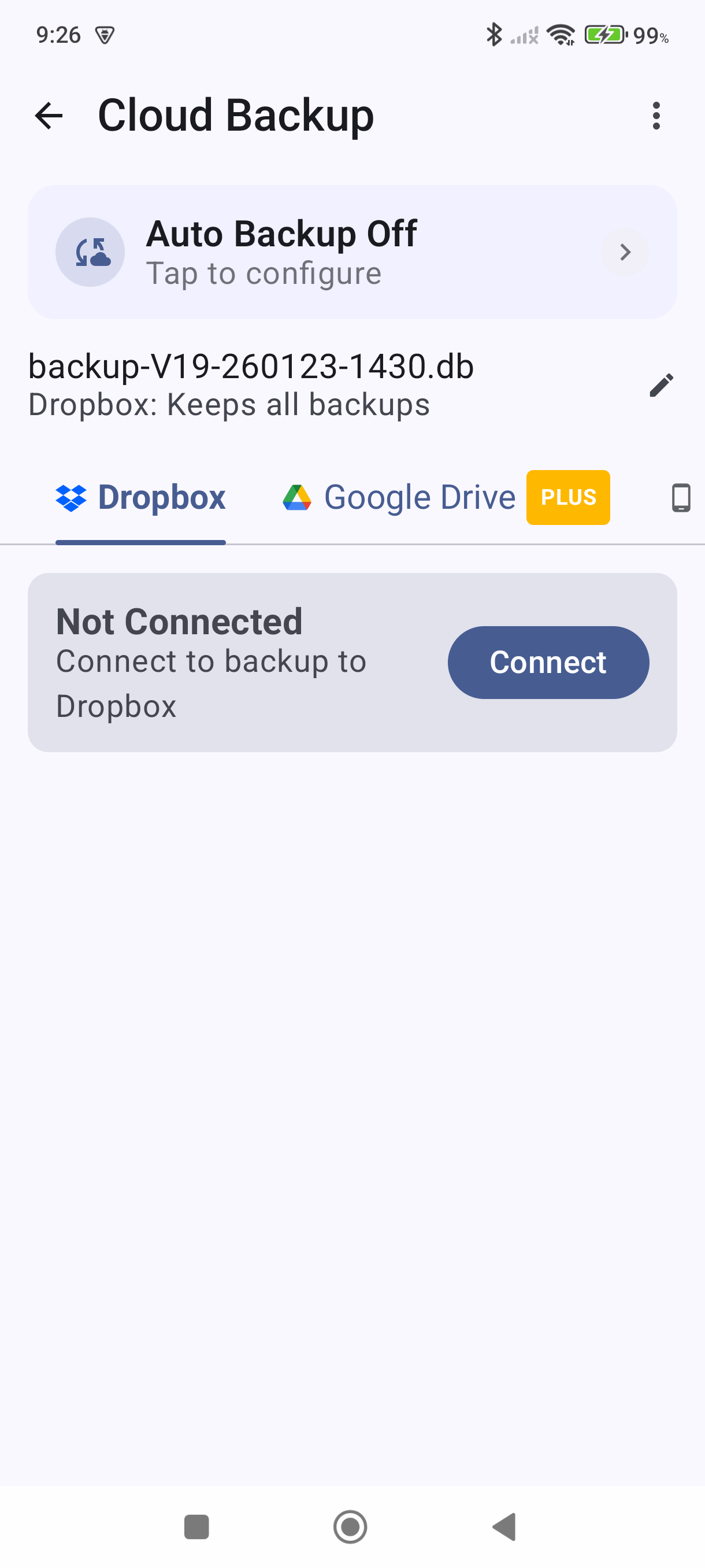
Scroll to Data & backup, tap Backup & restore, then select the Dropbox tab.
-
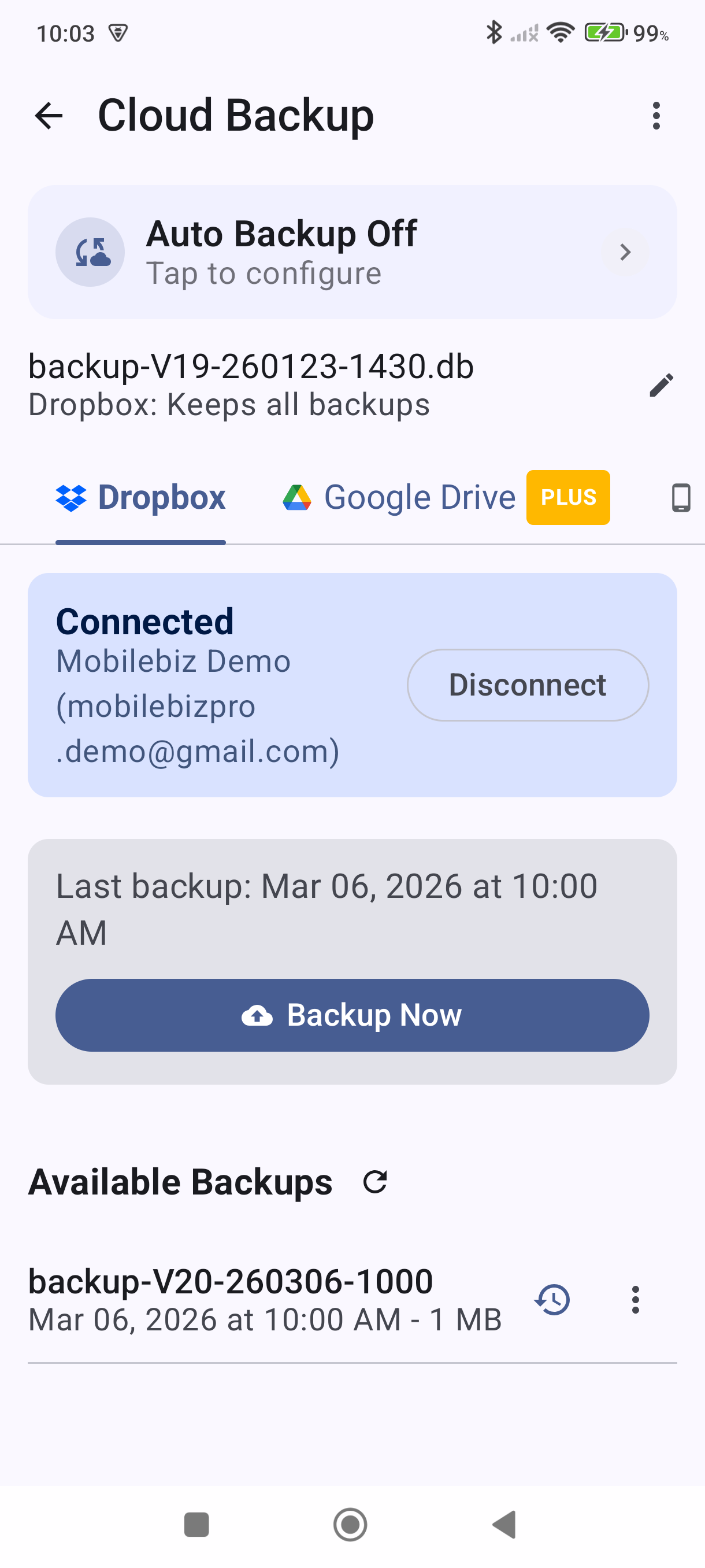
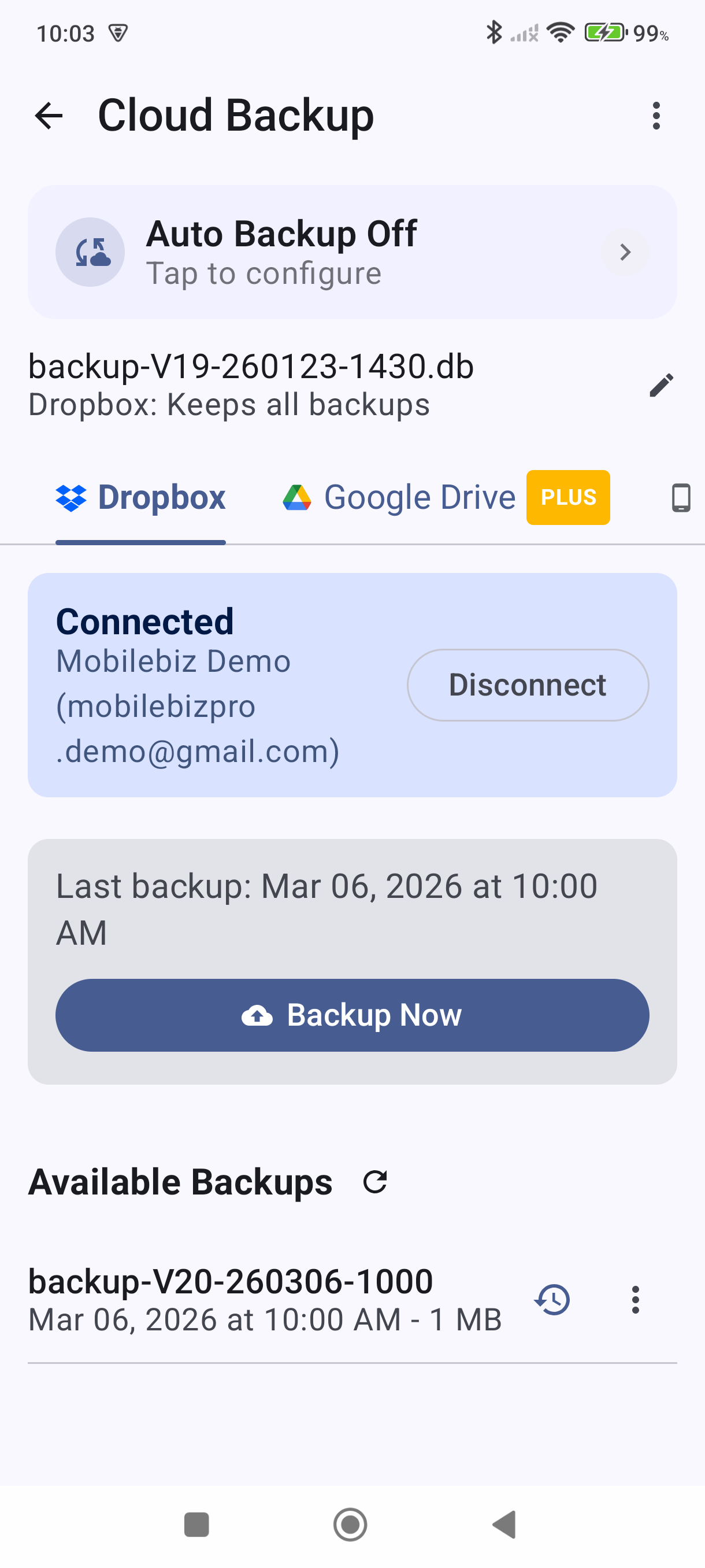
Tap the backup button to save your database to Dropbox now. Wait for the confirmation that the backup is complete.
On Your New Phone
-
Open MobileBiz Pro. The app starts with an empty database — that's expected.
-
Open the side menu and tap Settings — it sits under the More heading.
-
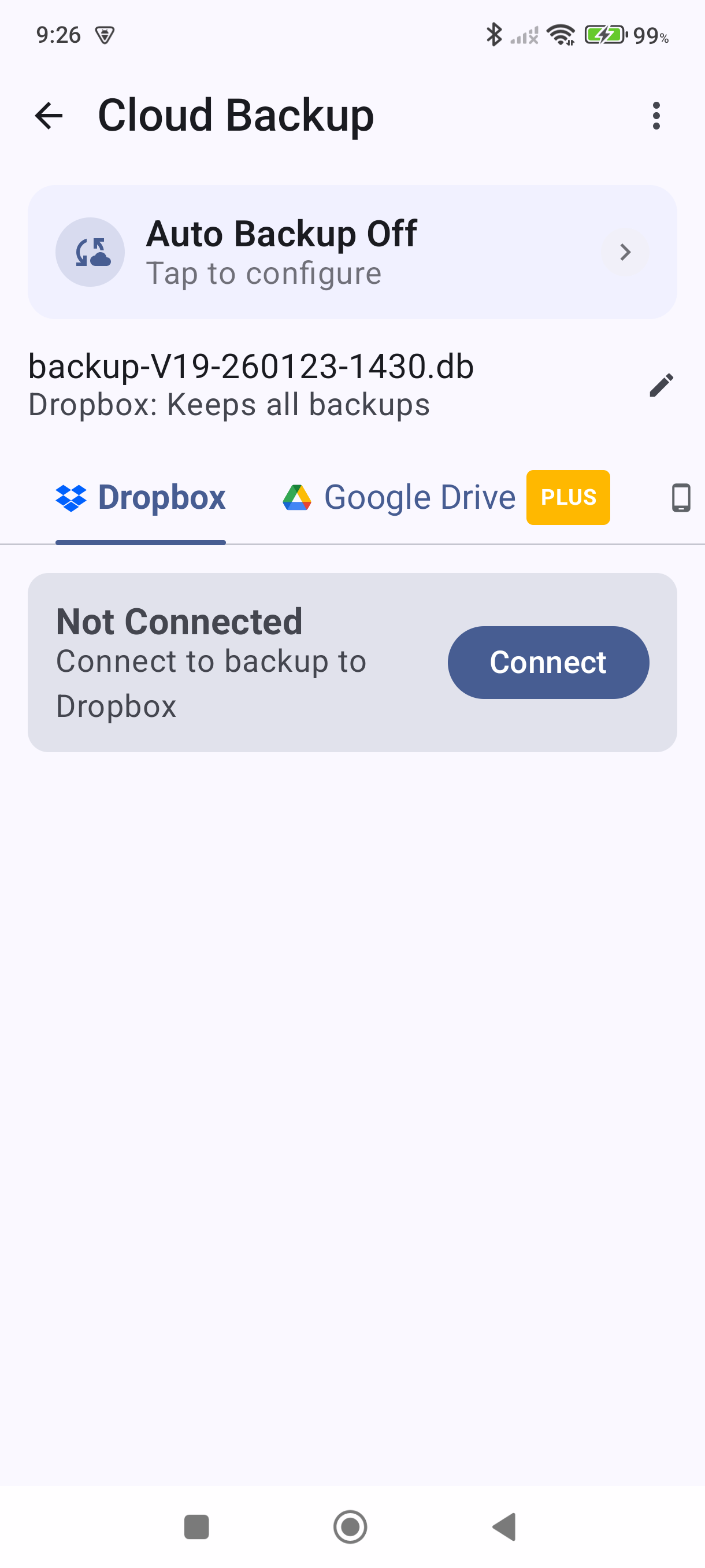
Scroll to Data & backup, tap Backup & restore, then select the Dropbox tab.
-
Connect the same Dropbox account you used on your old phone.
-
Find the backup from your old phone in the Available Backups list — it shows the date and time it was created — and tap the restore icon on its row (the clock with a back-arrow).
-
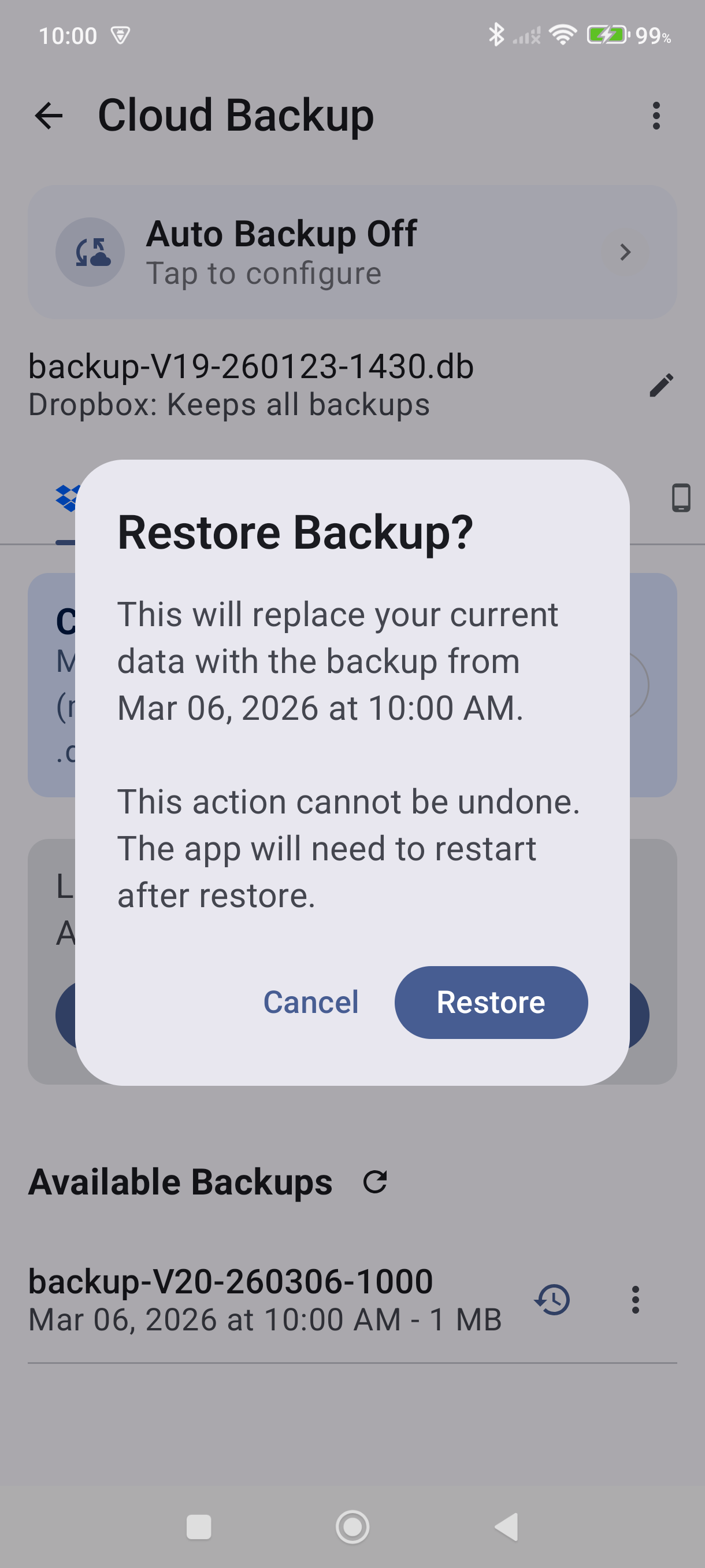
Tap Restore in the "Restore Backup?" prompt. The app loads your backup, then asks you to restart it — reopen the app and all your data is in place.
Good to Know
- Everything transfers: invoices, quotes, customers, items, settings, and print templates.
- Backups land in the
/mobilebiz-pro/dbfolder of your Dropbox, so you can check the file is there from the Dropbox app or dropbox.com before you wipe the old phone. - Don't have Dropbox? You can also use the Device tab to save a backup file to your old phone's storage and copy it manually to your new phone.
- If you use Google Drive, the process is identical — just select the Google Drive tab instead of Dropbox on both phones.
- Photos stored in MobileBiz Cloud are tied to your account and will be available on the new phone once you sign in — they don't need to be transferred separately.
- After the restore, open a few invoices and check your customer list to confirm everything transferred correctly.
Still stuck? Contact Support for help.