A quote (also called an estimate) lets you send pricing to a customer before committing to an invoice. When they accept, you can convert it to an invoice straight from the quote's bottom bar.
What You'll Need
Before you start: Make sure you've added at least one customer and one item or service. See How to Add a Customer and How to Add an Item if needed.
Steps
-
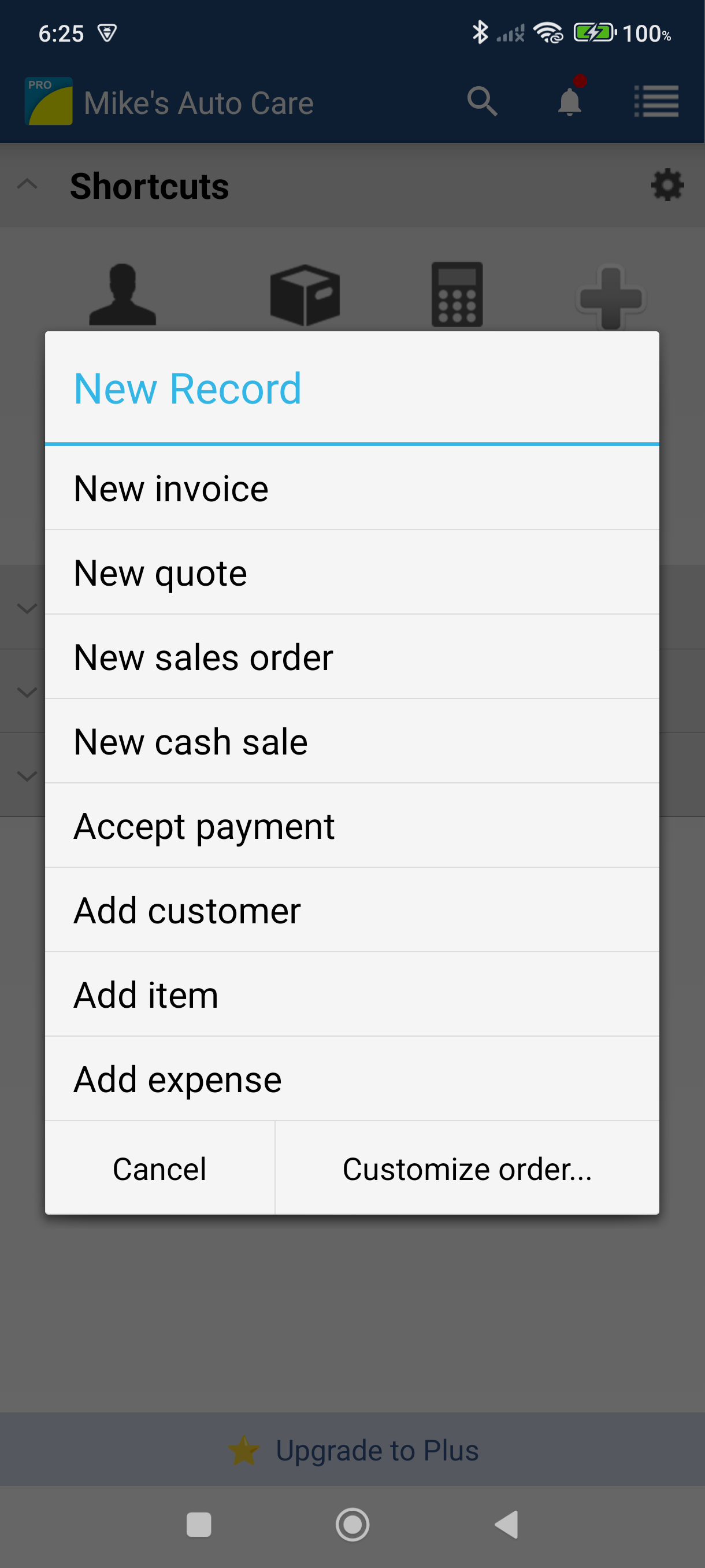
On the Home screen, tap the New tile in the shortcuts grid.
-
Tap New quote — the quote header screen opens.
-
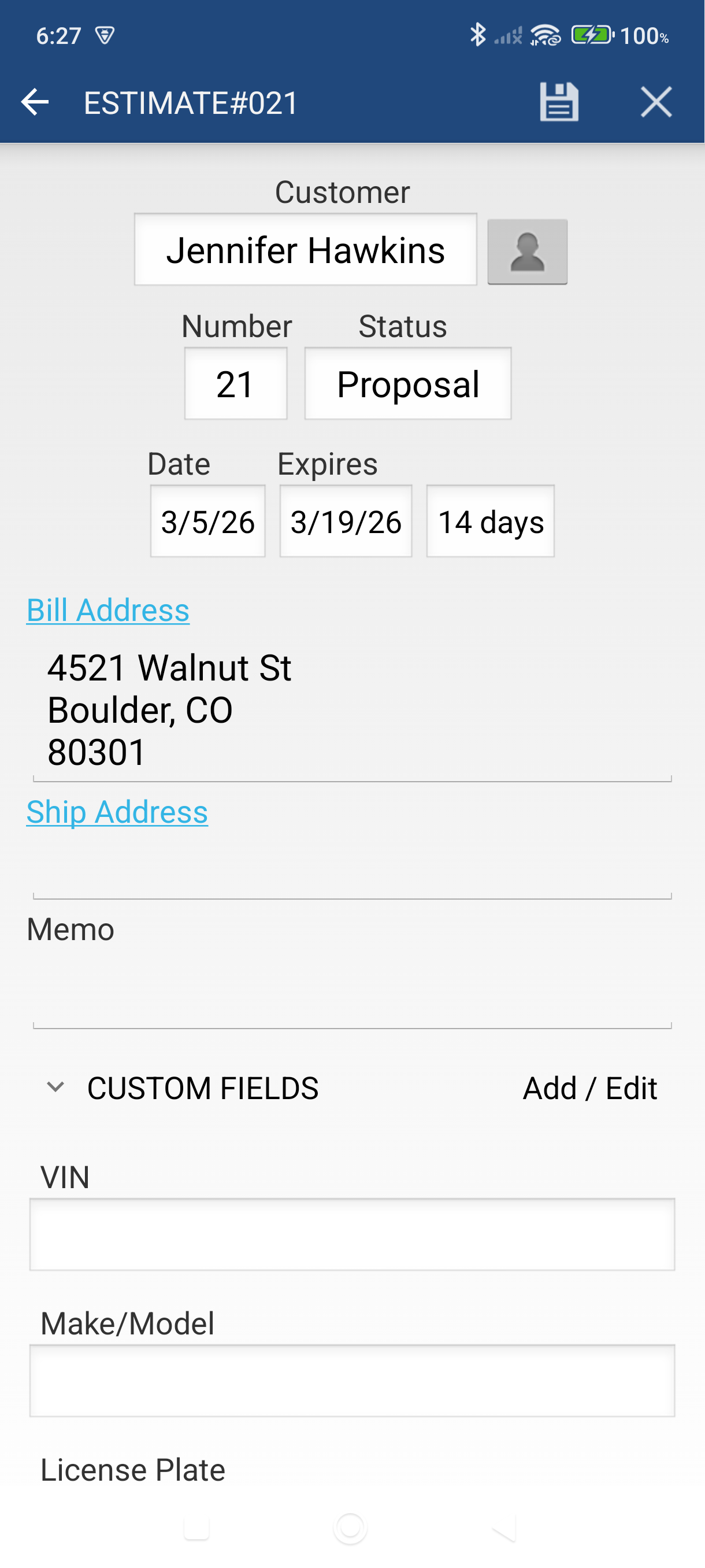
Tap the Customer field and select your customer. Their billing address and payment terms fill in automatically.
-
Set the Expires date — this is the date your pricing offer expires. Tap the field to pick a date.
-
Tap the Save icon — the floppy disk in the action bar, next to the X. The app creates the quote and opens the quote view screen.
-
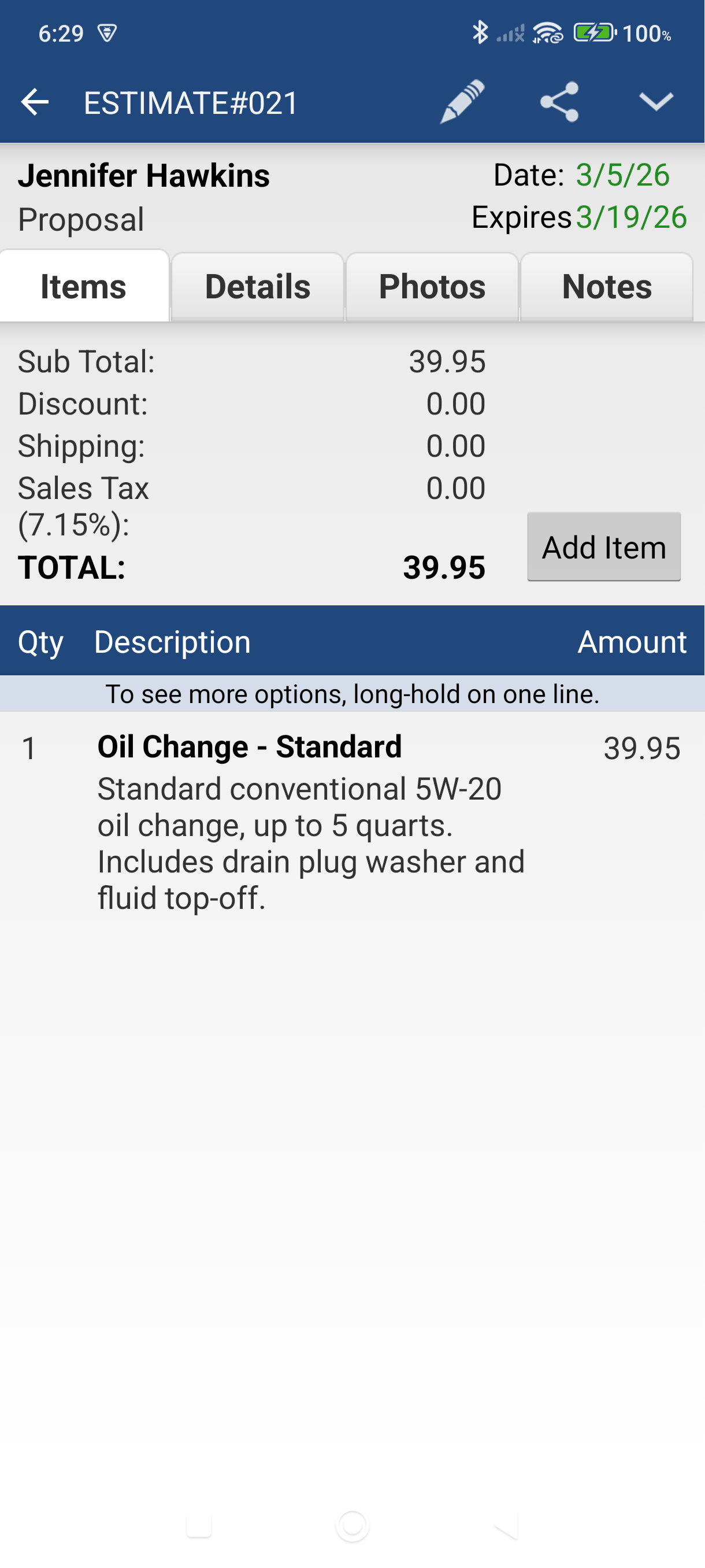
Tap the Items tab, then tap Add Item to add your first line item.
-
Tap the item selector and pick a product or service. The rate and description fill in automatically.
-
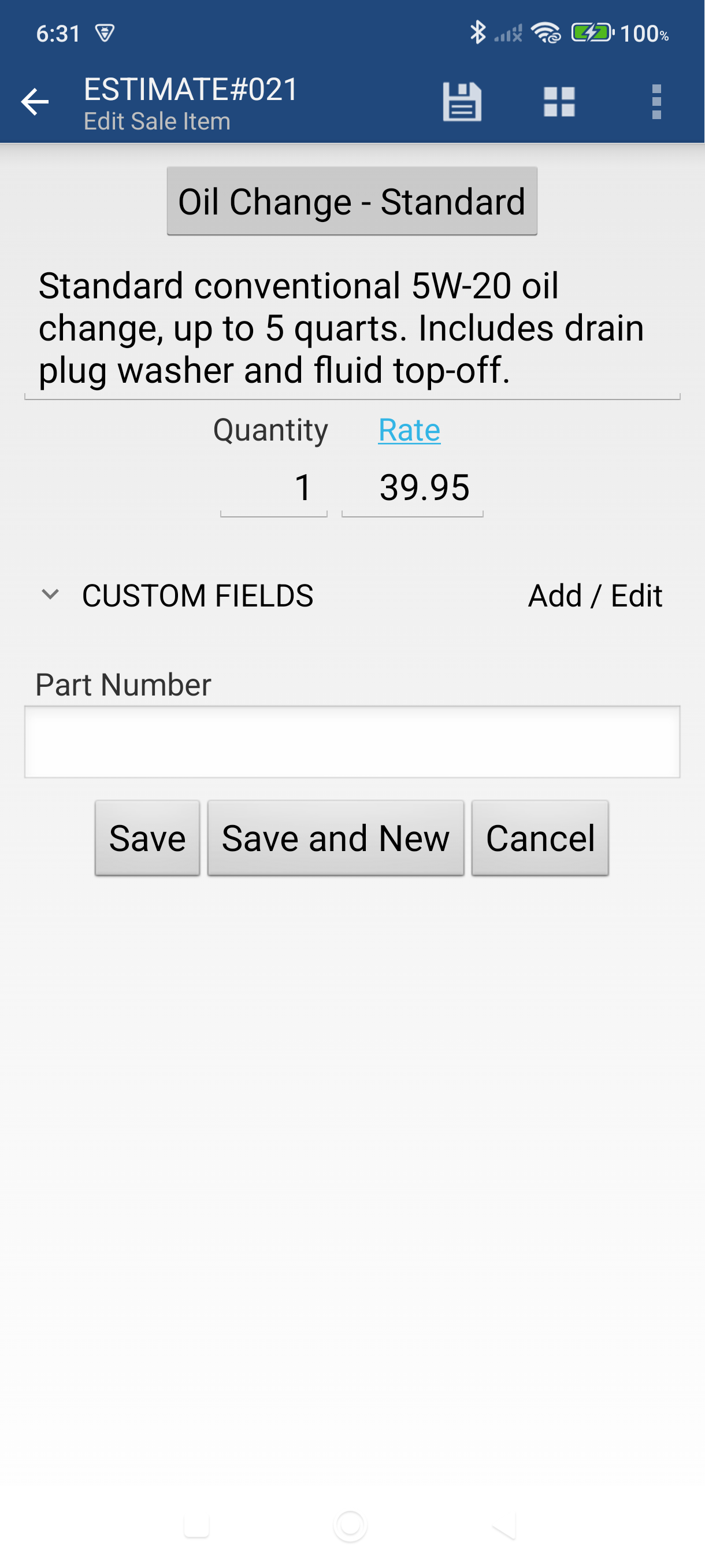
Enter the Quantity, adjust the Rate if needed, and tap Save. Use Save and New to add multiple items in a row.
-
To send the quote, tap Send in the bar at the bottom of the quote, then tap Email on the Send sheet — the same email flow as invoicing applies.
Good to Know
- Statuses for quotes: Proposal, In Negotiation, Purchasing, Closed Won, and Closed Lost (customizable in Settings). Update the status once the customer responds.
- When the customer accepts, open the quote, tap Convert in the bottom bar, then tap Invoice. All line items and customer details carry over automatically. The Edit (pencil) menu has the same Convert to invoice entry if you prefer it.
- The Convert to sheet also offers Sales order — useful if you need a fulfillment step before billing — and Cash sale.
- The quote and the resulting invoice are linked — use More menu > Converted to or Created from to navigate between them.
Still stuck? Contact Support for help.