Dropbox backup saves your entire database — invoices, customers, items, and settings — to your Dropbox account. Manual and scheduled Dropbox backups are free for all users.
What You'll Need
Before you start: Make sure you have a Dropbox account. If you don't have one, create a free account at dropbox.com first.
Steps
-
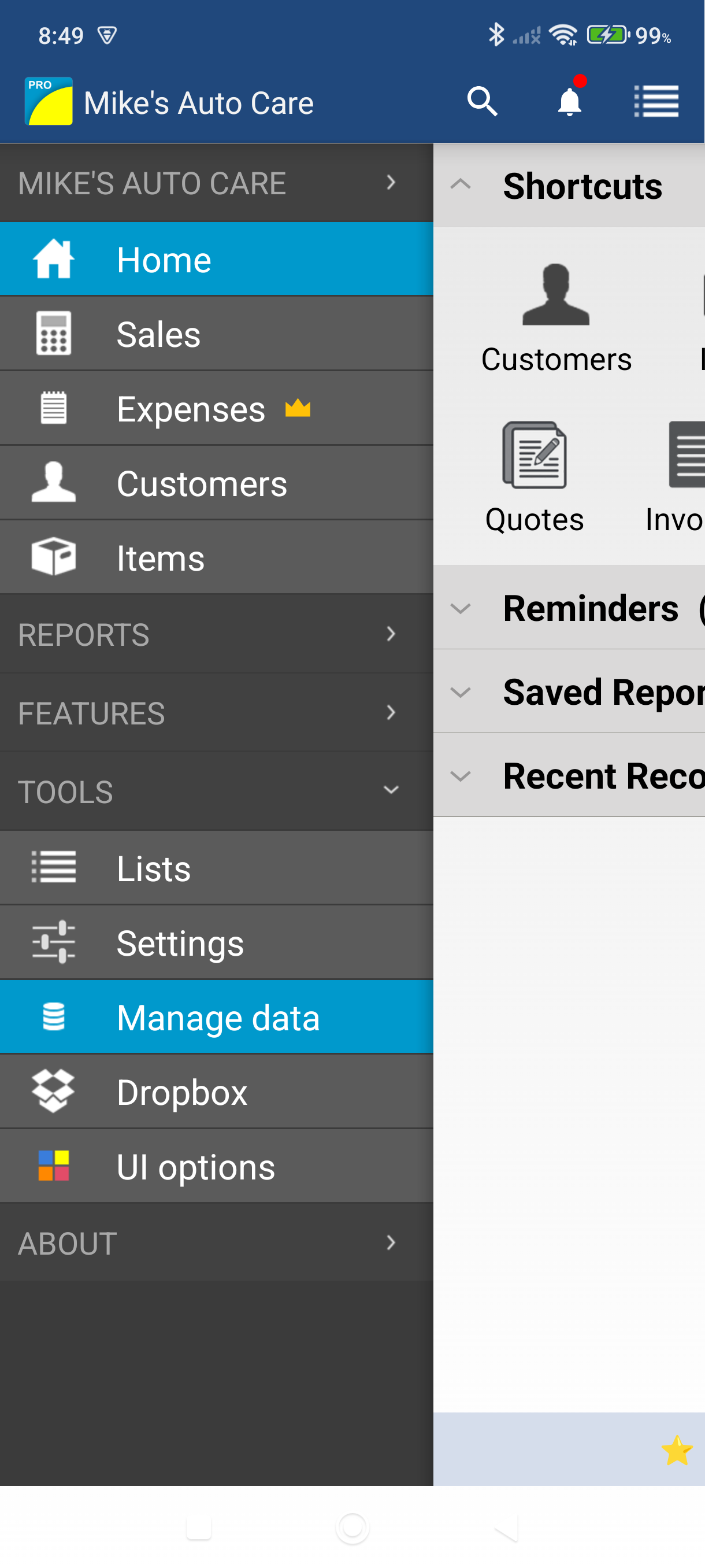
Open the side menu and tap Settings — it sits under the More heading.
-
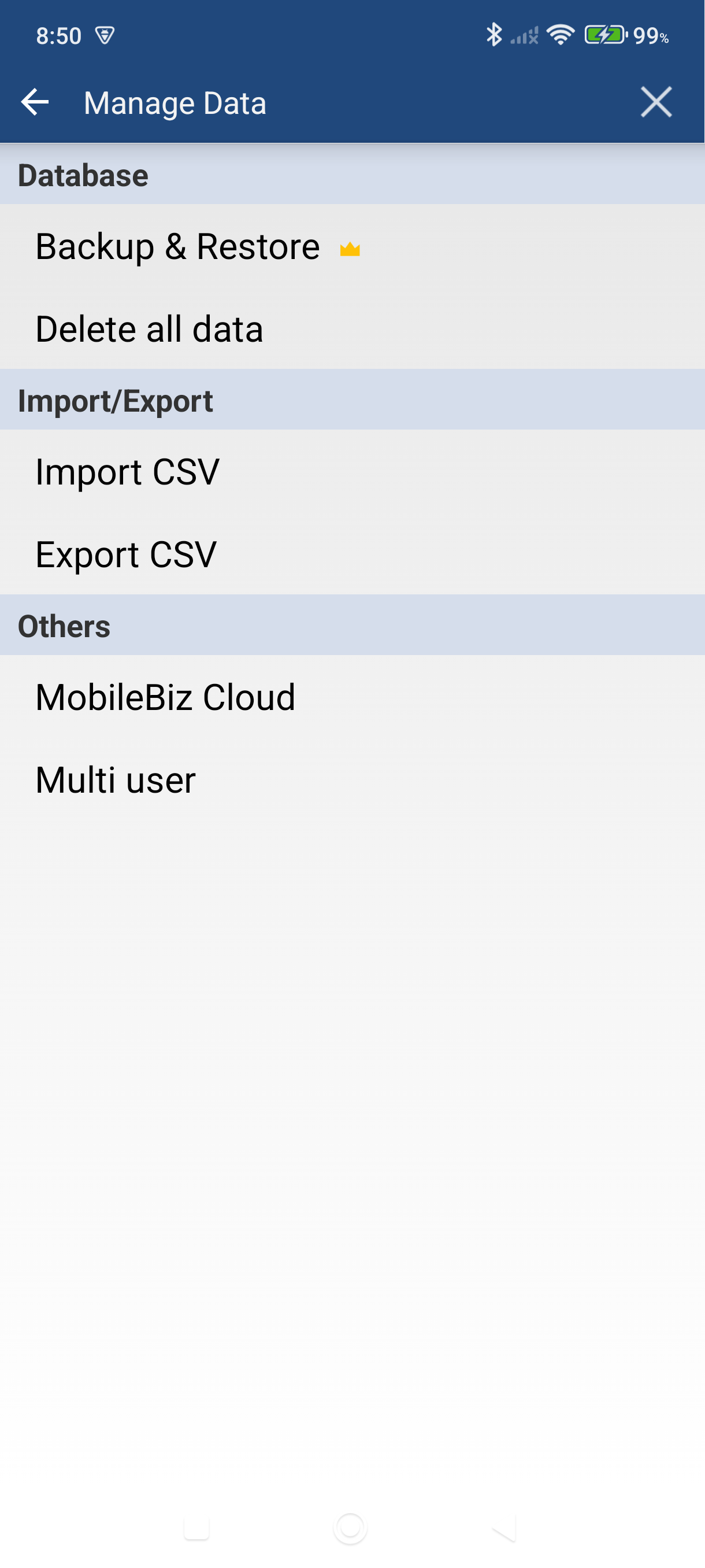
Scroll to Data & backup and tap Backup & restore. The Cloud Backup screen opens.
-
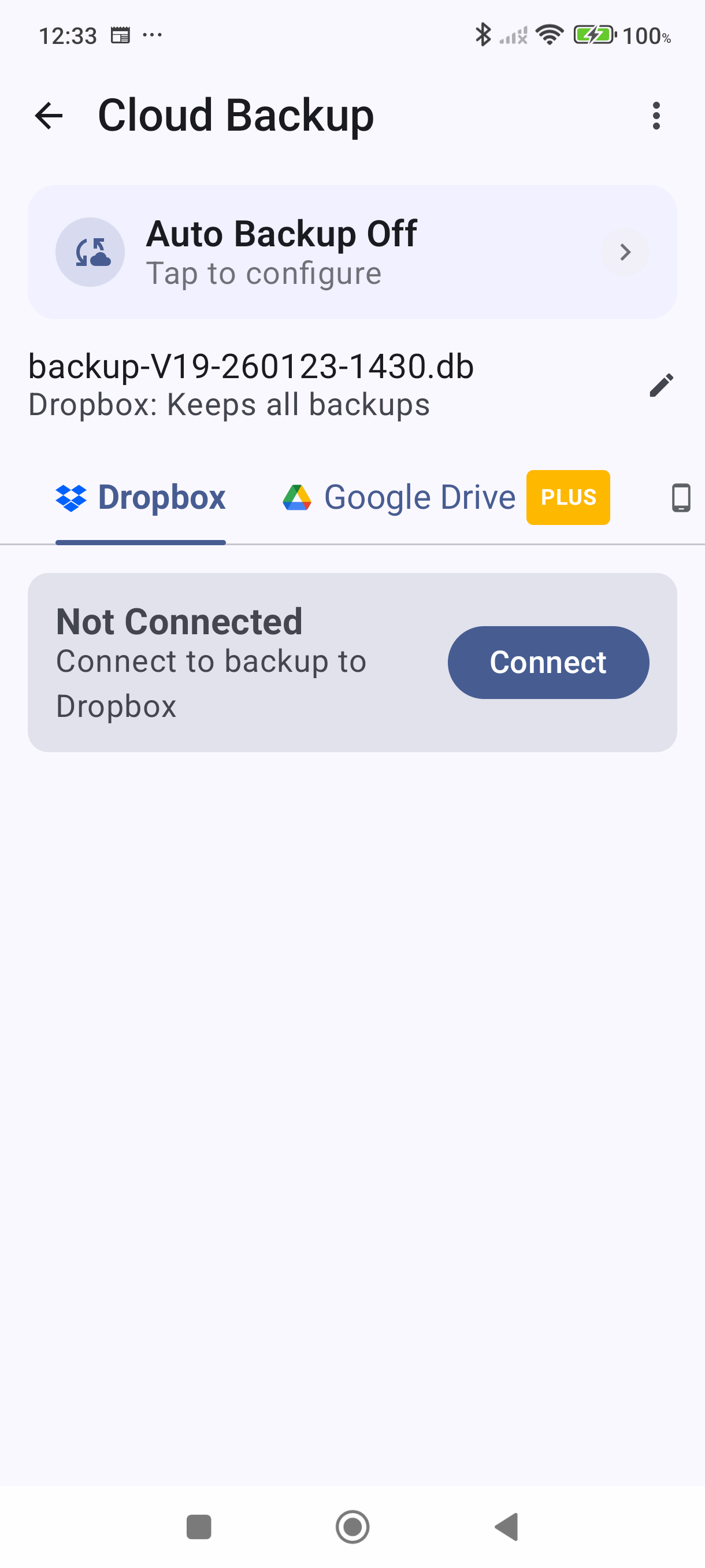
Tap the Dropbox tab — the tabs across the screen are Dropbox, Google Drive, and Device.
-
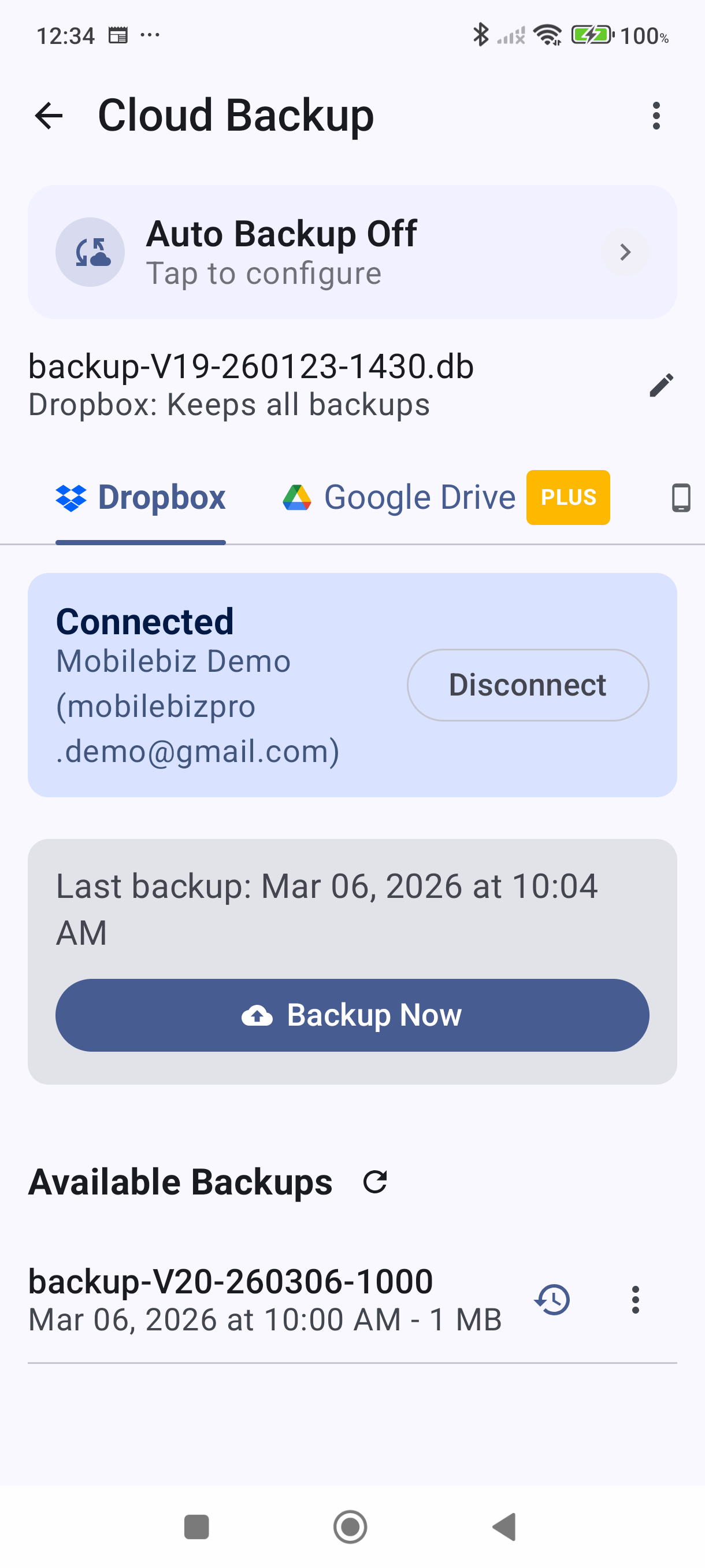
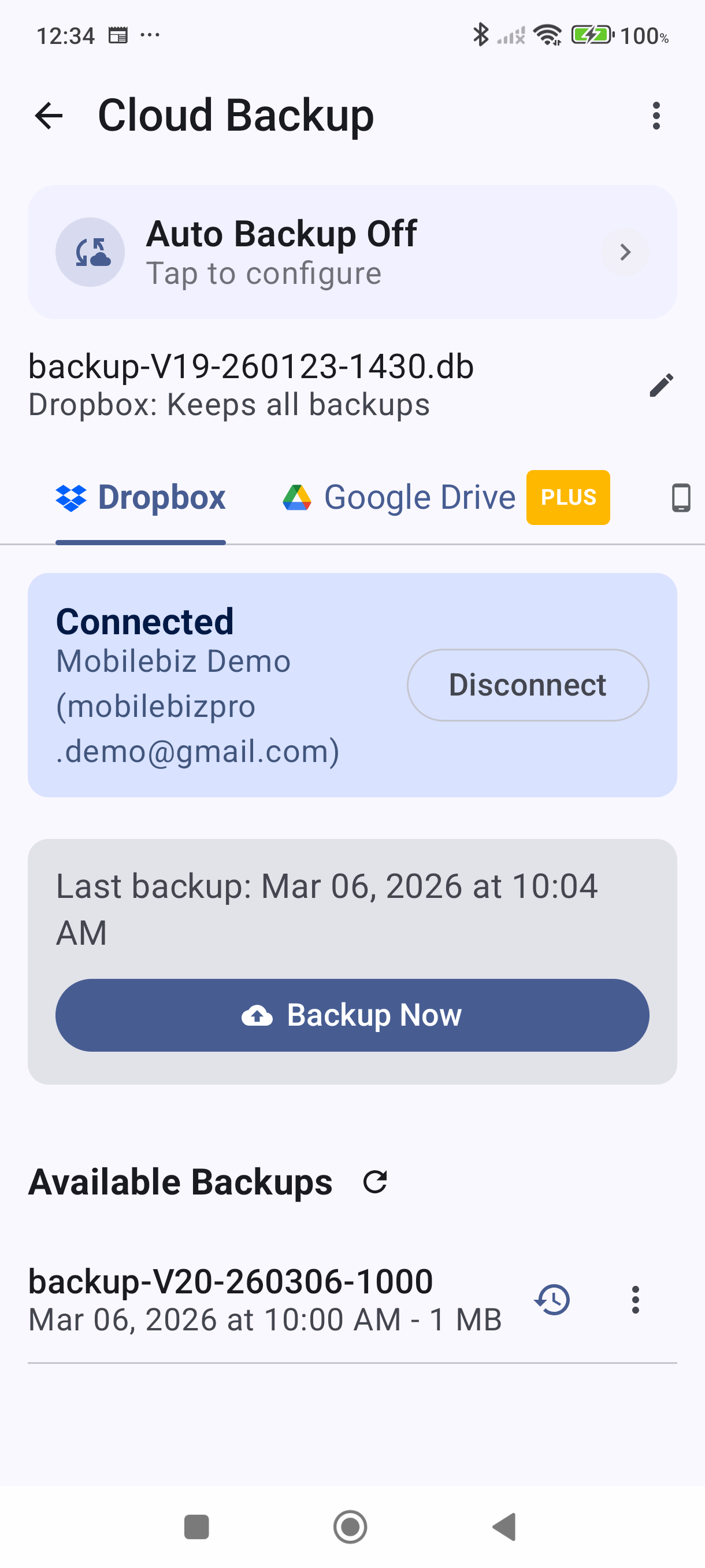
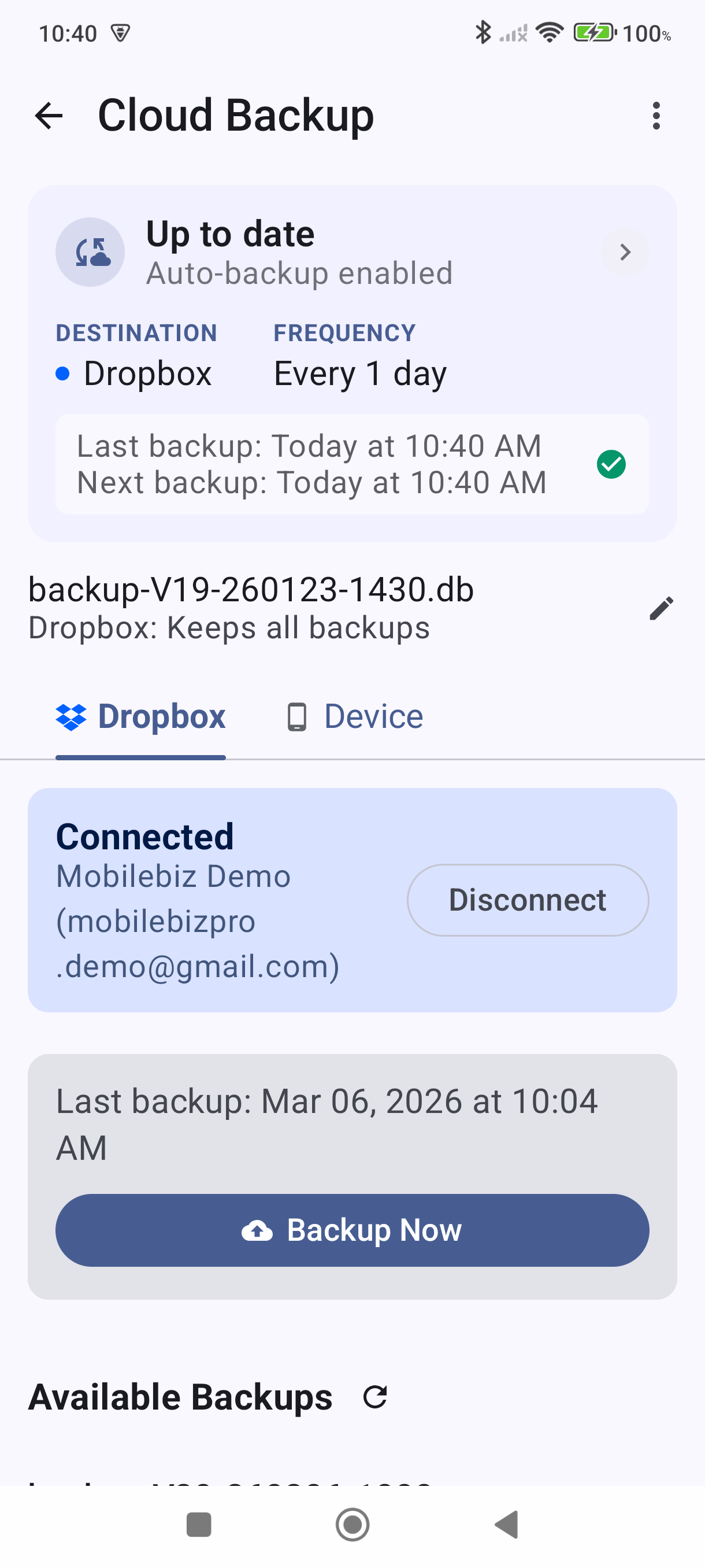
Tap Connect and sign in to your Dropbox account. Grant the permissions the app requests. When the connection succeeds, the Connect button is replaced by a green dot and your Dropbox account email, with a Disconnect link beside it.
-
Tap Backup Now. The app uploads your database to Dropbox. A success message appears when it's done.
-
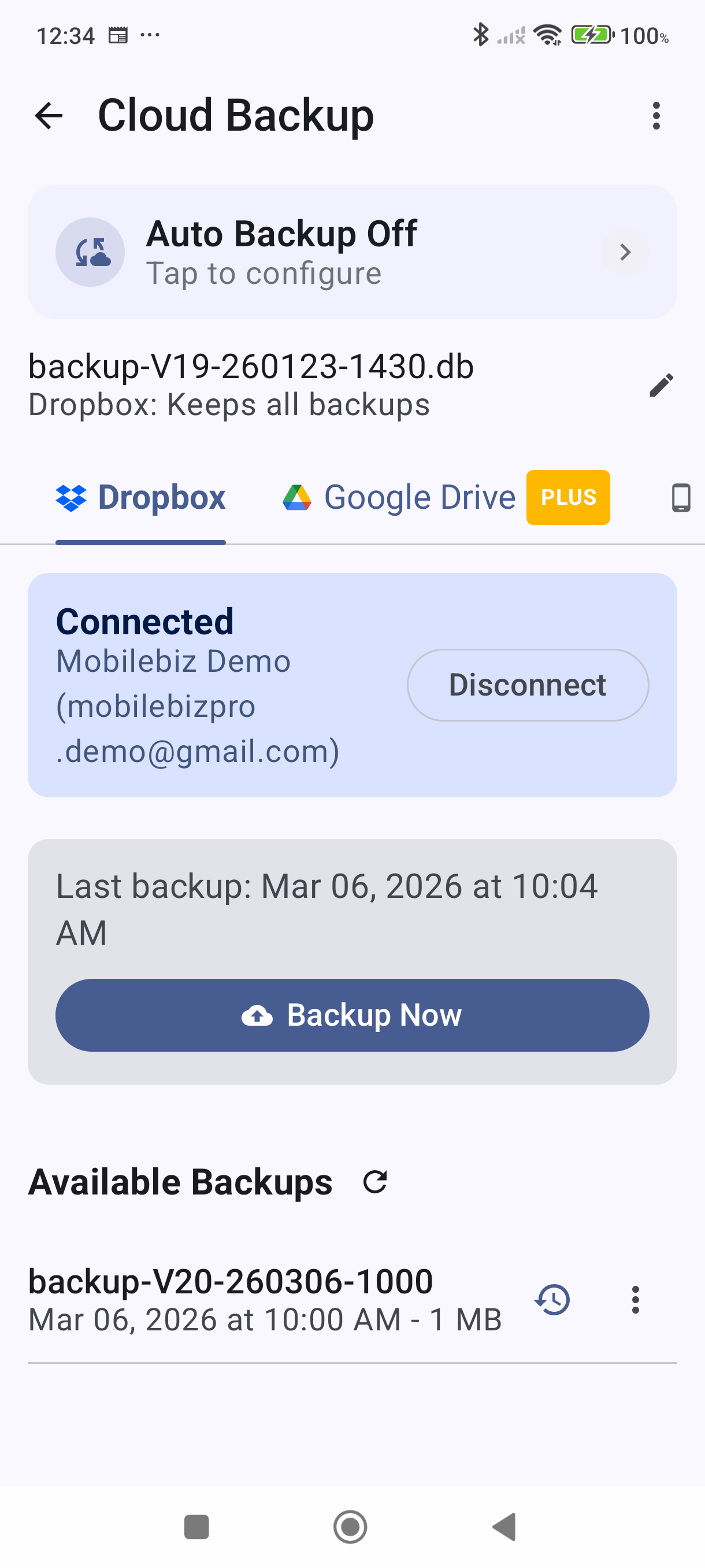
Confirm your backup appears in the Available Backups list below the backup button. You can tap the refresh icon if the list doesn't update immediately.
Set Up Scheduled Dropbox Backups
A scheduled backup runs on its own so you never have to think about it — free on Dropbox.
-
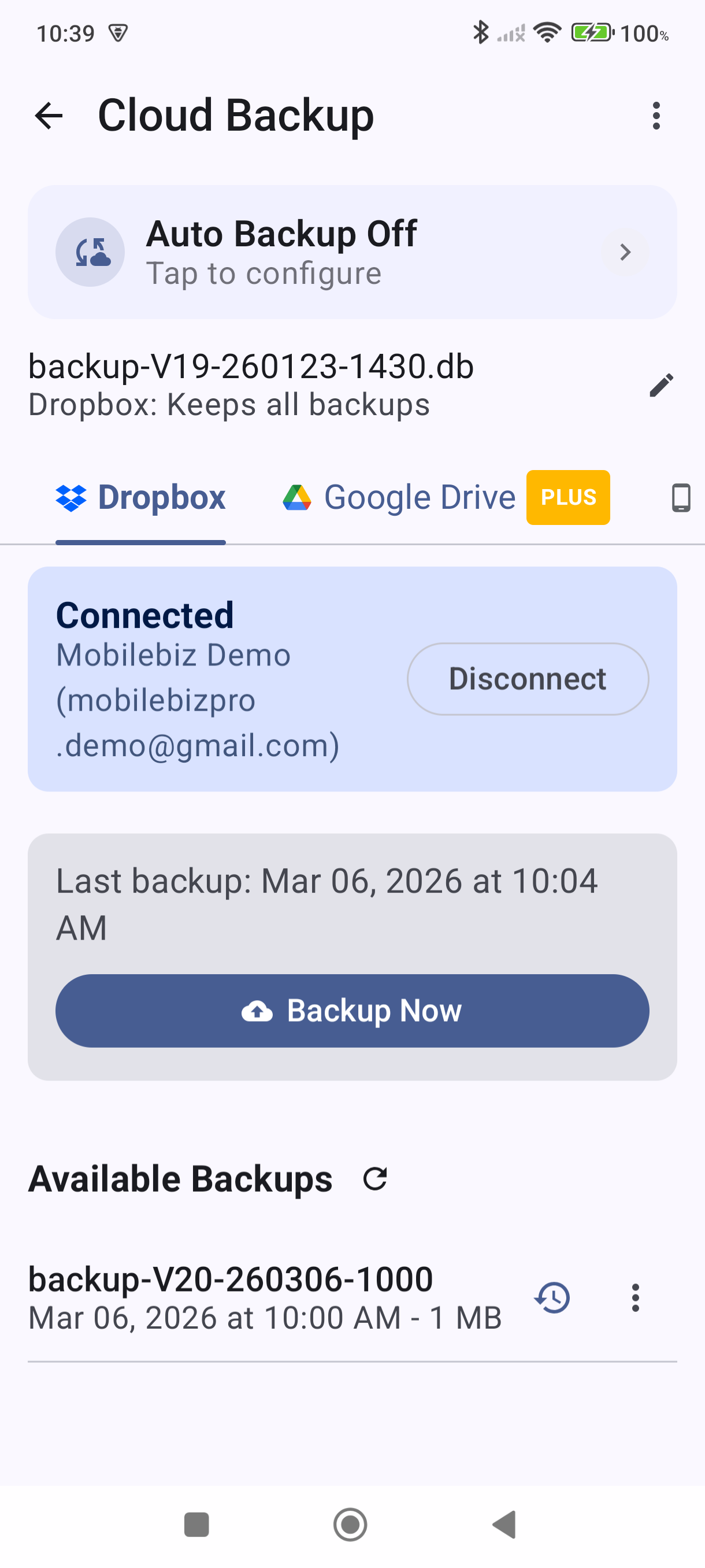
On the Cloud Backup screen, tap the auto-backup status bar at the top of the screen — it shows your current schedule, or that automatic backup is off. The Backup Settings sheet opens.
-
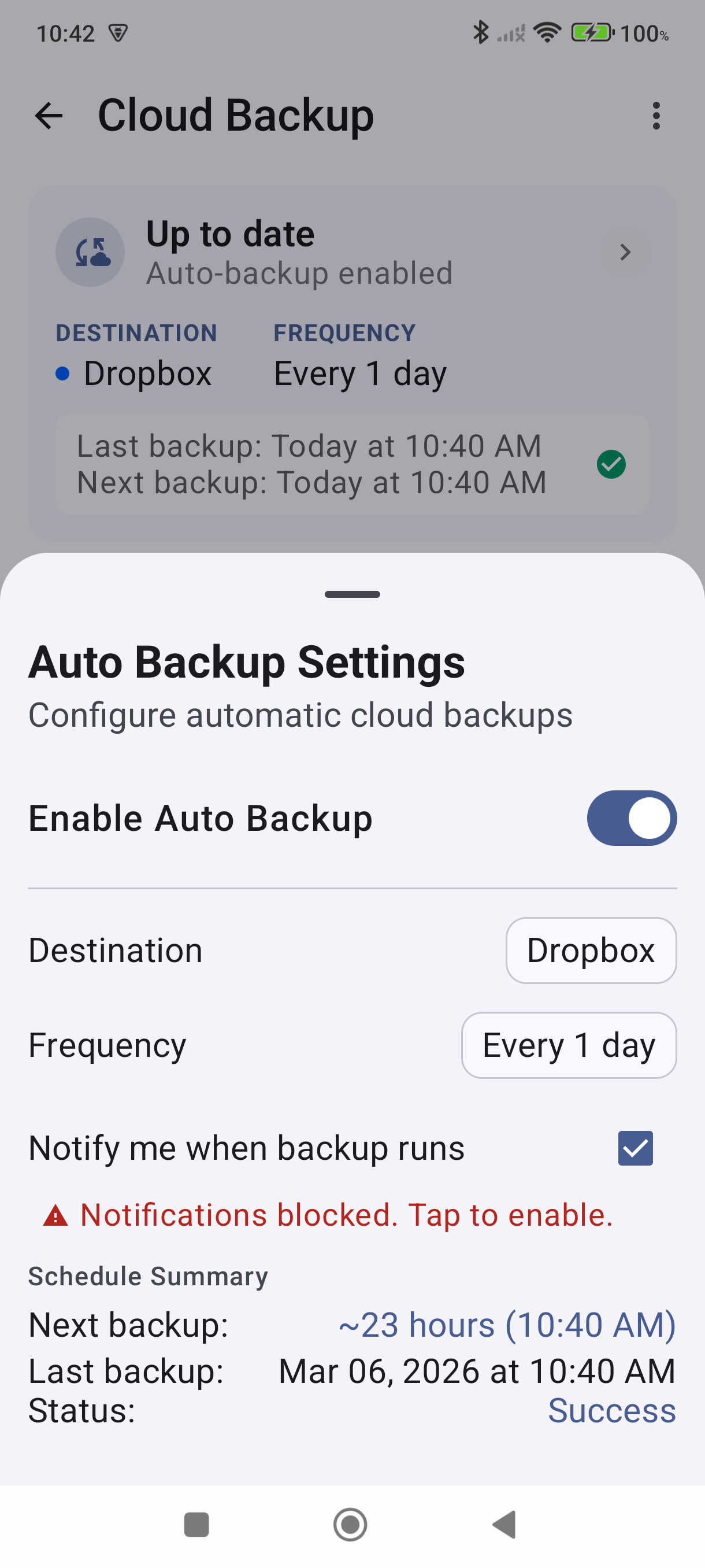
Toggle Cloud backup on. Set Destination to Dropbox, then use Also run on a schedule to choose how often backups run — options range from every 15 minutes up to every 7 days. Daily is a good default for most users. Optionally check "Notify me when backup runs" to receive a notification each time a backup completes.
-
Swipe the sheet down to close it. The status bar updates to show Dropbox as the destination and your chosen frequency. The first backup runs according to your schedule.
Good to Know
- Manual and scheduled Dropbox backups are free — no Plus subscription required.
- Backups are saved to the
/mobilebiz-pro/dbfolder in your Dropbox. You can browse them any time in the Dropbox app or at dropbox.com. - Backups include all companies in your database, not just the active company.
- To restore from a Dropbox backup, tap the restore icon (a clock with a back-arrow) on that backup's row and confirm. See How to Restore a Backup for full steps.
- If Dropbox shows as disconnected, tap Connect again to re-authenticate.
- Backup filenames and how many backups are kept are set from the row that shows an example filename (something like
backup-V25-260123.db) with a line such as "Keeps one backup per day" underneath and a pencil icon at the end. The row has no heading — tap it to open Backup Options. See How to Set Up Automatic Backups for details on those settings. - A tab can disappear. Once automatic backup is switched on, the Cloud Backup screen shows only the destination you picked plus Device — the other provider's tab is hidden. Switch automatic backup off, or change its destination, to get it back.
- The status bar shows your last backup time and the next scheduled run when a schedule is on.
- Back up when I close the app. The Backup Settings sheet also has a Back up when I close the app toggle, which saves your latest changes each time you exit the app. It's part of Plus.
Still stuck? Contact Support for help.