You need at least one customer before you can create an invoice. Adding one takes under a minute, and only a name is required.
Steps
-
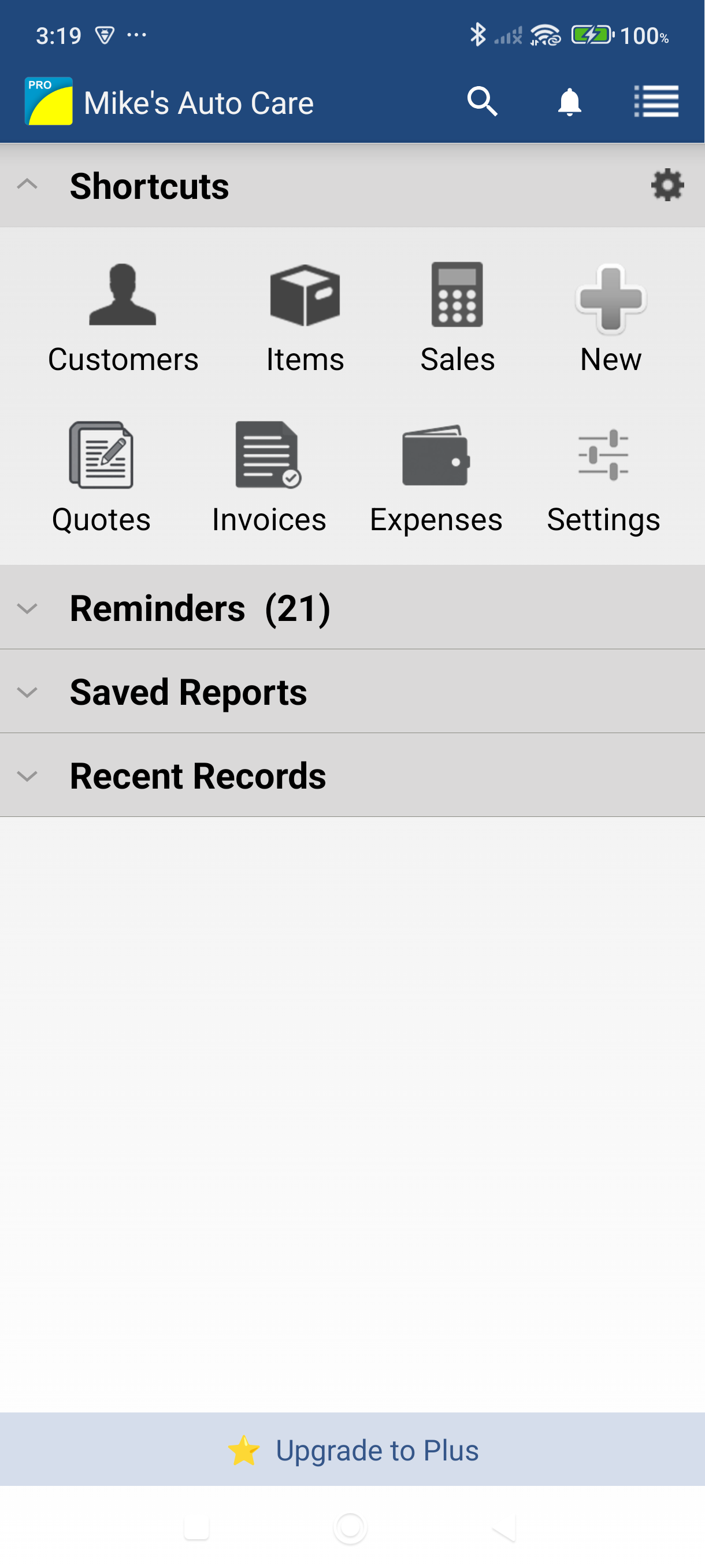
On the Home screen, tap the Customers shortcut. You can also swipe from the left edge — or tap the menu icon at the top left — and tap Customers in the menu.
-
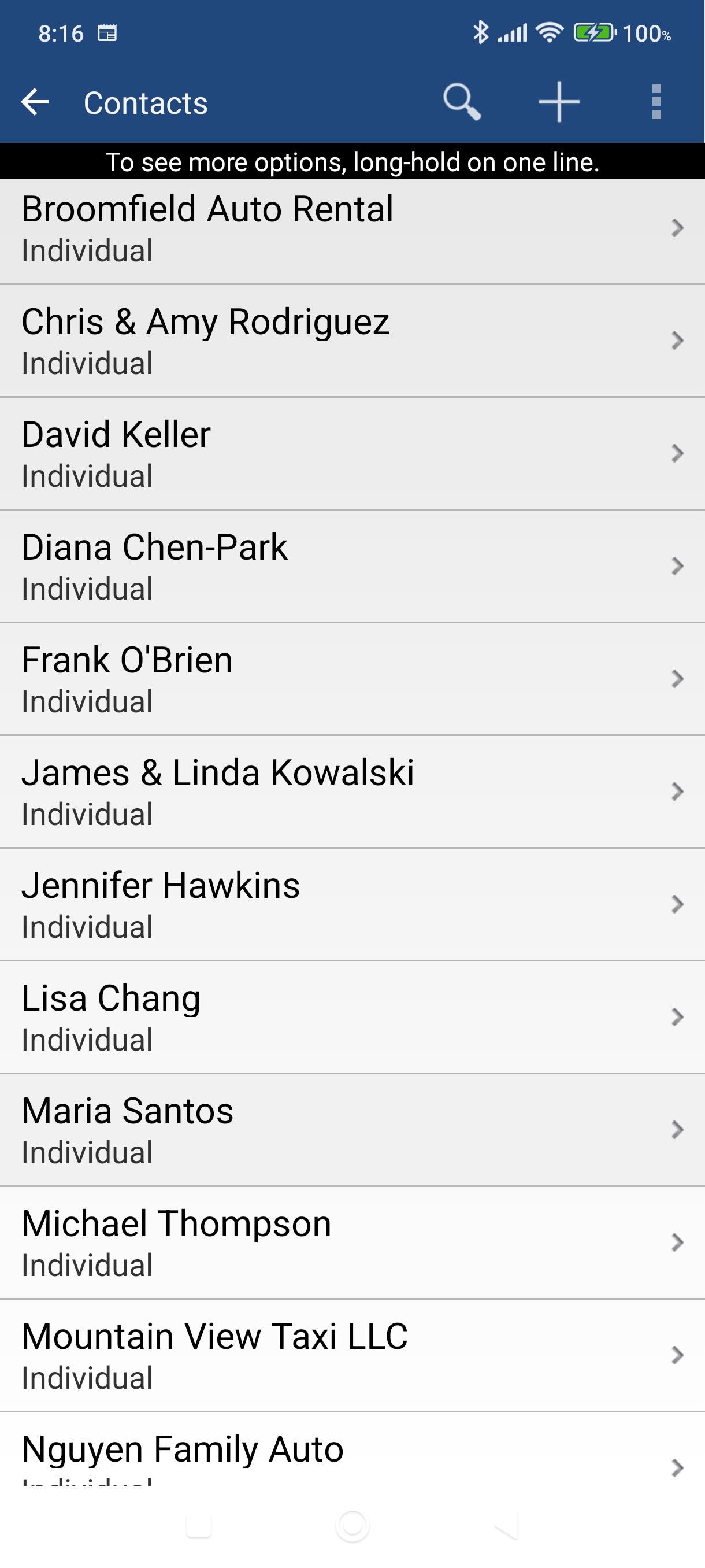
Tap the + button at the bottom right of the Customers list. This opens the New Contact form.
Your Customers list also has a search box, All / Active / Inactive chips, and a count of how many customers you're seeing — handy once your list grows. Each row shows the name with the email and phone below it, plus the date of the last transaction.
-
Enter the customer's name — the only required field. Fill in as much of the rest as you have; you can always come back and add more later.
Field Why it matters Name Required. Appears on every invoice for this customer. Company? Tick this if the customer is a business rather than an individual. Email Used as the address when you email this customer an invoice. Phone Tap it on the customer's details screen to call. Address Fills in the billing address on new invoices automatically. Under Financial Setup:
Field Why it matters Tax Code Tap Not Set to pick from your tax codes. Taxable? Ticked by default — untick it for a tax-exempt customer. Terms Sets the default due date on new invoices (for example, 30 Days). Price Level Tap Not Set to bill this customer from one of your price levels. 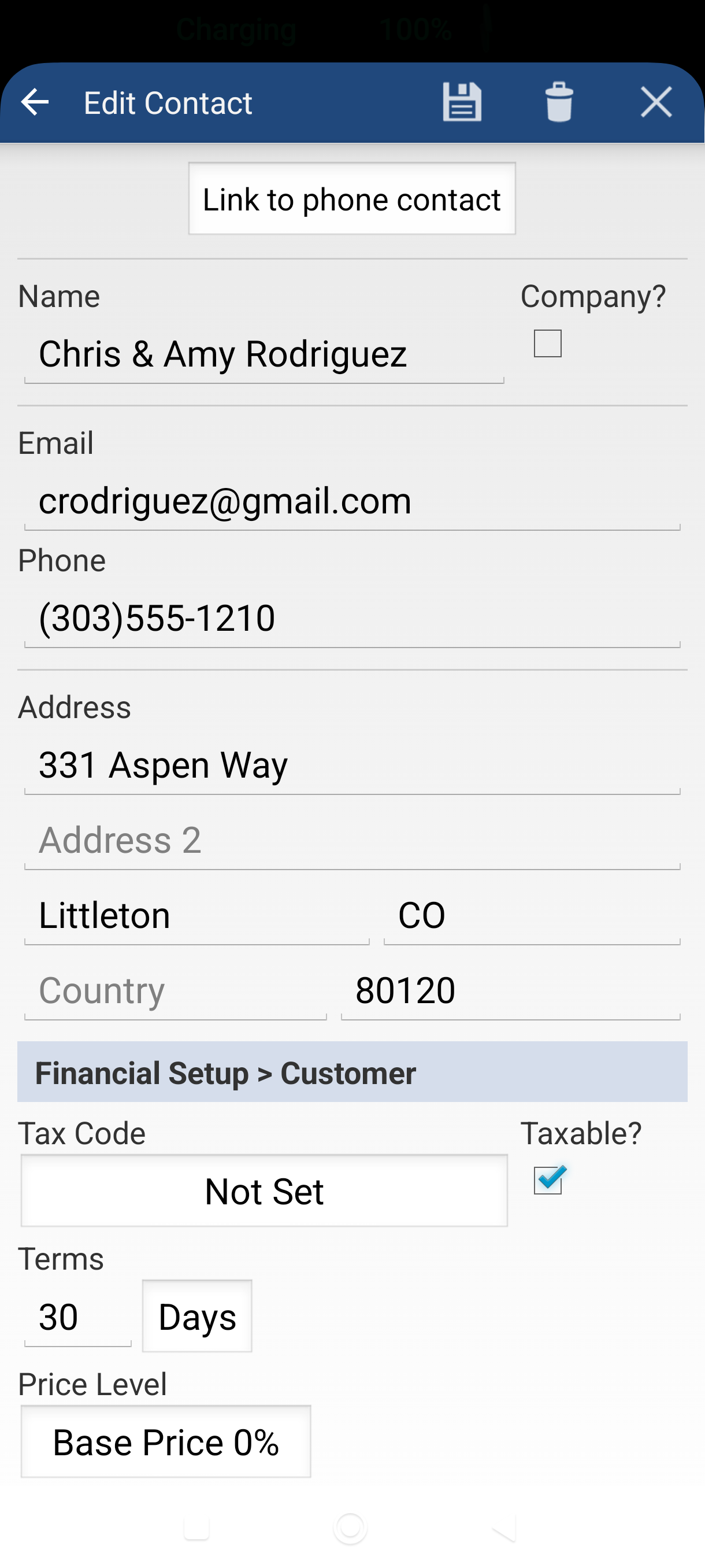
-
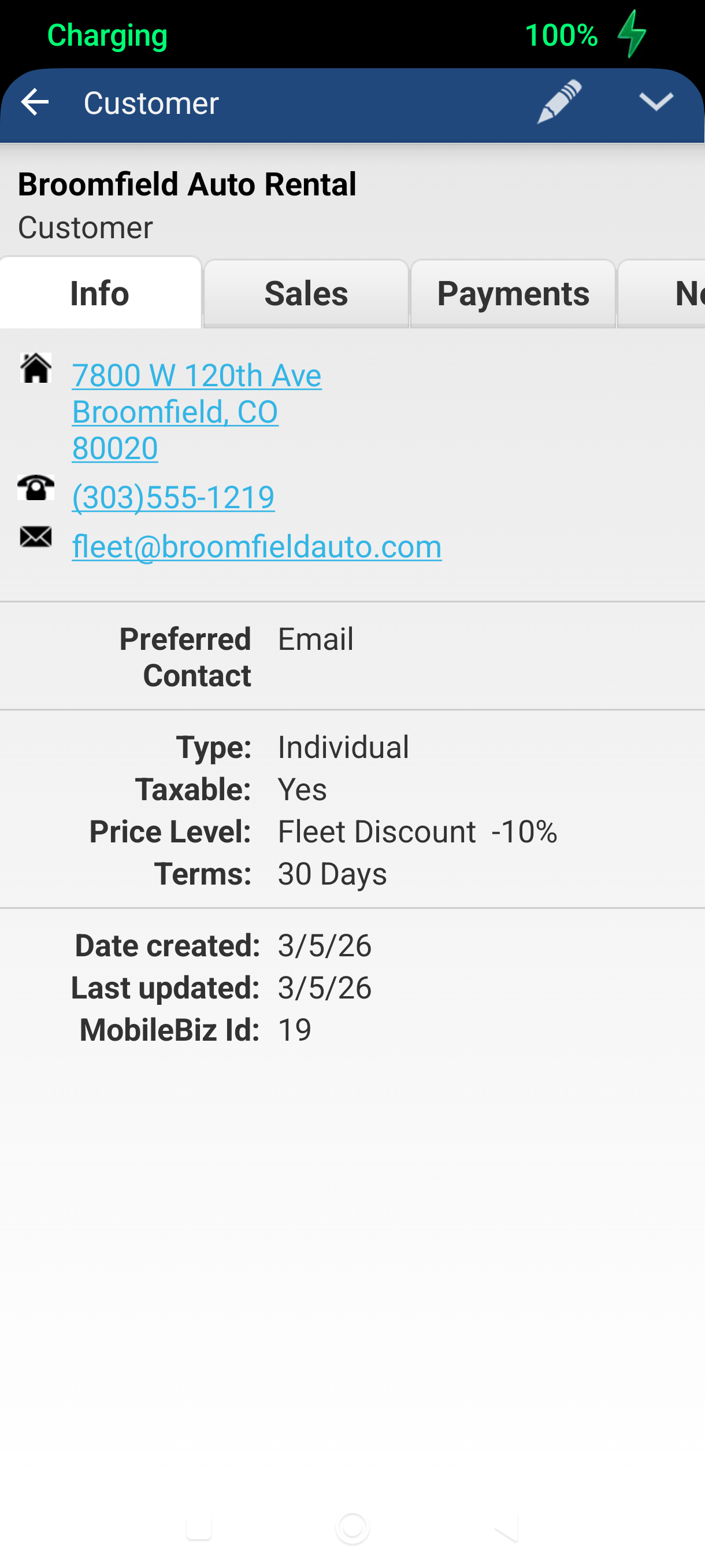
Tap Save. There's a save icon at the top of the screen and a Save button at the bottom — either one works. You land on the customer's details screen, ready to invoice.
Good to Know
- Already have this customer in your phone? Tap Link to phone contact at the top of the New Contact form to pull in their name, email, phone, and address at once.
- Forgot to add a customer mid-invoice? No need to back out — tap Add New Customer in the customer picker and carry on where you left off. See How to Create an Invoice.
- Need a detail the form doesn't cover? Tap Add / Edit beside Custom Fields at the bottom of the form to set up your own.
- Edit a customer any time by tapping the pencil icon on their details screen.
- Press and hold a customer in the list for quick actions such as New Invoice, New Estimate, Edit, and Generate Statement.
- Use the search box and the All / Active / Inactive chips at the top of the Customers list to find someone fast as your list grows.
- Moving a customer list across from another system? See How to Import Customers.
Still stuck? Contact Support for help.