Open the sale, tap Send in the bottom bar, tap Print receipt, then tap Print. That's the whole path. If you're taking cash and handing back change, use Take Cash and Give Change below instead — that route is what puts the cash and change lines on the paper.
Before you start: a Bluetooth thermal printer, 58 mm or 80 mm, paired with your phone and picked in the app — see Set Up a Bluetooth Thermal Printer. Thermal printers use heat-sensitive paper, so there is no ink to buy.
Print a Receipt for a Sale
-
Open the sale — an invoice, cash sale, quote, or sales order.
-
Tap Send in the bottom bar. A sheet of round tiles opens.
-
Tap Print receipt — the last tile, after Print PDF and Print HTML. The Receipt preview screen shows the slip exactly as it will print.
-
Tap Print. A green Receipt sent bar appears and the button changes to Print again — tap it for a second copy.
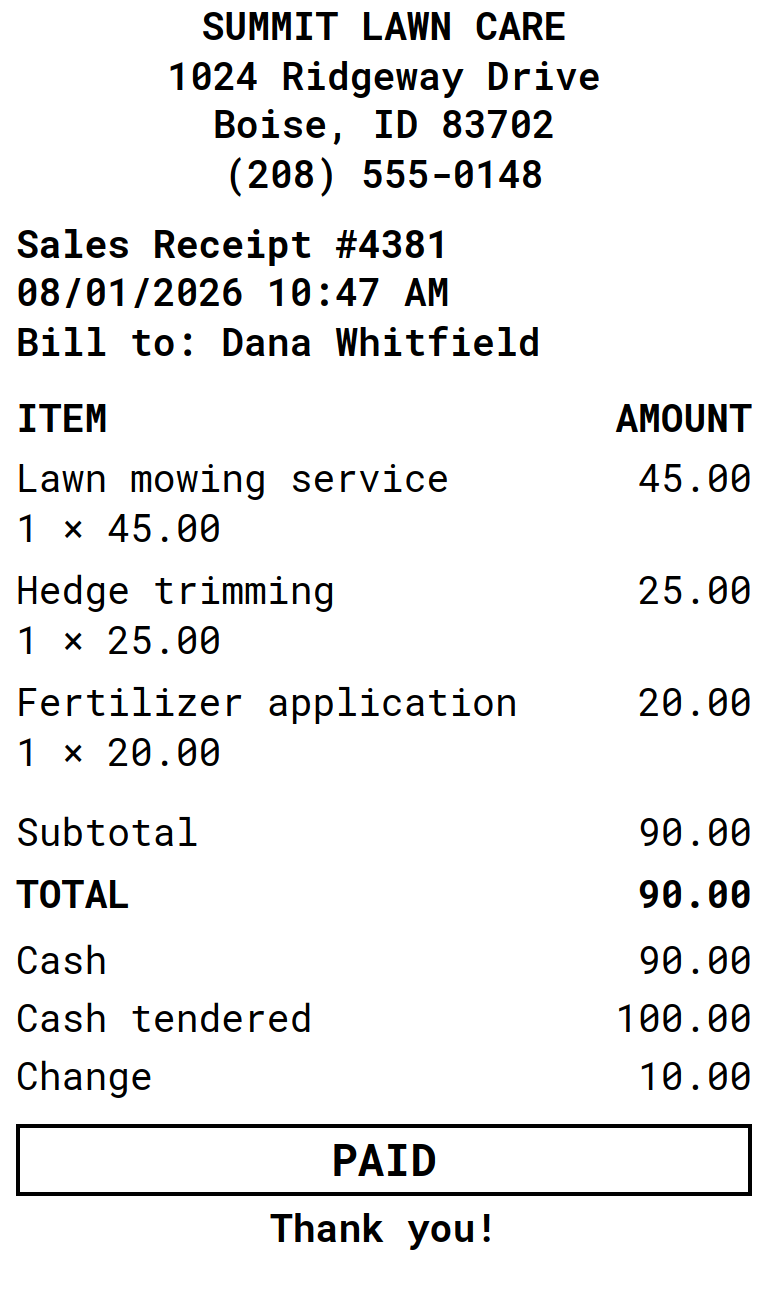
Actual print output at 58 mm.
If no printer is set up yet, the app asks first — Choose printer takes you to the printer screen, Share instead sends the slip as an image. If your printer is off or out of range you'll see Couldn't reach the printer, with Choose printer and Try again.
Take Cash and Give Change
Cash received and change are entered where you record the payment, not on the plain preview.
-
Open the invoice and tap Mark paid in the bottom bar.
-
Pick your cash option under Payment method in the Mark as Paid box.
-
Leave Print Small Receipt ticked, then tap Mark as Paid. The Cash & receipt screen opens.
-
Enter what the customer handed you in the CASH RECEIVED panel at the top. Tap Exact to fill the amount due, or tap a quick-cash chip — each chip adds its note to what's already typed, so 50 then 20 gives you 70.
-
Read the change out loud. CHANGE DUE appears under the field as you type; if the customer is short, it reads SHORT BY instead.
-
Tap Print. The slip prints with the Cash tendered and Change lines filled in.
The receipt picture below the panel is a preview — it redraws when you print, or when you tap the refresh icon in the top bar.
Print a Slip When a Customer Pays
Collecting against an open invoice prints a payment slip rather than a sales receipt: the amount received, how they paid, and what's still owed.
On the Accept Payment screen — see How to Record a Customer Payment — tick Print Small Receipt before you save. The slip opens as soon as the payment is applied — and if they paid cash, it opens with the same cash panel as above.
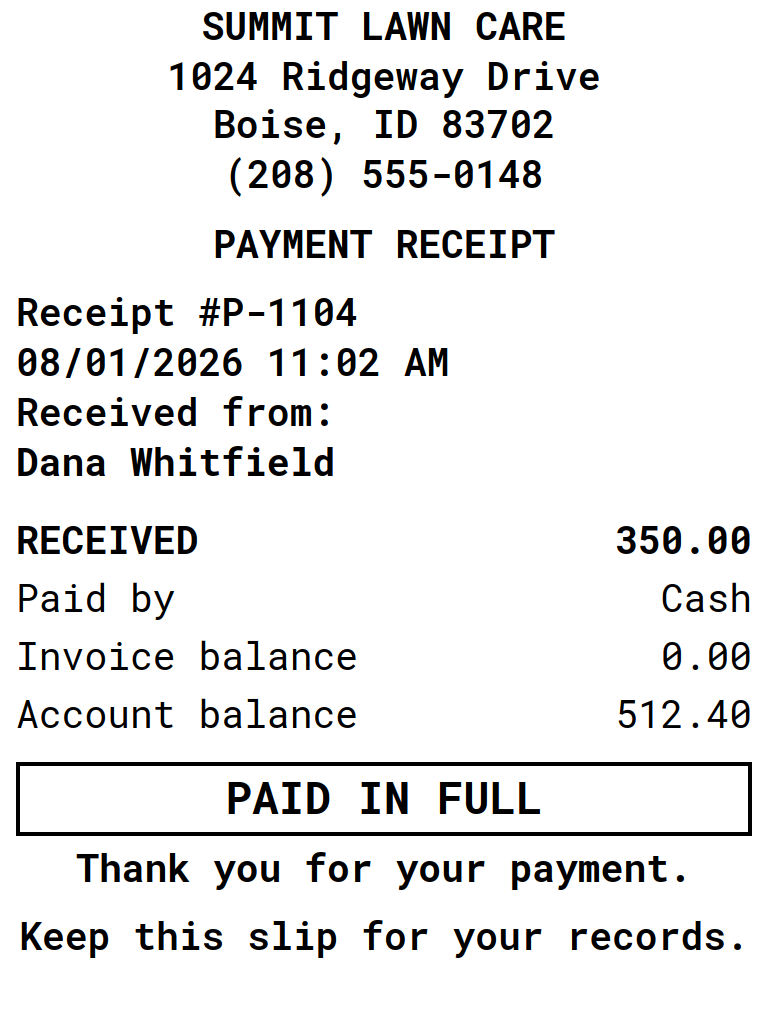
The balance lines print on their own — you don't fill anything in.
Change What the Receipt Says
Your logo, the text above and below, which columns the items use, which totals print — all of it is editable. From any receipt preview, tap the Customize receipt icon (the sliders) in the top bar to open Receipt setup.
Full walkthrough: Customize Your Receipt.
Good to Know
- No internet needed. Printing goes phone-to-printer over Bluetooth, so it works in a basement, a van, or a market stall.
- Share instead of print. Share on the receipt screen sends the same slip as an image — handy when the printer is out of paper or the customer wants it on their phone.
- Without a printer set up, the tick box reads Share Small Receipt and starts unticked. Tick it and the preview opens — tap Share to send the slip as an image, no hardware required.
- Receipt size — the Paper (58 mm / 80 mm) and Text settings — lives on the Receipt printer screen, together with Quick cash amounts — the chips you tap when taking cash. You can also reach them from the Edit amounts link on the cash panel.
- Your printer choice stays on this phone — Bluetooth pairings don't travel between devices. Your receipt design belongs to the company, so it follows your data.
- Collecting for several invoices in one visit? Accept the payment across them and the app prints one combined slip covering everything settled in that visit.
- Quotes and sales orders print under their own titles and without the PAID stamp — they aren't proof of sale.
- Running a delivery route or a counter? See the guides Take the Order at the Stop and Turn Your Phone into a Counter Till.
Receipt printing is part of Plus — see About Plus.
Still stuck? Contact Support for help.