Want to know whether a job actually paid off? MobileBiz Pro groups every invoice and payment for a single job under one Project, so you can see what it brought in at a glance and stack that against your costs.
What You'll Need
Before you start: Turn on Projects first. Open the side menu, go to Settings, and under Invoicing & documents tap Projects, then switch Use projects on. This adds a Projects entry to the side menu. Then tag your invoices and sales to the job as you create them — see Track Jobs with Projects. A job's numbers are only as complete as what you've tagged to it.
How to Read a Job's Money
-
Open the side menu and tap Projects. This lists every job for the active company.
-
Tap the job you want to check. This opens the project, which has three tabs: About, Transactions, and Notes.
-
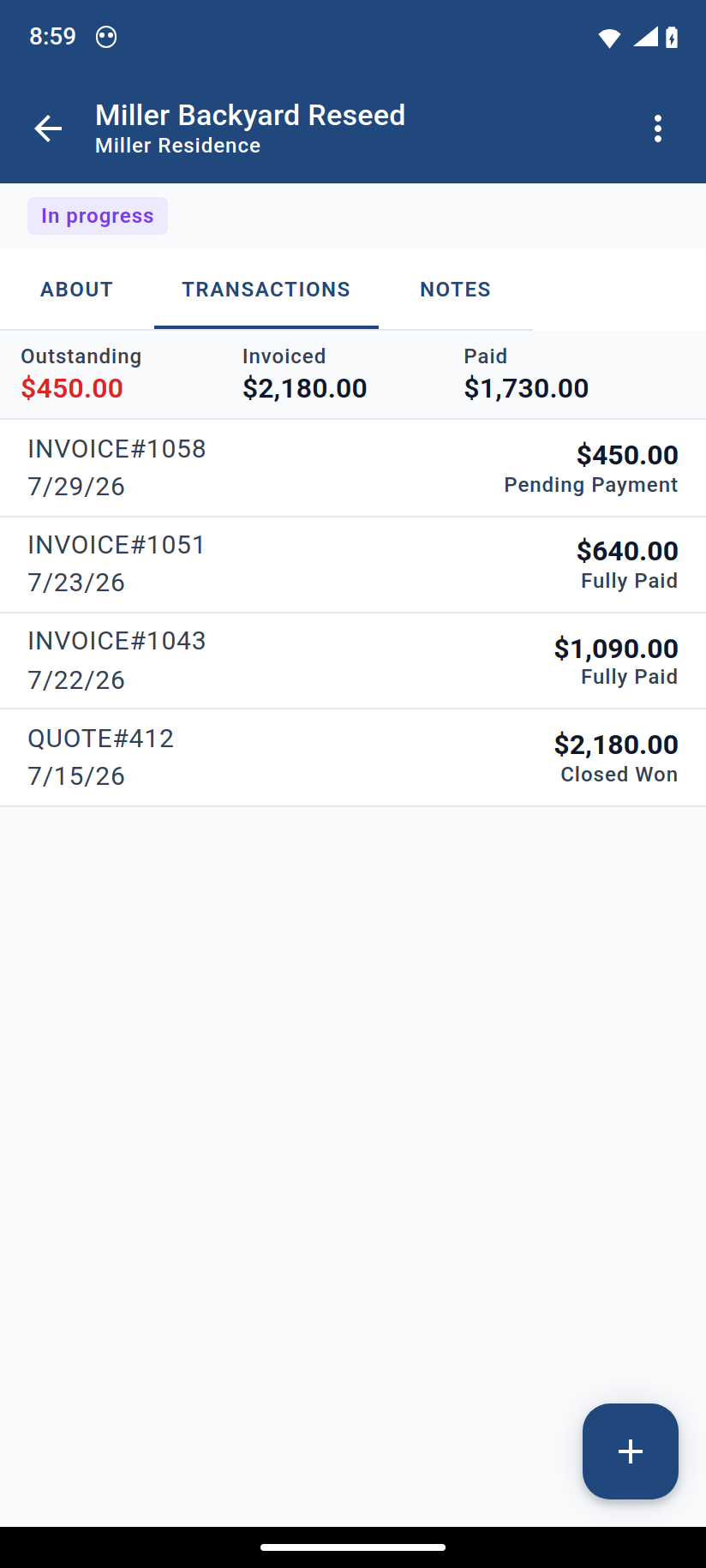
Tap the Transactions tab. At the top you'll see three running totals for that job:
- Outstanding — what's still owed. When this is above zero, it shows in red so overdue money is easy to spot.
- Invoiced — the total of all invoices and cash sales tagged to the job. (Estimates and quotes don't count here — only real sales do.)
- Paid — how much of that you've actually collected.
-
Scan the list below the totals. Every transaction tagged to the job appears here — each invoice, cash sale, quote, and any other record — with its amount and status. This is the money side of the job in one screen.
-
Weigh it against your costs. Compare what the job Paid (money in) against what the work cost you (materials, labor, subcontractors). If the income clears your costs, the job made money.
Good to Know
- The Outstanding / Invoiced / Paid strip only appears once the job has at least one invoice or cash sale. A job with nothing billed yet won't show it.
- Tap any transaction in the list to open that record — handy for checking a specific invoice or a payment that hasn't landed.
- Projects live under a customer. You can also reach a job from the customer's record: open the customer and tap the Projects tab.
- Outstanding in red is your follow-up list. If a finished job still shows a red balance, that's money to chase before you call it profitable.
- Don't see the Projects menu entry? Turn the feature on first — Settings › Invoicing & documents › Projects › Use projects.
- Want the big-picture view across customers and items instead of one job? See What Reports Are Available for the Customer Profitability and Item Profitability reports.
Still stuck? Contact Support for help.