Connect a Bluetooth thermal receipt printer to MobileBiz Pro in a few minutes: pair it with your phone, pick it in the app, and print a test slip. This article covers the whole path, including the Bluetooth part.
What You'll Need
Before you start:
- A Bluetooth thermal receipt printer using 58 mm or 80 mm paper. Common generic models work — there's no brand list to check against.
- The printer charged (or plugged in) and loaded with paper, glossy side facing the print head.
- Receipt printing is a Plus feature. See About Plus.
Steps
-
Turn the printer on. Hold the power button until the light comes on.
- Most receipt printers are discoverable over Bluetooth whenever they're on. A few have a separate pairing button — check the sheet that came in the box if yours doesn't show up in the next step.
-
Pair it with your phone. Open your phone's Settings › Bluetooth (on many phones: Settings › Connected devices › Pair new device). Wait a moment for the scan, then tap the printer in the list.
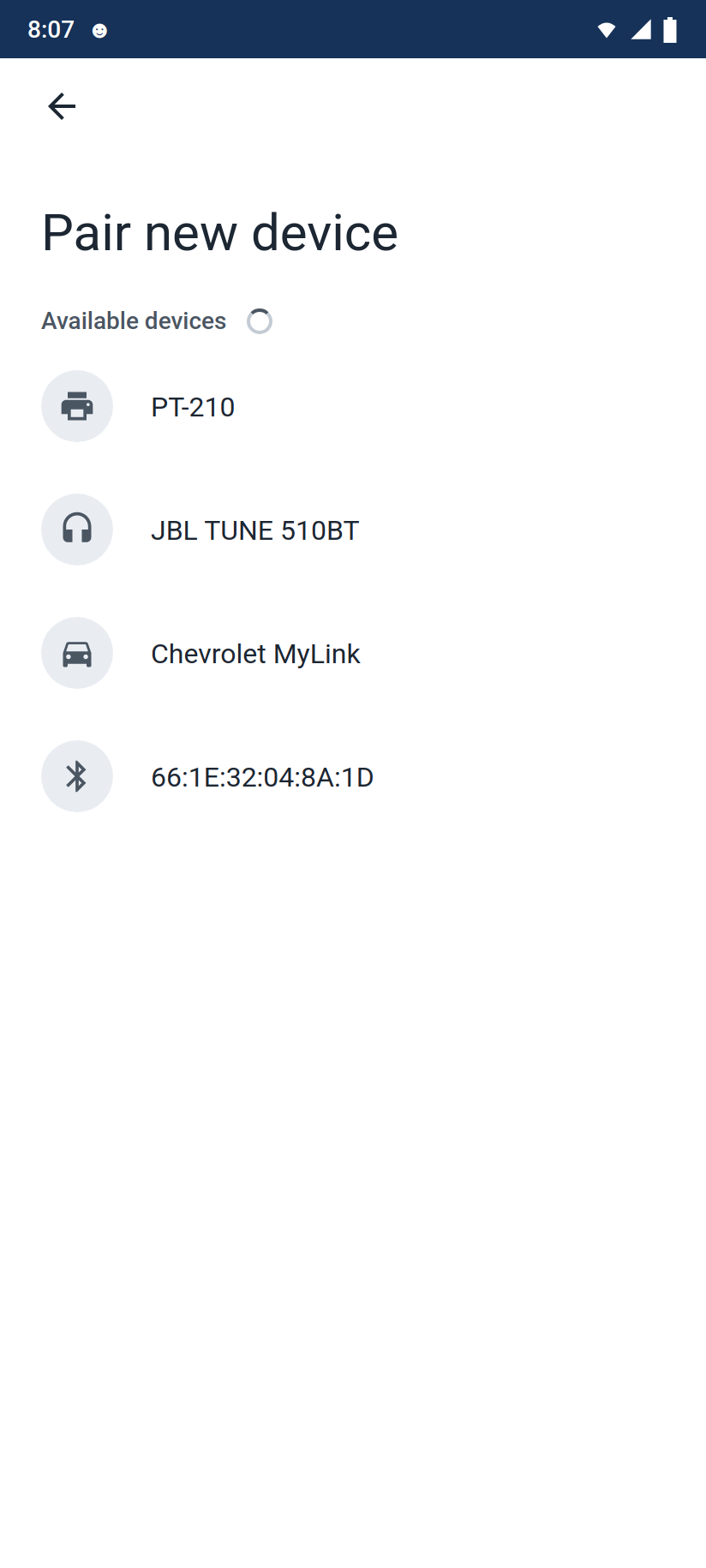
A typical scan result. The printer is usually the one named after its model — here PT-210 — among your other devices.
- Printers rarely announce themselves as printers. Look for the model name printed on the unit or its box — names like PT-210, MTP-II, RPP02N — or a generic entry such as "BlueTooth Printer".
- If you're asked for a PIN, try 0000 or 1234 — the two defaults nearly all receipt printers use.
- Exact menu names vary by phone brand; the flow is the same: Bluetooth › scan › tap the printer.
-
Choose it in MobileBiz Pro. Open the side menu › Settings, then under Invoicing & documents tap Receipt printer (its summary reads Bluetooth thermal printer). Allow the Bluetooth permission when your phone asks. Under Choose a printer, every device your phone is paired with is listed — tap the one with your printer's model name (from step 2).
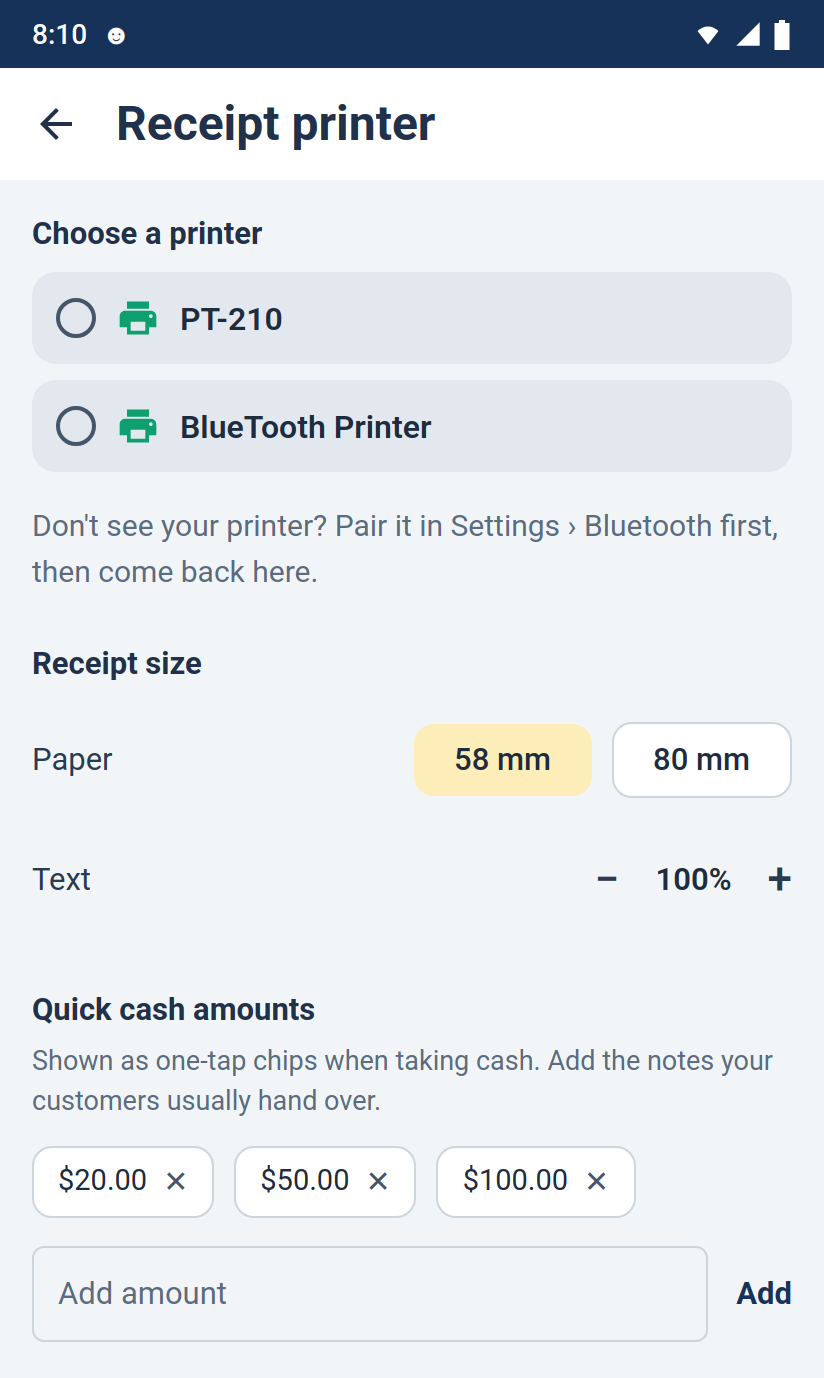
Nothing is chosen yet. Headphones, car stereos and everything else you've paired show up here too, so go by the name.
- You can also land here the first time you tap Print receipt on a sale.
-
Print a test slip. Your printer now shows in a highlighted card at the top. Tap Test print.
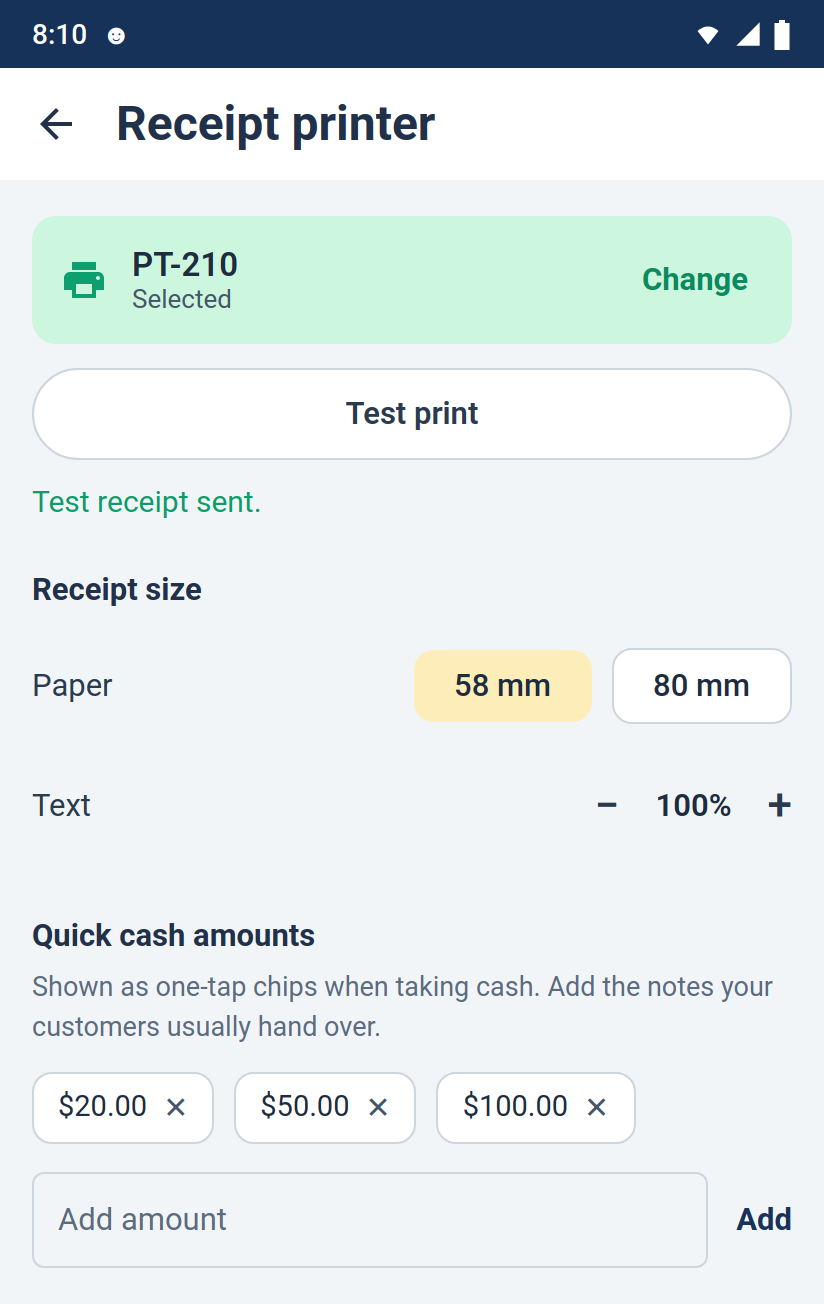
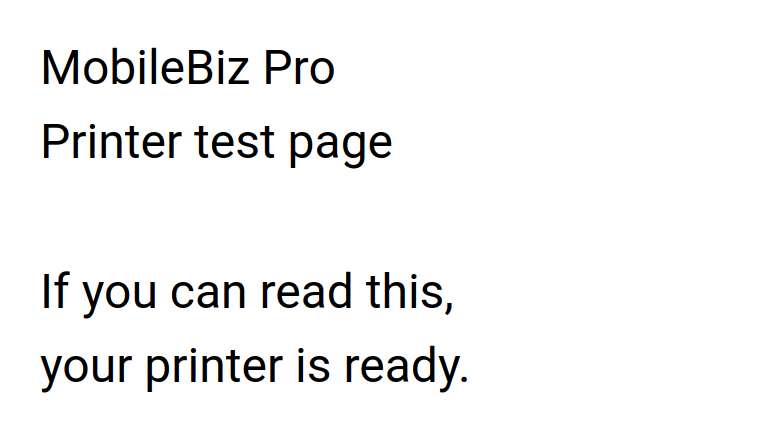
When you see Test receipt sent and the slip comes out, you're connected. If it says it couldn't connect, make sure the printer is on and in range, then try again.
-
Match the paper. Under Receipt size, pick 58 mm or 80 mm to match the roll your printer takes — most compact printers use 58 mm.
-
Size the text. If print comes out too small or lines wrap oddly, step Text up or down, then print a real receipt from a sale to check — the test page always prints at one fixed size and ignores these settings.
Good to Know
- Quick cash amounts — the chips on this screen (20, 50, 100 by default) appear as one-tap buttons when you take cash on a sale. Add the notes your customers usually hand over.
- Got a second printer? Tap Change on the printer card to switch.
- Your printer choice is saved to this phone only — Bluetooth pairings belong to the phone, so do steps 2–4 once on each device that prints.
- See also: Customize Your Receipt — logo, header and footer wording on the printed slip.
- Next: Print Receipts with a Bluetooth Thermal Printer — printing from a sale, taking cash with change, and making the receipt yours.
Troubleshooting
- The printer isn't in the app's list — the list shows every device your phone is paired with, so if yours isn't there it isn't paired yet. Pair it in your phone's Settings › Bluetooth first (step 2), then return to the Receipt printer screen.
- The list is empty but you did pair it — you may have denied the Bluetooth permission; reopen the screen and allow it. Also check Bluetooth is on — the app will say "Bluetooth is off. Turn it on and try again."
- "Couldn't connect" on test print — check the printer is on, charged, and within a few meters. Some printers sleep after idle time; press the power button once and try again.
- The slip is blank — the paper roll is in backwards. Thermal paper prints on one side only, so flip the roll and put the glossy side against the print head.
- You unpaired or replaced the printer — the app notices a saved printer that's no longer paired and asks you to pick another, so printing never fails silently.
Still stuck? Contact Support for help.