Export any Invoices, Estimates, Sales Orders, or Cash Sales list to a CSV file in a couple of taps — no setup required.
Steps
-
From the Dashboard, tap Invoices (or Estimates, Sales Orders, or Cash Sales).
-
Only want some? Tap a date chip like This month, or filter by customer, before exporting. See Export Just Part of the List below.
-
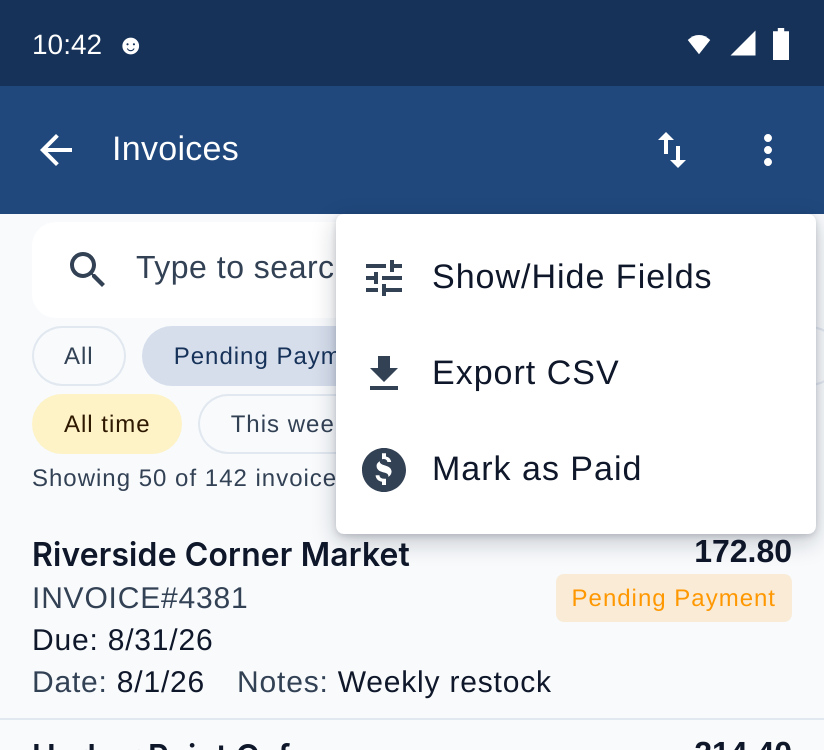
Tap the three-dot menu (⋮), then Export CSV.
-
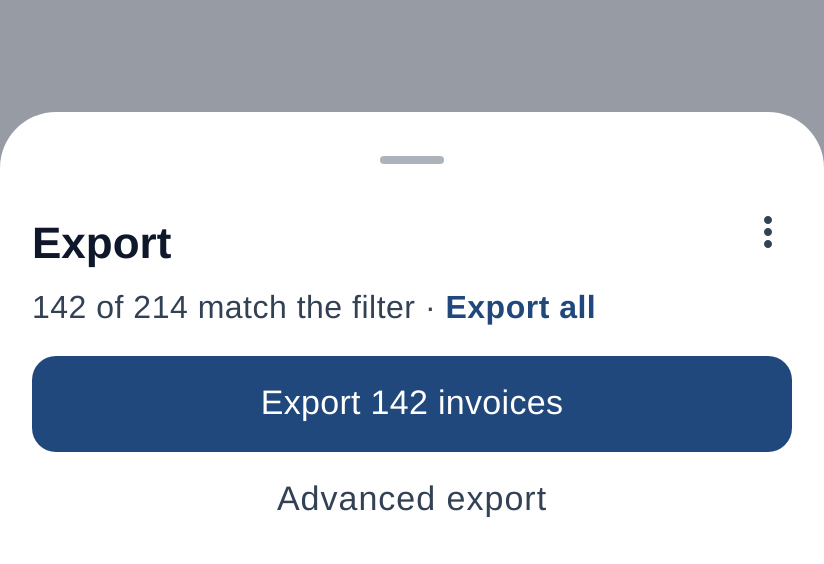
Tap the Export button. It shows how many records will be exported — for example, Export 142 invoices. If you filtered first, the line above it reads 142 of 214 match the filter; tap Export all to export everything instead.
-
Choose what to do with the file. MobileBiz Pro writes it right away — this works even offline — then shows a result sheet:
- Share — send it through any app on your device.
- Email — attach it to a new email.
- Open in a spreadsheet — opens it in your spreadsheet app.
- Save to device — save it to your phone, tablet, or a connected folder.
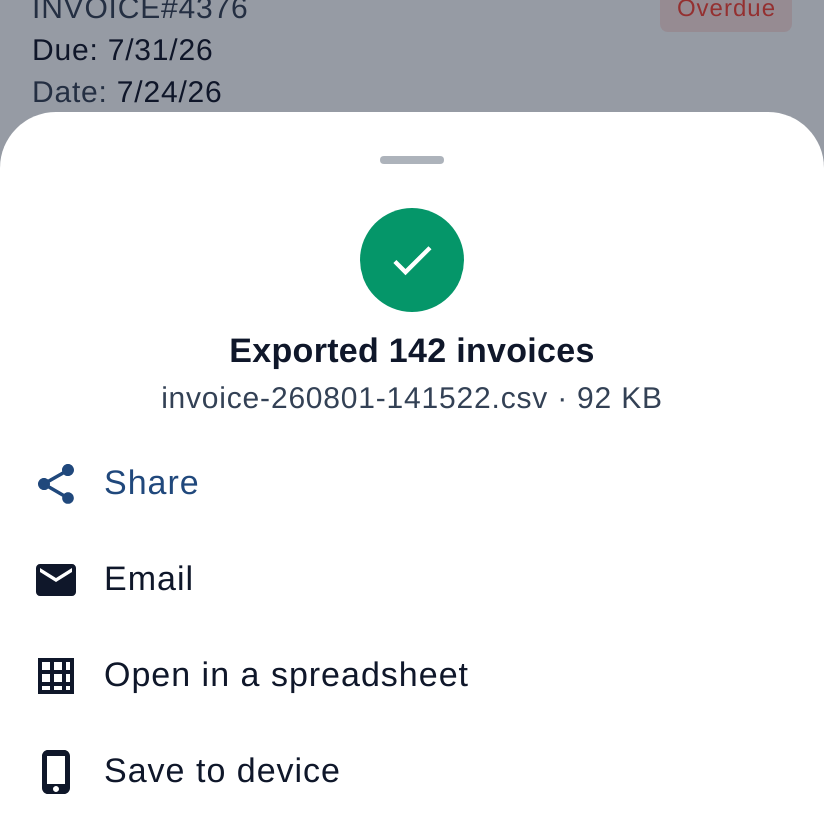
Excel and Google Sheets both open this file directly — no conversion needed.
Export Just Part of the List
- By date: tap a chip above the list — This week, This month, Last 30 days, Last 60 days, or Last 90 days.
- By customer: tap the filter icon at the right end of the search bar, pick a customer, then tap Apply.
What's in the File
The file has one row for each item sold — an invoice with 3 items becomes 3 rows. The invoice-level columns (like Total amount) repeat on every row for that invoice, so don't add them up.
Invoices and Cash Sales get these 15 columns, in this order:
| # | Column | What it holds | Repeats per item? |
|---|---|---|---|
| 1 | Date | The document date | Yes |
| 2 | Type | The document type — invoice, cash sale, estimate, or sales order | Yes |
| 3 | Number | The full document number, for example INVOICE#4381 | Yes |
| 4 | Status | For example Pending Payment or Fully Paid | Yes |
| 5 | Customer | The customer's name | Yes |
| 6 | Item | The item or service sold | — |
| 7 | Item description | The line's description | — |
| 8 | Quantity | How many | — |
| 9 | Rate | The price per unit | — |
| 10 | Line amount | Quantity × rate for that line | — |
| 11 | Discount total | The invoice's total discount | Yes |
| 12 | Tax total | The invoice's total tax | Yes |
| 13 | Total amount | The document total | Yes |
| 14 | Amount paid | Payments received so far | Yes |
| 15 | Balance due | What's still owed | Yes |
Estimates and Sales Orders get the first 13 — they don't carry payments, so there's no Amount paid or Balance due.
Here's how one invoice with three items looks in the file — scroll sideways to see every column:
| Date | Type | Number | Status | Customer | Item | Item description | Quantity | Rate | Line amount | Discount total | Tax total | Total amount | Amount paid | Balance due |
|---|---|---|---|---|---|---|---|---|---|---|---|---|---|---|
| 2026-08-01 | invoice | INVOICE#4381 | Pending Payment | Riverside Corner Market | Sparkling Water 12-pack | Sparkling water, 12 × 355 ml | 6 | 12.00 | 72.00 | 0.00 | 12.80 | 172.80 | 0.00 | 172.80 |
| 2026-08-01 | invoice | INVOICE#4381 | Pending Payment | Riverside Corner Market | Craft Cola 24-pack | Craft cola, 24 × 355 ml | 2 | 24.00 | 48.00 | 0.00 | 12.80 | 172.80 | 0.00 | 172.80 |
| 2026-08-01 | invoice | INVOICE#4381 | Pending Payment | Riverside Corner Market | Ginger Beer 6-pack | Ginger beer, 6 × 330 ml | 4 | 10.00 | 40.00 | 0.00 | 12.80 | 172.80 | 0.00 | 172.80 |
Need other columns — like shipping, notes, or your own custom fields? Build your own layout: How to Use Advanced Export to Choose Your CSV Columns.
Don't See Export CSV?
- You're on All Sales. The combined list mixes record types, so it doesn't offer CSV export. Open Invoices, Estimates, Sales Orders, or Cash Sales instead.
- You're on the older list screen. Tap the three-dot menu (⋮) and choose Switch to new list — Export CSV lives on the new list.
Good to Know
- You can also start from Settings → Export CSV or Manage Data → Export CSV — this opens a chooser where you tap a transaction type to land on that list.
- If you have Dropbox linked or a backup folder set up, MobileBiz Pro also quietly saves a copy there — the result sheet notes it.
- Need the older format some accounting imports expect? On the Export sheet, tap its ⋮ menu and choose Export in original format — still free, unchanged.
- See also: What Reports Are Available in MobileBiz Pro? — Saved Reports has its own, separate CSV exporter.
Still stuck? Contact Support for help.